How To Transfer Photos From Android Phone To PC/Laptop [2026]
Moving photos from a phone to a computer is something most people need to do often. Phones fill up fast. Photos also matter more than apps. You may want a safe backup. You may want to edit images on a bigger screen. This guide explains how to transfer photos from Android to PC without stress. It also helps if you wonder how to transfer photos from phone to computer in simple ways.
The process looks confusing at first. It does not have to be. Android gives many options. Some are wired. Some are wireless. Each option fits a different need.
This article explains how to transfer photos from Android to PC using clear steps. It also shows how to transfer photos from phone to computer safely. You will also learn how to transfer pictures from your phone to laptop at home or office. Every method to transfer photos from Android to computer is explained in plain language.
Things to Check Before You Start
Before you move any photos, a few checks help avoid problems. These steps save time and prevent data loss.
Precautions Before Photo Transfer
- Make sure your phone battery is charged.
Low battery can stop the transfer midway and cause errors. - Use a good USB cable if needed.
Cheap or damaged cables often disconnect without warning. - Unlock your phone during transfer.
Many phones block access when locked. - Check storage space on the computer.
Photos need enough free space to copy. - Close heavy apps on the phone.
This keeps the phone stable during transfer. - Use trusted apps only.
Unknown apps can harm files or steal data. - Back up important photos first.
Cloud backup adds extra safety. - Avoid moving files while copying.
Wait until the process fully ends.
Which File Transfer Is Faster, Wireless Or Wired?
Wired transfer is usually faster. A USB cable gives a steady connection. It handles large photo folders better. Wireless transfer is slower. Speed depends on Wi-Fi quality. It is useful when cables are not available.
For speed and stability, wired is better. For ease and comfort, wireless works fine.
How To Transfer Photos From An Android Phone To A PC
There are many ways to move photos. Each method suits a different user. Some prefer cables. Some prefer apps. Choose what fits your routine and tools.
Method 1: Using a USB Cable
This is the most common method. It works on almost every Android phone. No internet is needed. It is reliable and quick.
Many users choose this method first. It is built into the system. You do not need extra software. It also supports large file transfers. It is ideal for full photo folders.
It also keeps your photos private. Files move directly. Nothing goes online. This method is good for work computers too.
Why use this method
• Fast and stable connection
• No internet required
• Works on all Windows systems
• Best for large photo collections
Steps
Step 1. Use a USB cable to link your phone to the PC.
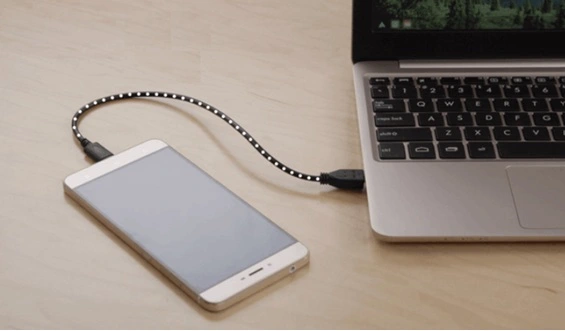
Step 2. Open File Explorer and copy photos from the phone folder.
Method 2: Using Bluetooth
Bluetooth works without cables. It is built into phones and PCs. It is useful for a few photos.
This method is slower. It is not good for many files. It works best for quick sharing. No internet is required.
It is helpful when you forget your cable. It also works with older systems. Just keep devices close.
Why use this method
• No cable needed
• Works without internet
• Easy for single photos
• Built into most devices
Steps
Step 1. Enable Bluetooth on both devices. (Android and PC). Connect them.
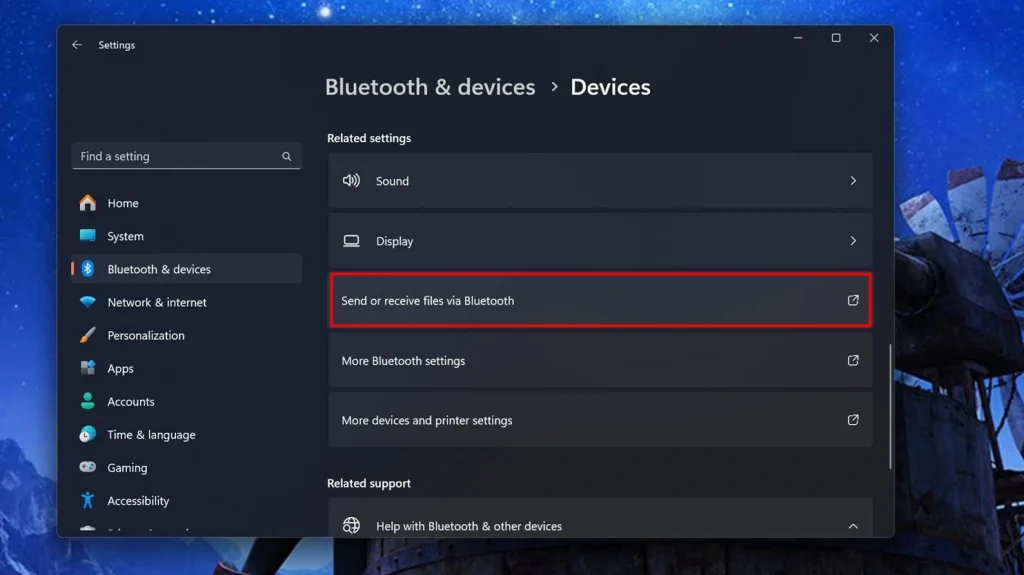
Step 2. Send pictures from your phone to the computer.
Method 3: Using Google Photos
Google Photos is a cloud service. Photos are uploaded from the phone. You download them on the computer later. This method needs the internet. It is good for backups. Photos stay safe even if the phone is lost.
It is useful for long-term storage. You can access photos anywhere. It also keeps images organized.
Why use this method
• Automatic photo backup
• Access from any device
• No cable required
• Safe cloud storage
Steps
Step 1. Upload pictures from the phone into Google Photos.
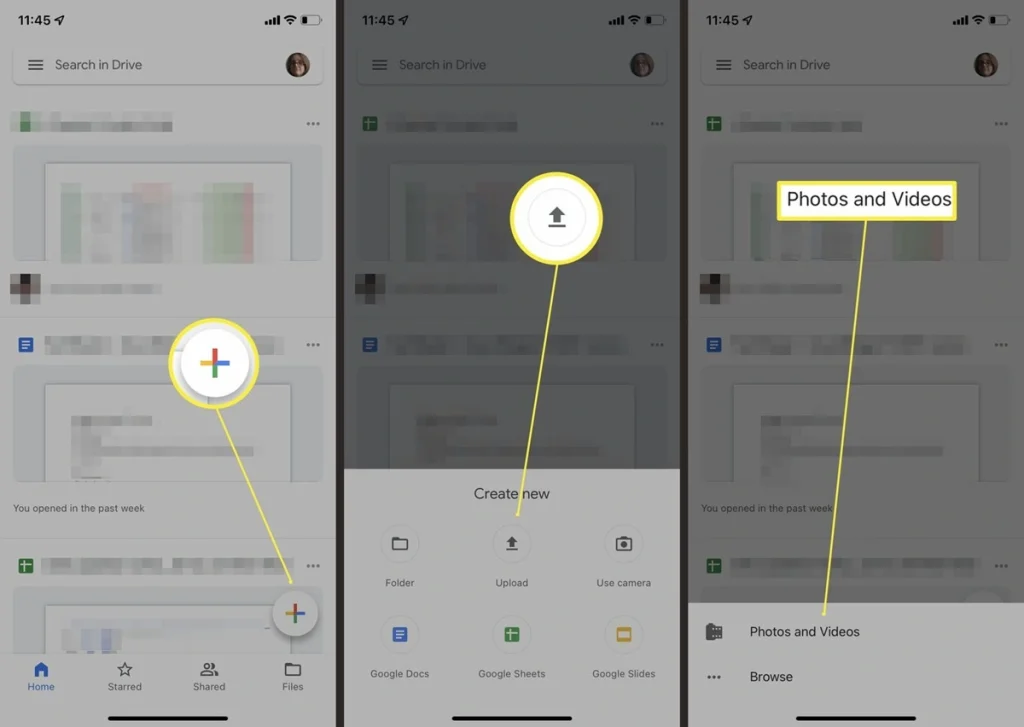
Step 2. Open Google Photos on the computer and download them.
Method 4: Using Wi-Fi File Transfer Apps
Many apps allow wireless transfer. They use Wi-Fi instead of the internet. Both devices connect on the same network.
This method is faster than Bluetooth. It avoids cables. Apps like AirDroid help with this.
It is good for frequent transfers. Setup takes a few minutes. After that, it is smooth.
Why use this method
• Faster than Bluetooth
• No USB cable needed
• Works on the same Wi-Fi
• Easy app interface
Steps
Step 1. Install the same app on the phone and PC. You can use the Easy Share :WiFi File Transfer app.
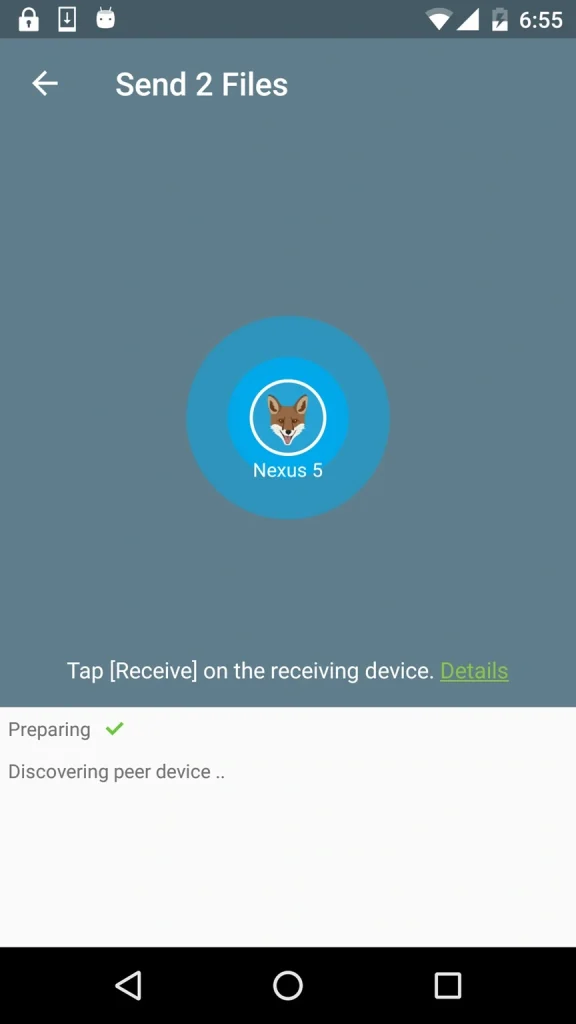
Step 2. Connect both and transfer photos wirelessly.
Method 5: Using Email or Messaging Apps
This method is best for very few photos. You send photos to yourself. Then download them.
It is simple. No setup is needed. It is slow for many files.
It works when nothing else is available. File size limits apply.
Why use this method
• Very easy to use
• No extra tools
• Works anywhere
• Good for a few images
Steps
Step 1. Send photos to your email or chat.
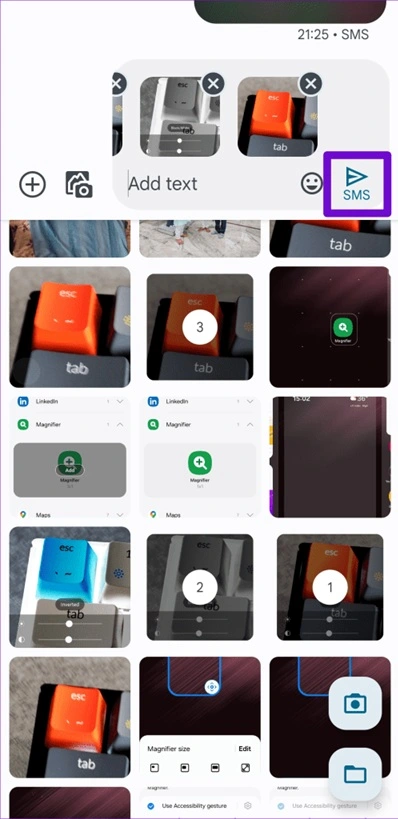
Step 2. Open the message on the computer and download.
Advanced Tips for Smooth Photo Transfer
Small habits can improve your experience. These tips help avoid common problems.
Smart Tips for Better Transfers:
- Rename photo folders before copying. Give each folder a clear, descriptive name (e.g., “Vacation_Paris_2025” instead of “DCIM_001”). This makes it easier to locate specific events or trips later without confusion.
- Transfer in smaller batches. Moving files in chunks (like 200–300 photos at a time) helps prevent transfer errors and makes troubleshooting easier if something goes wrong.
- Use original quality settings. Always select “Original” or “Full Resolution” when transferring. Compressed versions may save space but can reduce clarity, especially if you plan to print or edit the photos later.
- Keep USB ports clean. Dust or debris inside ports can cause unstable connections. A quick check and gentle cleaning with a soft brush or compressed air can prevent sudden disconnections.
- Update phone software regularly. System updates often include fixes for transfer bugs and compatibility improvements. Keeping your device up to date ensures smoother transfers across different platforms.
- Avoid public computers. Public or shared machines may have malware or lack proper drivers. Stick to trusted personal devices to keep your photos safe and secure.
- Check file formats after transfer. Verify that images open correctly on the new device. Sometimes formats like HEIC or RAW may not be supported everywhere, so converting them to JPEG/PNG when needed can save headaches.
- Store photos in organized folders. Create a logical folder structure (e.g., by year, event, or person). This organization saves time when searching later and helps keep backups neat.
Conclusion
Transferring photos from an Android phone to a computer is a straightforward task once you know how. There are several methods available, each designed for different situations. Wired connections, like using a USB cable, offer speed and reliability, while wireless solutions, such as Bluetooth, Wi-Fi transfer apps, or cloud storage, provide convenience and flexibility. The best choice depends on what matters most to you: speed, ease, or freedom from cables.
After learning the steps, the process quickly becomes second nature. You’ll be able to safeguard your memories by backing them up securely and clearing space on your phone for new photos, apps, or updates. Whether you’re moving a handful of images or your entire gallery, having a go-to method makes the task effortless. Over time, transferring photos becomes less of a chore and more of a simple routine that keeps your digital life organized and protected.
FAQs
Can I move photos without a cable?
Yes, you can transfer photos without a cable. Options include Bluetooth, cloud services like Google Photos, or Wi-Fi transfer apps. These methods let you move files wirelessly, though they are usually slower than using a USB cable. They are convenient for small batches or when you don’t have a cable handy.
Do I need the internet for photo transfer?
Not always. Using a USB cable or Bluetooth does not require internet. However, cloud services and some Wi-Fi transfer apps do need an internet connection to upload or sync photos. Choosing the method depends on whether you want speed, convenience, or remote access.
Is it safe to use transfer apps?
Yes, transfer apps are safe if you use trusted ones from official app stores. Avoid unknown apps, as they might steal data or damage files. Popular apps like AirDroid or ShareIt are generally reliable for moving photos from your phone to your computer.
Why does my PC not detect my phone?
If your PC does not detect your phone, check the USB cable and port first. Make sure the phone is unlocked and in the correct file transfer mode. Sometimes, installing the necessary phone drivers on the PC also solves detection issues.
Author Bio:
Dinesh Lakhwani 

Dinesh Lakhwani, the entrepreneurial brain behind “TechCommuters,” achieved big things in the tech world. He started the company to make smart and user-friendly tech solutions. Thanks to his sharp thinking, focus on quality and the motto of never giving up, TechCommuters became a top player in the industry. His commitment to excellence has propelled the company to a leading position in the industry.
Popular Post











Recent Post
How To Transfer Photos From Android Phone To PC/Laptop [2026]
Moving photos from a phone to a computer is something most people need to do often. Phones fill up fast. Photos also matter more than apps. You may want a safe backup. You may want to edit images on a bigger screen. This guide explains how to transfer photos from Android to PC without stress. […]
Top 9 Browsers With Built-In VPN – VPN Browser
Online browsing is no longer private by default. Every website collects data in some form. This includes location details, device information, and browsing habits. Over time, this data builds a clear picture of user behavior. Many people are now uncomfortable with this level of tracking. A VPN browser helps reduce this exposure. It adds a […]

AI In Cyber Security: Who is Winning, Hackers or Security Companies
Cybersecurity once followed clear rules. Companies built firewalls. Users created passwords. Antivirus tools scanned files and removed known threats. When an attack happened, security teams studied it and added new rules. This method worked for many years. It created a sense of control and stability. That sense is gone today. Artificial intelligence has changed how […]

The Biggest AI-Run Cyber Attacks Of All Time
Artificial intelligence is now part of everyday technology. It helps people search faster. It improves medical research. It supports businesses in making better choices. But AI is not used only for good purposes. Cyber criminals have also learned how to use it. This has changed the nature of cyber attacks across the world. In the […]

Switch To a Dark Background Theme on Windows: Enable Dark Mode
People often like a screen that feels gentle on the eyes. A darker style softens bright areas and makes long computer sessions easier to handle. It also gives the desktop a cleaner and more modern feel. When you switch to a dark background theme in Windows, the colors shift to deeper shades that reduce glare […]
![Complete Guide on Managing Audio Input Devices [Latest In 2026]](https://www.techcommuters.com/wp-content/uploads/2025/12/Complete-Guide-on-Managing-Audio-Input-Devices.webp)
Complete Guide on Managing Audio Input Devices [Latest In 2026]
People use microphones for meetings, games, classes, recordings, and voice chats, so any problem with the device can interrupt their work. Even a small system error can make the voice weak or stop it fully. This is why knowing the basics of managing audio input devices is helpful for new and experienced users. Windows includes […]

Resetting Audio Settings on Windows 11: Complete Guide
Sound problems can disrupt work, study, or entertainment. Many users face issues where the audio becomes too low, too loud, unclear, or does not play at all. A common way to solve these problems is by resetting audio settings to their original state. This helps Windows rebuild its sound setup from the beginning. Windows 11 […]
Troubleshooting Headphone Detection: Headphones Not Detected/Working
A lot of users run into sound problems at some point. A common one is when the computer does not pick up the headphones. You plug them in, but the speakers keep playing. This can break your focus during work, movies, music, or calls. It also causes confusion because the reason is not always clear […]
How To Re-Pair Bluetooth Earbuds For Stereo Sound on Windows
Wireless earbuds are often paired with computers for rich stereo sound, but things don’t always go smoothly. Sometimes, the system defaults to mono audio or fails to activate the correct playback mode. This can disrupt music, calls, or gaming, making the sound feel flat and lifeless. These glitches usually stem from improper setup. Windows might […]

How To Manage Camera Permissions for App On Windows: Complete Guide [2026]
Many users run into issues when trying to join video calls or online meetings—their camera simply won’t turn on. This can happen for a few reasons: Windows might be blocking access, or the app may not have the correct permissions. These hiccups often lead to confusion and frustration. Fortunately, Windows provides straightforward tools to help […]

