How to Setup HP Printer to Wireless Network [Complete Guide]
Last updated on February 14th, 2026 at 5:05 am
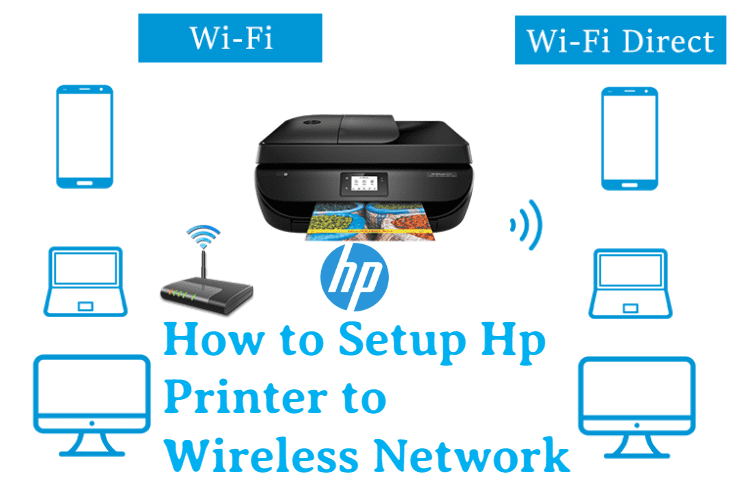
We can see how to connect your hp printer to the wireless network in a simple way. By connecting your Hp printer to the wireless printer you can easily print the documents without connecting it to the wired network such a USB cable and wire. All the hp printers are not supported by the wireless network. Hence choose the printer that is compatible with the wireless network to set up the wireless network.
To set up the hp printer to the wireless network, two different methods can be followed. In this article, we can see the two different methods for how to set up HP printer to Wi-Fi in detail.
Important Precautions Before Setting Up an HP Printer on Wi-Fi
Before starting the wireless setup, a few checks help avoid errors. Wireless printer setup depends on stable power, correct network details, and proper placement. Small mistakes often lead to connection failures or repeated setup loops. Taking these precautions saves time and prevents interruptions during installation.
- Check Wi-Fi stability
Ensure the internet connection is active and stable. Frequent drops affect printer detection. - Keep the printer near the router
Place the printer close to the router during setup. Weak signals cause pairing failures. - Use the correct Wi-Fi network
Confirm you are connecting to the right network. Avoid guest or hidden networks. - Verify Wi-Fi password
Enter the exact password. One wrong character blocks the connection. - Remove the USB cable if connected
Disconnect USB cables before wireless setup. Wired connections interfere with Wi-Fi mode. - Update printer firmware
Old firmware causes setup errors. Updates improve wireless compatibility. - Restart the router and the printer
A fresh restart clears temporary network issues. - Use admin access on the computer
Admin rights are required for driver installation and network changes.
Setting up the hp printer to the wireless network automatically:
In this topic, we can see how to set up hp printer to the wifi easily by following the steps provided below:
Before connecting to the wireless network, first, check the basic requirements of your computer and network. The basic requirements are
Your computer must have any one of the software such as windows vista or later, OS X 10.5 or later.
Check whether your computer is connected to an 802.11b/g/n wireless router over a 2.4 GHz connection. The 5.0 GHz connection is not supported by the HP printer.
The operating system of the computer must be in the control of the wireless network.
The dynamic IP address must be used by your computer instead of the static IP address.
- In the browser type https://support.hp.com/us-en/drivers/ in the search box and then type your printer model. After providing the details of your printer click on the find button and then download the software.
By double-clicking the software icon, it opens the printer setup process.
Switch ON the printer and check if the wireless option is supported by your printer. If it is compatible then start the process of connecting the printer. The settings you have made in the printer will retain only for the two hours.
Then follow the instruction provided on the screen of your computer until you reach the network screen. Because the steps and instruction provided will vary depending on the version of your HP printer.
Then select the network (Ethernet / wireless) button which appears on the middle of the page.
After entering into the network screen, click on the button named yes, send my wireless settings to the printer.
By clicking this button, it helps to locate your printer and it will send your wireless network’s information over the printer.
After completing the above steps, wait for few minutes until your printer is connected. Once the printer is connected the confirmation message will be displayed on the screen.
Finally, complete the setup process by following the on-screen instructions provided on the screen. Once the process is completed will be allowed to use your printer.
Check whether your printer connected successfully by printing the sample documents and photos by means of a wireless network.
These are the steps you need to follow to set up the hp printer over the wireless network easily without any complicated steps.
Setting up the hp printer on the wireless network manually:

In this topic, we can see how to set up hp printer to wifi using the manual method. The steps involved in this method are:
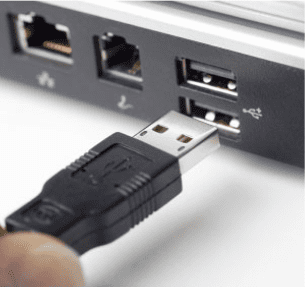
Before starting the process of setting up the hp printer manually, check whether the printer is installed on your computer. If not installed install it by connecting the USB cable between the computer and the printer. It will automatically install the printer software using the installation CD’s given with printer.
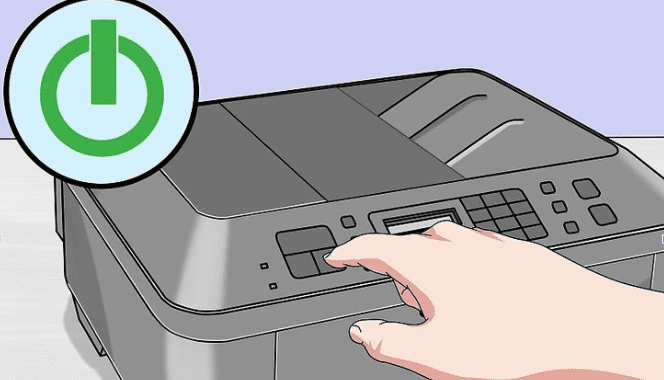
Turn ON the printer by connecting the printer to the power source and then press the power button.
After that, if necessary activate the touch screen. Some printers have the touch screen connected with the printer itself. In case you are having the touch screen on your printer, you need to connect your printer to the wireless network. If you have installed the software, you need to uninstall it in order to connect to the wireless network.
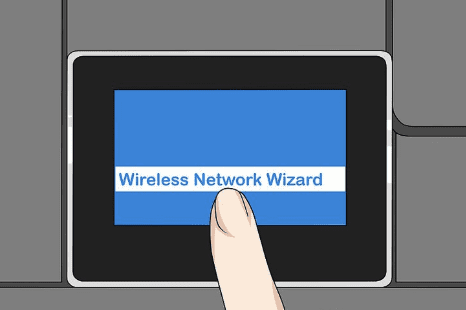
Then select the setup button on the screen. In order to find the setup button, you need to scroll down.
You may also have an option to select the wireless connection instead of the setup button.
And you need to select the network button in order to open the wireless settings on the printer’s screen.
Select the button wireless network wizard that appears on the screen. This helps you to search the wireless network to connect your printer. You can also select the wireless setup wizard instead of the above-mentioned button.
After that you need to select the network name and this name should be same as the name of the wireless network which you have assigned while creation of the wireless network.
There are two methods to select the network name if it does not appear on the screen
Provide the router model number and the manufacturer name instead of the network name.
Select the field name which is available under the bottom of the page and enters your network name.
Then you should enter the password that you use to login to your wireless network. If not press on the WPS button and hold it for three seconds.
Select the done button on the screen in order to save your information. After this, your printer will attempt to connect to the network.
And then click Ok. This will help you to complete the setup process easier.
These are the steps you need to follow to set up the connection of your hp printer to the wifi manually.
Advanced Tips for a Stable Wireless Printer Connection
After the basic setup, a few advanced steps improve long-term performance. These tips reduce disconnections and improve print response. They are useful for home and office environments with multiple devices.
- Assign a static IP address
This prevents the printer IP from changing after restarts. - Use 2.4 GHz Wi-Fi band
Most HP printers work better on 2.4 GHz than 5 GHz networks. - Disable VPN during setup
VPNs block printer discovery on the local network. - Allow the printer in firewall settings
Firewalls may block print traffic. Add the printer as an allowed device. - Reinstall the HP Smart app
A fresh install fixes detection and sync issues. - Avoid network extenders during setup
Extenders confuse device pairing. Connect directly to the main router first. - Keep printer drivers updated
Updated drivers improve speed and reduce errors. - Check router device limits
Some routers restrict the number of connected devices.
Conclusion
Setting up an HP printer on a wireless network is simple when done correctly. Most problems happen due to weak signals, wrong passwords, or outdated software. Preparing the printer and network before setup makes the process smooth. Following basic precautions avoids repeated failures. The HP Smart app also helps detect and configure the printer quickly.
A stable wireless setup improves daily printing tasks. Print jobs become faster and more reliable. Advanced steps like static IP and driver updates reduce future issues. Once connected properly, the printer works without frequent reconfiguration. With the right steps, wireless printing stays consistent and stress-free.
FAQs
Why is my HP printer not connecting to Wi-Fi?
This usually happens due to incorrect Wi-Fi details or weak signal strength. The printer may be too far from the router. Outdated firmware can also block the connection. VPNs and firewalls interfere with detection. Restarting the printer and router often helps. Repeating the setup using the HP Smart app fixes most cases.
Can I connect my HP printer to Wi-Fi without a computer?
Yes, many HP printers support setup using a touchscreen. You can select the Wi-Fi network directly on the printer panel. Some models allow setup through the HP Smart mobile app. A smartphone works in place of a computer. The printer must support wireless direct setup.
How do I reconnect my HP printer after changing Wi-Fi?
You need to reset the network settings on the printer. After the reset, start a fresh wireless setup. Use the HP Smart app or printer control panel. Enter the new Wi-Fi details carefully. Once connected, test with a sample print.
Author Bio:
Dinesh Lakhwani 

Dinesh Lakhwani, the entrepreneurial brain behind “TechCommuters,” achieved big things in the tech world. He started the company to make smart and user-friendly tech solutions. Thanks to his sharp thinking, focus on quality and the motto of never giving up, TechCommuters became a top player in the industry. His commitment to excellence has propelled the company to a leading position in the industry.
Popular Post











Recent Post

Resolving Microphone Detection Problems: Latest Guide [2026]
Microphones are important tools in daily life. People use them for office meetings, online classes, interviews, gaming, customer support, and content creation. When a system fails to detect a microphone, communication stops at once. This situation can cause stress and confusion. Many users believe the microphone is damaged. In reality, most problems are simple and […]

How To Switch To A Dark Background Theme In Windows [2026]
Most people spend many hours each day in front of a computer screen. Office work, online classes, editing, browsing, and streaming all require long screen time. A bright white background may look clean at first. However, over time, it can feel sharp and tiring. The strong contrast between white backgrounds and black text may cause […]

How to Switch From Local To Microsoft Account On Windows
Many users begin with a local account when they set up a new Windows computer. A local account works only on that single device. It stores settings, files, and preferences locally. It does not connect to online Microsoft services. For basic offline use, it works well. However, as digital needs grow, many users want better […]

How to Switch Windows 10 to a Local Account: Complete Guide
Windows 10 allows users to sign in with either a Microsoft account or a local account. When you set up a new computer, the system often suggests using a Microsoft account. This account connects your device to Microsoft services such as Outlook, OneDrive, and the Microsoft Store. It also syncs settings, themes, and passwords across […]

How To Change Default Apps For File Types In Windows
Windows is designed to make using your computer easy. One way it does this is by assigning default apps to different file types. This means when you open a file, Windows automatically opens it with a specific program. For example, photos may open with Photos, music with Groove Music, and PDFs with Edge. These default […]

How To Adjust The Mouse Pointer Speed: Complete Guide
Using a computer every day means you use the mouse a lot. The mouse pointer moves on the screen and helps you click, scroll, and select items. Many people never think about the speed of the mouse pointer. They have used the default setting for years. This can cause small problems over time. A slow […]

How to Change Mouse Scrolling Settings In Windows
A mouse is one of the most used computer tools. People use it every day. They scroll through emails. They scroll through documents. They scroll through websites and images. The movement becomes automatic. Most users do not notice it. That is why problems often go unnoticed. Scrolling problems show up slowly. At first, it feels […]

Keyboard Light Settings: Keyboard Lighting Control [Complete Guide]
Keyboards are no longer simple typing tools. Well, yes! Over time, they have evolved to include features that improve comfort, visibility, and overall experience. One of the most useful features today is keyboard lighting. It helps users work comfortably in low-light conditions. It also reduces strain when typing for long hours. Many users first notice […]

Customizing Pointer Appearance: Complete Guide
The way your mouse pointer looks on your computer may seem like a small detail. But customizing pointer appearance can make using your PC more comfortable and visually appealing. Many users do not realize that they can change the pointer size, color, and style to fit their needs. Whether you want a bigger pointer for […]

How To Choose a Computer Monitor: Monitor Buying Guide
Buying a monitor looks easy. Many people think all screens are the same. That belief causes regret later. A monitor is not just a display. It is a daily tool. You read on it. You work on it. You relax with it. Small problems become big over time. Poor brightness hurts eyes. Bad size causes […]

