How To Remove Snapchat Filters From Saved Photos (Updated)?
Last updated on November 29th, 2024 at 4:34 pm
As chat and messaging apps take communication to the next level Snapchat becomes a revolutionary ideology. Youngsters love this app because it is not a regular text and emoji chat app. It’s like a fresh breeze that offers unique ways to share pictures and short videos in Status. The main popularity of Snapchat comes from cool and interesting Filters.
You can find an awesome range of filters on Snapchat, using which you can redefine your regular looking photos. From wicked cat to blowing kisses you can find plenty of filters.
However, if you aren’t a fan of filters or just want to remove Snapchat filters from the saved photos, you can do that too. To learn how to delete filters from saved pics you just need to follow the step by step instructions given in the article.
Ways to Remove Snapchat Filter from Saved Pictures
Note: Previously, using Magic Eraser you could easily delete Snapchat filters. But now, this tool has been permanently removed from Snapchat. Therefore, if you want to edit or delete filters from a saved image you need to follow the steps explained below.
So, let’s get started with the process and learn how to get rid of filters from a picture.
Note: If no filters are added to an image you cannot edit them. This means you can edit the picture that has filters added to it.
Instructions to remove the Snapchat filter from a saved picture.
1. Launch Snapchat app
2. Tap Memories to load the Saved images
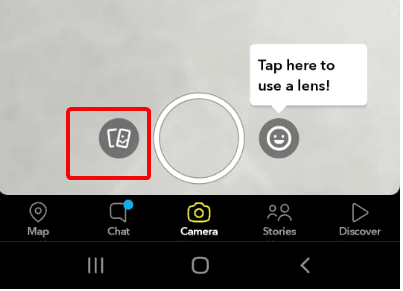
3. Select the image you want to edit and remove the filter from.
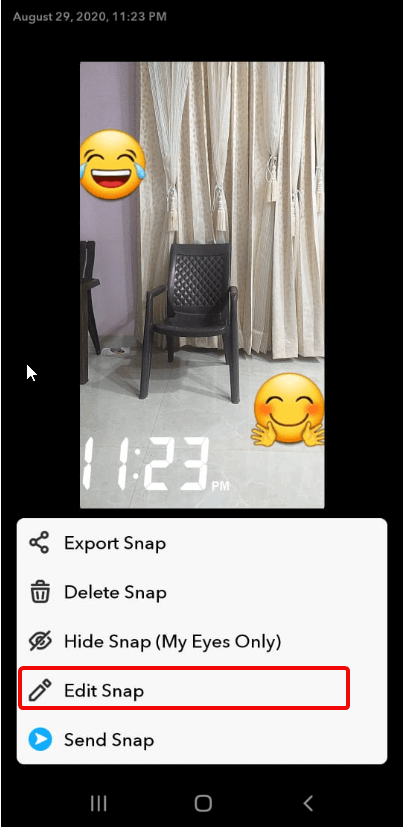
4. Once the image is loaded tap three vertical dots present at the top right corner.
5. Doing so will show different options at the bottom of the screen.
6. Tap Edit Snap.
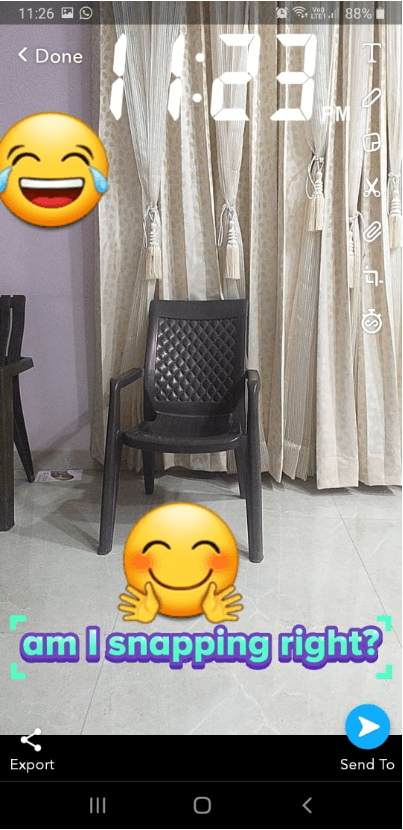
7. You can now edit the image. To add more filters like stickers, text, or time-lapse swipe left on the screen. You can use these and other filters to change the images. Alongside can crop images, correct color, and do a lot more.
Also Read: How to View Someone’s Snapchat Story without them Knowing?
8. Once the editing is finished; tap Done.
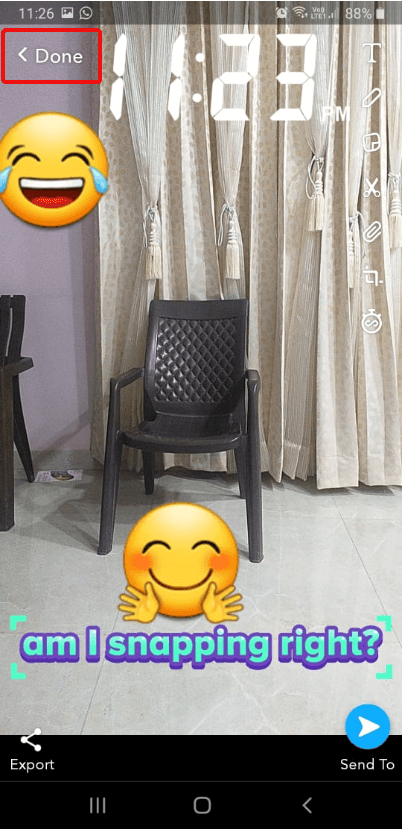
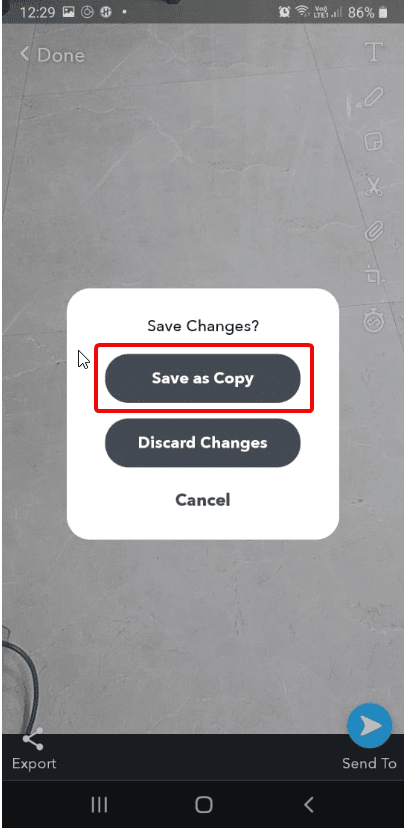
9. When prompted, make sure you tap Save as Copy option.
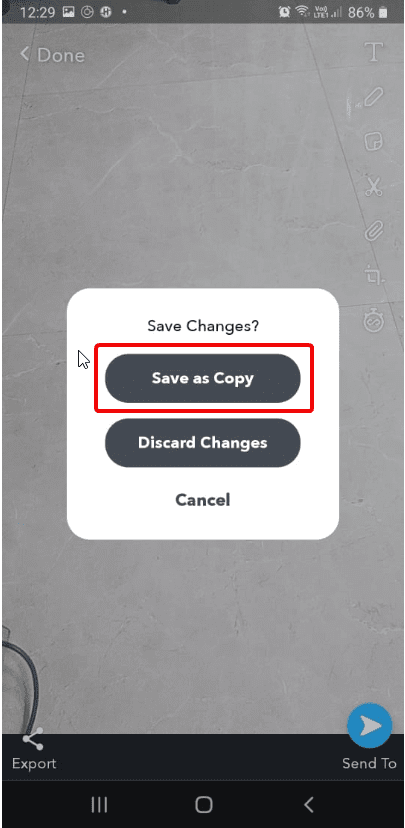
10. This will ensure that you have both original and edit images with Snapchat filters.
In addition to this, if you want to remove stickers from pictures, then you can do that too.
How to Tweak Photos with Snapchat?
Snapchat is highly creative and constantly improving. Adding or removing the filter from Snapchat photos is a hassle-free job. This is all possible because of the interesting features offered by Snapchat. To remove stickers from Snapchat, follow the steps below:
1. Open Snapchat app
2. Tap Memories section
3. Select the image from which you can to delete sticker
4. Tap the three stacked dots at the top right corner
5. Next, tap the sticker you wish to remove.
Note: Until you see Trash bin icon on the right-side list do not remove your finger
6. Once the Trash icon appears drag and drop the sticker.
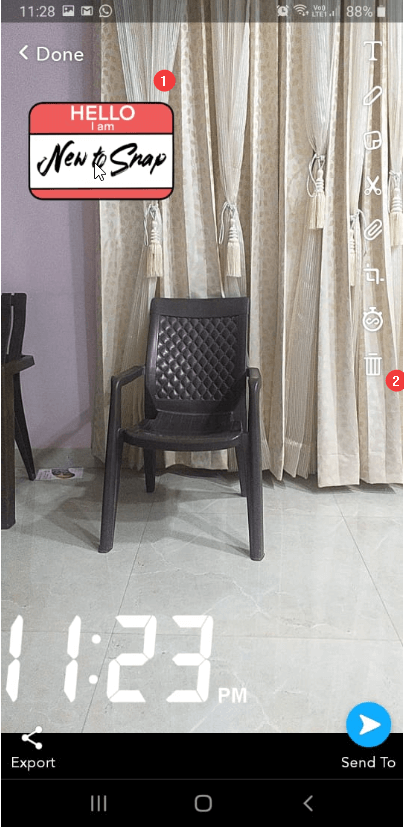
7. Repeat the process for all the stickers you wish to remove.
8. Tap the Done button to save the edited image.
Note: Alongside removing stickers from the same window you can add more stickers too.
9. Once done, remember saving the image by tapping Done > Save as Copy.
Can I remove Snapchat Emoji also from a Save Image?
Yes, if you have added an emoji you can delete that too from Snapchat. To do, so follow the steps explained above. However, if the emoji is added via keyboard then you need to follow the steps explained below:
1. Launch Snapchat app > Memories > Select image to edit
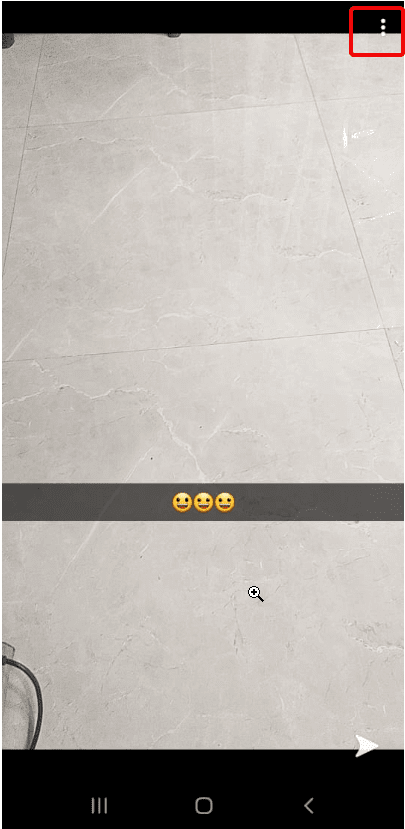
2. Tap three dots at the top right-corner > Edit Snap.
3. Tap Emoji.
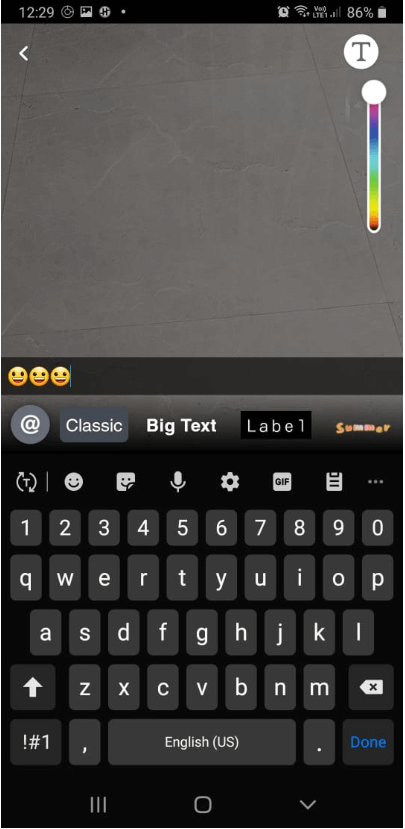
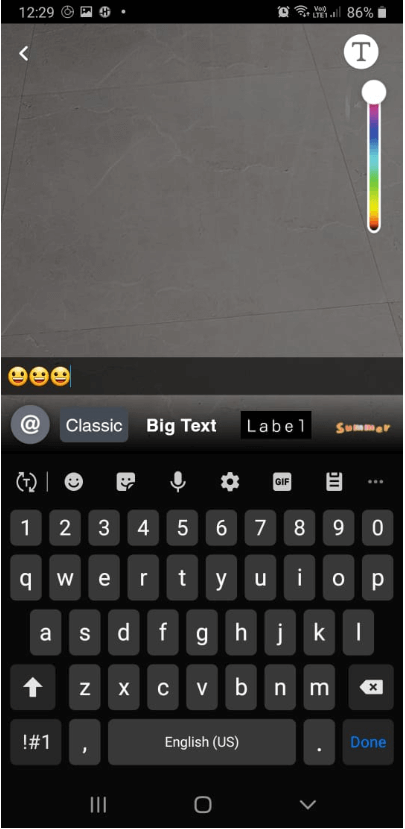
4. You will now get the edit text option. Tap Backspace to delete the emoji and leave it blank
5. When done tap Done > Save as copy.
That’s it using these simple steps you can easily remove filters from Snapchat.
Can I cancel the purchased filters?
We understand, sometimes you just want to cancel purchases. But before canceling purchased Snapchat filters, review how the refund works.
Note: The refund process is different for Snapchat app purchases and online purchases.
Here’s how to cancel Filters ordered online, bought as a guest, and purchased online.
How to cancel Filters ordered online
To cancel Filters bought online follow the steps below:
- Visit Create Your Own website and log in
- Click ☰ in the top-left corner > “My Orders”
- Select the Filters you want to cancel > click Trash icon and confirm cancellation
To cancel Filters bought online as a guest follow the steps below:
- Open your order confirmation email
- Click the link that reads “Click here to view details about your Filter” > Cancel
Refunds for Filters purchased online
Note: If you cancel the purchase before the filter goes live, you can get a full refund.
However, if you cancel the purchase while the filter is active, then you get the refund on a pro-rata basis. This means you will be charged for the time your order was active!
Moreover, if you cancel an Annual Filter after it starts to run you won’t be able to get a refund as the amount is paid
How to cancel in-app purchased Filters
To cancel Filters you made in Snapchat:
- Tap ⚙️ in My Profile to open Settings
- Tap “On-Demand Geofilters” > select the filter you want to cancel > Cancel
Refunds for Filters purchased in the Snapchat app
Unfortunately, no refund is issued for the purchases made in the Snapchat app. To learn more about it click here.
Monster Snap App
It won’t be wrong to call Snapchat a monster snap app as it offers features to add interesting objects to your boring photos. In addition to this, it provided effective and simple ways to remove the filter from Snapchat saved photos.
So, it is truly an amazing app that is going to change the history of photo communication apps. This was a quick guide to remove Snapchat filters from saved photos. If you know of any other tips, feel free to comment below.
Author Bio:
Dinesh Lakhwani 

Dinesh Lakhwani, the entrepreneurial brain behind “TechCommuters,” achieved big things in the tech world. He started the company to make smart and user-friendly tech solutions. Thanks to his sharp thinking, focus on quality and the motto of never giving up, TechCommuters became a top player in the industry. His commitment to excellence has propelled the company to a leading position in the industry.
Popular Post











Recent Post

How to Switch Windows 10 to a Local Account: Complete Guide
Windows 10 allows users to sign in with either a Microsoft account or a local account. When you set up a new computer, the system often suggests using a Microsoft account. This account connects your device to Microsoft services such as Outlook, OneDrive, and the Microsoft Store. It also syncs settings, themes, and passwords across […]

How To Change Default Apps For File Types In Windows
Windows is designed to make using your computer easy. One way it does this is by assigning default apps to different file types. This means when you open a file, Windows automatically opens it with a specific program. For example, photos may open with Photos, music with Groove Music, and PDFs with Edge. These default […]

How To Adjust The Mouse Pointer Speed: Complete Guide
Using a computer every day means you use the mouse a lot. The mouse pointer moves on the screen and helps you click, scroll, and select items. Many people never think about the speed of the mouse pointer. They have used the default setting for years. This can cause small problems over time. A slow […]

How to Change Mouse Scrolling Settings In Windows
A mouse is one of the most used computer tools. People use it every day. They scroll through emails. They scroll through documents. They scroll through websites and images. The movement becomes automatic. Most users do not notice it. That is why problems often go unnoticed. Scrolling problems show up slowly. At first, it feels […]

Keyboard Light Settings: Keyboard Lighting Control [Complete Guide]
Keyboards are no longer simple typing tools. Well, yes! Over time, they have evolved to include features that improve comfort, visibility, and overall experience. One of the most useful features today is keyboard lighting. It helps users work comfortably in low-light conditions. It also reduces strain when typing for long hours. Many users first notice […]

Customizing Pointer Appearance: Complete Guide
The way your mouse pointer looks on your computer may seem like a small detail. But customizing pointer appearance can make using your PC more comfortable and visually appealing. Many users do not realize that they can change the pointer size, color, and style to fit their needs. Whether you want a bigger pointer for […]

How To Choose a Computer Monitor: Monitor Buying Guide
Buying a monitor looks easy. Many people think all screens are the same. That belief causes regret later. A monitor is not just a display. It is a daily tool. You read on it. You work on it. You relax with it. Small problems become big over time. Poor brightness hurts eyes. Bad size causes […]

How To Get Help With File Explorer in Windows 11 [Complete Guide]
File Explorer is one of the most important tools in Windows 11. It is used to open folders, view files, and manage stored data. Almost every action on a Windows computer depends on it in some way. When users open documents, save downloads, or organize photos, File Explorer is always involved. Because it is used […]

How To Fix A Frozen Computer: Complete Guide [Windows 11/10]
A frozen computer is one of the most common problems Windows users face. The screen stops responding. The mouse pointer does not move. Keyboard inputs do nothing. You may hear the fan running loudly. Sometimes the system looks alive, but nothing works. This situation often happens when you are busy or working on something important. […]

How to Upgrade Computer RAM: Complete Guide
Upgrading RAM is one of the simplest ways to improve a computer. It helps the system feel faster and smoother. Apps open quicker. Browsers handle more tabs. Games and tools run with less delay. Many users search for how to upgrade computer RAM because it gives real results without high cost. You do not need […]

