How To Re-Pair Bluetooth Earbuds For Stereo Sound on Windows

Last updated on January 23rd, 2026 at 9:11 am
Wireless earbuds are often paired with computers for rich stereo sound, but things don’t always go smoothly. Sometimes, the system defaults to mono audio or fails to activate the correct playback mode. This can disrupt music, calls, or gaming, making the sound feel flat and lifeless.
These glitches usually stem from improper setup. Windows might select an incorrect audio profile, or the earbuds may not establish a full stereo connection after initial pairing.
Fortunately, there’s a quick fix: re-pairing your Bluetooth earbuds on Windows can restore stereo sound and improve your overall experience.
Precautions Before You Begin: Prepare Your System Before Reconnecting
- Charge your earbuds: A low battery can stop the stereo mode from loading. A short charge helps the buds link without any trouble.
- Turn off nearby Bluetooth devices: Many devices can fight for the same connection. This may cause the earbuds to join in a limited mode. Keep only the needed device active.
- Update Windows audio drivers: Old drivers can block stereo features. A quick check for updates clears most problems.
- Clean Bluetooth history: Too many saved devices confuse the system. Removing old entries makes pairing simple.
- Check the earbuds for dirt: Dust on the sensors can cause random disconnections. A soft cloth keeps the buds ready for a stable link.
- Stay close to your computer: Walking far away during pairing weakens the signal. Stay within a close range till the link is active.
- Turn off power saving on the earbuds: Some models switch to a low mode that harms stereo sound. Set them to normal mode before connecting.
- Restart the computer once: A fresh start clears stuck Bluetooth processes. It helps Windows pick the right sound mode.
First, Know the Answers To These Questions:
What causes stereo sound to stop working?
Stereo issues appear when Windows switches to a hands-free audio profile. This profile supports calls but reduces sound quality. Other causes include low signal strength, outdated drivers, or leftover Bluetooth entries that confuse the system. Sometimes the earbuds hold an old profile that must be cleared. In many cases, the fix works as soon as you re-pair bluetooth earbuds for stereo sound on Windows because the system selects the correct driver again.
Read This Guide: How To Install, Uninstall & Reinstall Bluetooth Drivers on Windows 11/10 PC
Why does Windows force earbuds into mono mode?
Windows often loads a mixed-use profile when it senses a call option. Many earbuds support two profiles. The call profile is fine for meetings but not for music. When Windows picks it first, the stereo option stays hidden. You can return to the stereo after removing the old link and setting up a fresh one with the right steps.
Why do earbuds disconnect during pairing?
Disconnections happen when the signal is weak, the battery is low, or other Bluetooth gadgets interrupt the link. Some wireless keyboards and mice also cause signal clutter. A quick reset helps. Also, make sure the earbuds are in active pairing mode. This gives the computer a clean signal to pick up.
Is stereo mode supported on all earbuds?
Most modern earbuds offer stereo sound, but some very old models support only basic profiles. Check the model page once to confirm. If your model supports stereo, Windows should pick it. If not, your only option is to update the earbuds or use alternate hardware. When stereo is supported, the fix usually works when you re-pair bluetooth earbuds for stereo sound on Windows.
How To Re-Pair Bluetooth Earbuds For Stereo Sound on Windows
Windows sometimes mixes up the audio mode of wireless earbuds. A fresh pairing can fix this. The steps below show different ways to set up a correct stereo link. Use the method that suits your system. All methods aim to re-pair bluetooth earbuds for stereo sound on Windows with a clean and stable connection.
Method 1: Remove and Reconnect from Windows Settings
This is the most common fix for sound mode issues. Windows keeps profiles in its Bluetooth list. When these profiles break, the stereo mode fails. Removing the device forces the system to build a fresh entry. This helps Windows load the stereo profile.
You can use this method when your earbuds show two modes in the sound list. One is stereo. One is hands-free. If Windows uses the hands-free mode first, you will hear thin audio. Removing the device helps the system forget the wrong mode and return to the right one.
Why Use This Method
- Removes old profiles
- Helps Windows detect stereo mode
- Works on most models
Steps
Step 1. Open Settings, go to Bluetooth, and find your earbuds.
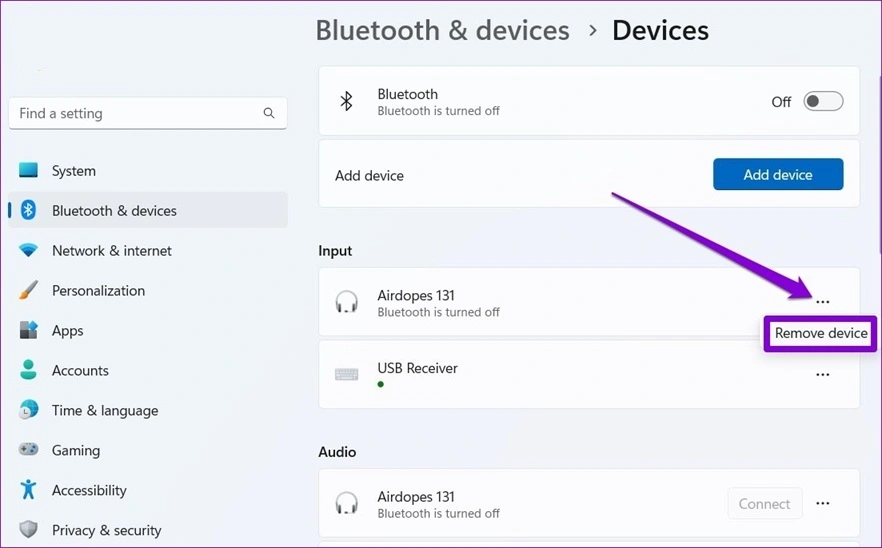
Step 2. Remove the device, refresh Bluetooth, and pair again.
Method 2: Reset the Earbuds and Pair Again
Many earbuds have a reset function. This clears saved devices and old audio profiles stored in the buds. When this internal memory becomes cluttered, stereo sound fails. A reset lets the earbuds act like new. This makes pairing smooth.
This method also helps when one earbud fails to link or both buds connect as two separate devices. A reset forces them to join as a single stereo unit. Use this method when you feel the buds behave in an unusual way.
Why Use This Method
- Clears stuck pairing data
- Fixes single earbud issues
- Helps the buds join as one stereo device
Steps
Step 1. Use the reset button or touch gesture shown in the manual.
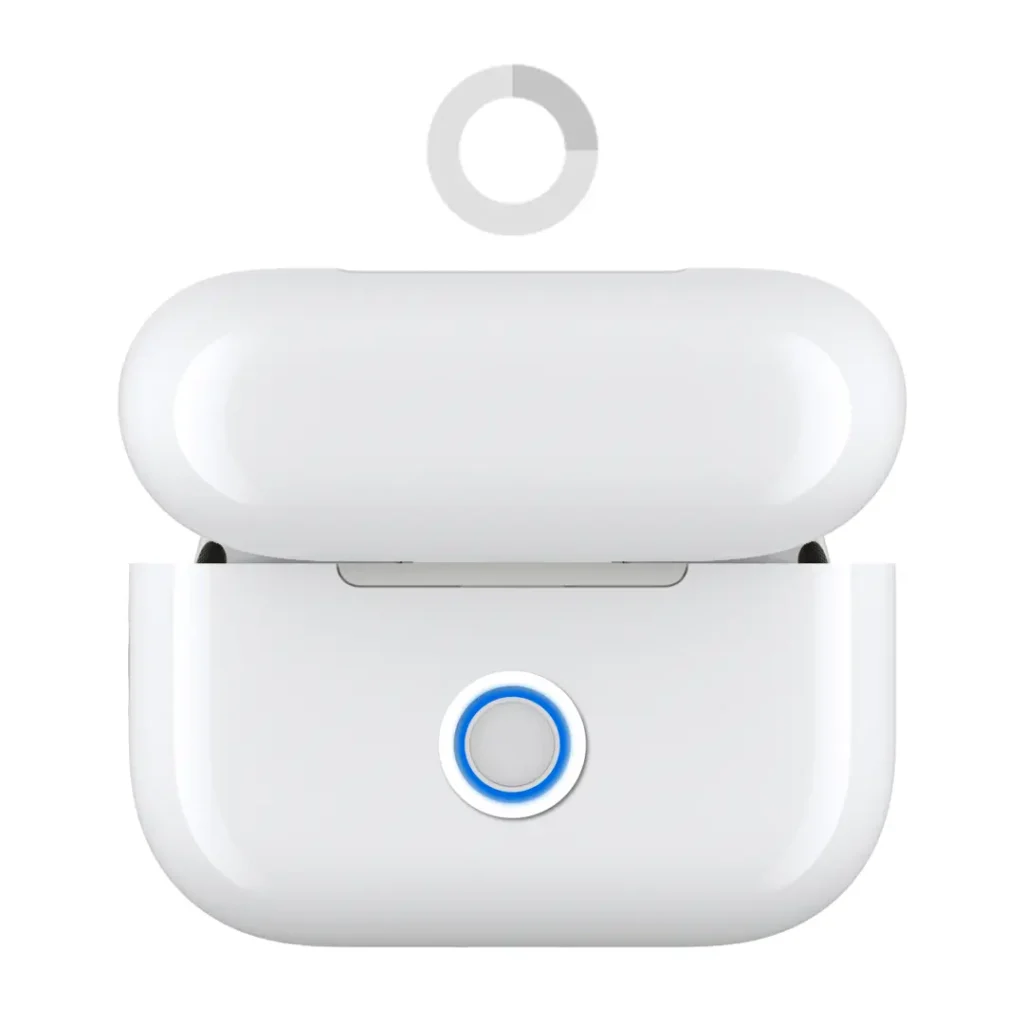
Step 2. After the reset, open Bluetooth on Windows and pair again.
Method 3: Switch to Stereo Manually in Sound Settings
Windows may detect the correct stereo profile but still use the wrong one as the default. You can choose the right profile from the sound panel. This works when the pairing is fine, but Windows refuses to switch modes on its own.
This method is also helpful when the earbuds appear twice in the list. One folder is the stereo profile. The other is the hands-free call profile. You must select the stereo option to get full quality. This quick change solves the problem without removing the device.
Why Use This Method
- Fixes the wrong default audio mode
- Helps when both profiles are visible
- Quick and simple
Steps
Step 1. Open sound settings and find your earbuds under output.
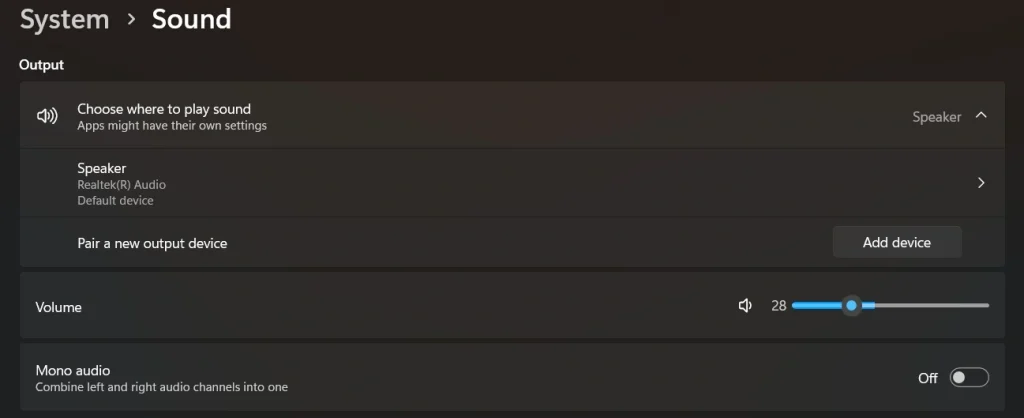
Step 2. Click the stereo profile to switch from hands-free to full sound.
Method 4: Restart Bluetooth Services in Windows
Bluetooth services run in the background of Windows. When these services glitch, audio quality drops, or the stereo mode fails. Restarting these services clears the old state and loads new tasks. This often restores a correct audio link.
This method is helpful if the earbuds show up in stereo mode, but no sound plays. It is also good when the system takes too long to connect. A short service restart forces Windows to refresh all Bluetooth processes.
Why Use This Method
- Fixes background process errors
- Helps when a stereo is detected, but silent
- Makes Windows load a clean connection
Steps
Step 1. Open the Run box, type services.msc, press Enter, and locate all Bluetooth services in the list.
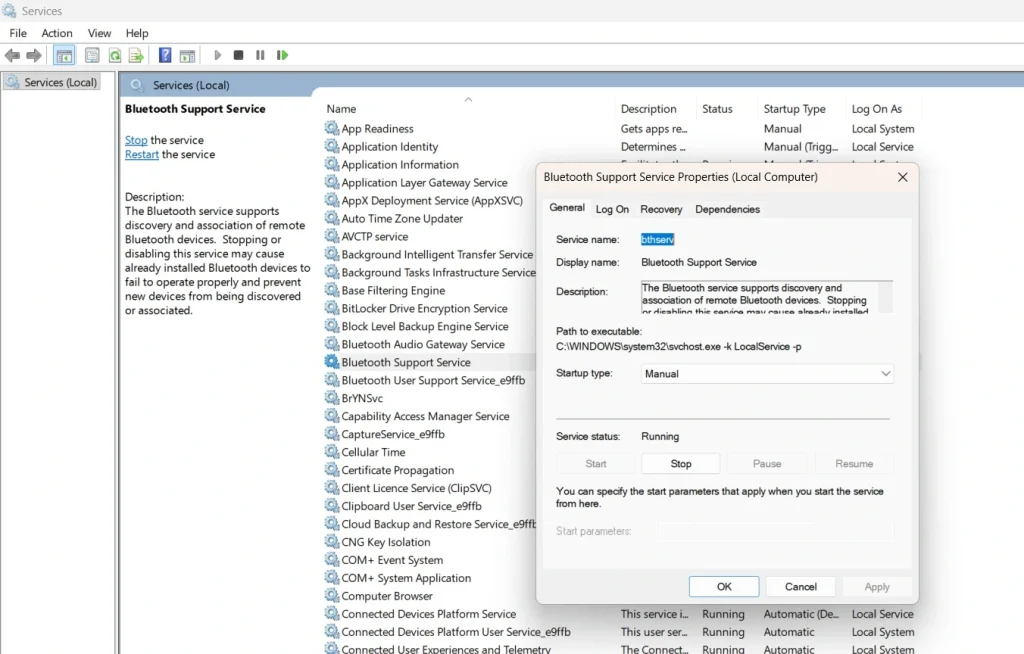
Step 2. Right-click each Bluetooth service, choose Restart, then pair your earbuds again.
Author’s Tip
Stereo sound problems can become worse if you keep switching between many devices. Try to use your earbuds with a limited number of gadgets. Each new device adds more pairing data. This increases the chance of a wrong profile being selected. A simple habit of clearing old links keeps your earbuds stable.
You can also rename your earbuds in Windows. A clear name helps you pick the right profile when you have many sound devices. This small step avoids confusion during quick tasks like calls or playback. It keeps daily use smooth and trouble-free.
Advanced Tips: Improve Bluetooth Audio Quality Further
- Use the latest Bluetooth adapter
Old adapters may not support modern stereo codecs. Upgrading improves clarity and range. - Keep your system free of wireless clutter
Many nearby signals reduce Bluetooth strength. Turn off unused wireless tools to keep sound stable. - Choose high-quality audio apps
Some apps load lower-quality streams that do not use full stereo features. Pick apps with proper audio support. - Disable call features when not needed
Some earbuds switch to hands-free mode if any call option is active. Turning off call features prevents mode shifts. - Place your computer in an open area
Thick walls and metal objects weaken sound signals. Keep the computer in a clear location. - Install all optional device updates
Some updates improve Bluetooth handling. These updates help Windows manage profiles better. - Check audio enhancements
Some enhancements reduce stereo width. Turning them off keeps the sound natural. - Keep Bluetooth at the top of your device list
When many devices fight for priority, the stereo mode breaks. Remove unwanted devices to keep the connection simple.
Conclusion
Stereo sound creates depth, comfort, and balance when you listen to music or watch movies. If Windows loads the wrong profile, this quality disappears. The methods in this guide give you simple ways to fix the issue. You only need a clean connection, correct audio mode, and a stable Bluetooth setup. When you follow these steps, the sound returns to its full form.
Most users find that problems vanish once they re-pair bluetooth earbuds for stereo sound on Windows. This resets the profile, refreshes the link, and lets Windows select the correct settings. With the right method and a little patience, you can enjoy smooth stereo audio on any day.
FAQs:
Why do my earbuds show two profiles in Windows?
They show two profiles because one profile is for calls and the other is for stereo sound. Windows sometimes picks the call profile first. You must choose the stereo option from the sound settings to get full audio quality.
Why does only one earbud play sound?
This may happen when the earbuds pair as two separate devices. A reset forces them to join as one stereo unit. After the reset, pair them again so they load the correct audio profile.
How do I check if stereo mode is active?
Open sound settings. Look for the output device list. Select the entry that says stereo. If the wrong mode is active, change it once. Windows should keep the setting afterward.
Author Bio:
Dinesh Lakhwani 

Dinesh Lakhwani, the entrepreneurial brain behind “TechCommuters,” achieved big things in the tech world. He started the company to make smart and user-friendly tech solutions. Thanks to his sharp thinking, focus on quality and the motto of never giving up, TechCommuters became a top player in the industry. His commitment to excellence has propelled the company to a leading position in the industry.
Popular Post











Recent Post
![Adjusting Audio Output Settings Complete Guide [2026]](https://www.techcommuters.com/wp-content/uploads/2026/03/Adjusting-Audio-Output-Settings-Complete-Guide.webp)
Adjusting Audio Output Settings: Complete Guide [2026]
Sound is part of almost everything we do on a computer. It lets you watch videos, join calls, play music, and hear alerts. When the audio stops working the right way, it can interrupt both work and daily use. That is why adjusting audio output settings matters for every user. Many people get unsure when […]

Artificial Intelligence Explained: Concepts, Terminology, Benefits, and Future Trends
Artificial Intelligence, or AI, is basically computers doing things that usually need a human brain. We’re talking about stuff like learning from experience, figuring out problems, understanding language, and making decisions. It’s not magic, just a lot of data, pattern-spotting, and math behind the scenes. Now, AI doesn’t actually think or feel like we do. […]

Resolving Microphone Detection Problems: Latest Guide [2026]
Microphones are important tools in daily life. People use them for office meetings, online classes, interviews, gaming, customer support, and content creation. When a system fails to detect a microphone, communication stops at once. This situation can cause stress and confusion. Many users believe the microphone is damaged. In reality, most problems are simple and […]

How To Switch To A Dark Background Theme In Windows [2026]
Most people spend many hours each day in front of a computer screen. Office work, online classes, editing, browsing, and streaming all require long screen time. A bright white background may look clean at first. However, over time, it can feel sharp and tiring. The strong contrast between white backgrounds and black text may cause […]

How to Switch From Local To Microsoft Account On Windows
Many users begin with a local account when they set up a new Windows computer. A local account works only on that single device. It stores settings, files, and preferences locally. It does not connect to online Microsoft services. For basic offline use, it works well. However, as digital needs grow, many users want better […]

How to Switch Windows 10 to a Local Account: Complete Guide
Windows 10 allows users to sign in with either a Microsoft account or a local account. When you set up a new computer, the system often suggests using a Microsoft account. This account connects your device to Microsoft services such as Outlook, OneDrive, and the Microsoft Store. It also syncs settings, themes, and passwords across […]

How To Change Default Apps For File Types In Windows
Windows is designed to make using your computer easy. One way it does this is by assigning default apps to different file types. This means when you open a file, Windows automatically opens it with a specific program. For example, photos may open with Photos, music with Groove Music, and PDFs with Edge. These default […]

How To Adjust The Mouse Pointer Speed: Complete Guide
Using a computer every day means you use the mouse a lot. The mouse pointer moves on the screen and helps you click, scroll, and select items. Many people never think about the speed of the mouse pointer. They have used the default setting for years. This can cause small problems over time. A slow […]

How to Change Mouse Scrolling Settings In Windows
A mouse is one of the most used computer tools. People use it every day. They scroll through emails. They scroll through documents. They scroll through websites and images. The movement becomes automatic. Most users do not notice it. That is why problems often go unnoticed. Scrolling problems show up slowly. At first, it feels […]

Keyboard Light Settings: Keyboard Lighting Control [Complete Guide]
Keyboards are no longer simple typing tools. Well, yes! Over time, they have evolved to include features that improve comfort, visibility, and overall experience. One of the most useful features today is keyboard lighting. It helps users work comfortably in low-light conditions. It also reduces strain when typing for long hours. Many users first notice […]

