How To Fix Issues Downloading from the Microsoft Store On Windows

Introduction:
Downloading apps from the Microsoft Store should be a simple task. You open the Store, search for an app, and click install. In most cases, the process works without any problem. However, there are times when the download does not start. In some cases, it may stay stuck at a certain percentage. You may also see error messages that are hard to understand. These issues can slow down your work and waste time. Many users face such problems, even on updated systems. The good part is that these issues are usually not serious.
There are several reasons behind these problems. A weak internet connection can stop downloads. Incorrect system settings can also create trouble. Sometimes, the Microsoft Store cache becomes corrupted. In other cases, important Windows services may stop running. Even small issues like incorrect time settings can affect downloads.
You do not need advanced skills to fix these problems. This guide will help you fix issues downloading from the Microsoft Store on Windows using simple steps that are easy to follow.
Important Checks Before You Start
Before you try any advanced method, it is important to check some basic settings. These small checks can solve the problem quickly. They also help you avoid unnecessary steps later.
- Check your internet connection
Make sure your internet is stable. Try opening a few websites to confirm that it is working properly. - Restart your computer
Restarting clears temporary system errors. It also refreshes background processes that may be causing issues. - Check date and time settings
Make sure your system’s date and time are set correctly. For best results, enable automatic date and time settings. - Sign in to your Microsoft account
Confirm that you’re signed in correctly. If necessary, sign out and then log back in. - Check available storage
Verify that your system drive has sufficient free space. If storage is low, downloads may fail. - Disable VPN or proxy
VPN or proxy settings may interfere with Microsoft Store connections. Turn them off temporarily. - Update Windows
Install the latest updates. Updates often fix bugs related to the Store and system services. - Check app permissions
Ensure that required permissions are enabled. Some settings may block downloads in the background.
Quick Answers to Common Questions
1. Why does the Microsoft Store download get stuck?
This problem usually happens due to internet issues, corrupted cache files, or inactive system services. Sometimes, background processes fail to respond. In many cases, restarting the system or clearing the cache helps resolve the issue.
2. Can I fix Microsoft Store issues without reinstalling Windows?
Yes, most Microsoft Store problems can be fixed without reinstalling Windows. You can use built-in tools like troubleshooters, reset options, and service checks. These methods are simple and safe to use.
3. Does clearing the cache delete my apps?
No, clearing the cache does not remove installed apps. It only deletes temporary files that help the Store run faster. Removing these files can fix many common errors.
4. Is it okay to reset the Microsoft Store?
Resetting the Microsoft Store is safe. The process simply returns the app to its default settings, without affecting your personal files or installed applications
Methods to Fix Issues Downloading from the Microsoft Store On Windows
There are several methods to resolve this issue, each addressing a different possible cause. It’s best to follow them in sequence, as this helps pinpoint the exact problem and ensures an effective fix for download errors in the Microsoft Store on Windows
Method 1: Clear Microsoft Store Cache
The Microsoft Store stores temporary files to improve speed and performance. These files are known as cache. Over time, the cache may become corrupted. When this happens, downloads may fail or stop midway. Clearing the cache removes these broken files and allows the Store to work properly again.
This method is quick and does not require any technical knowledge. It is often the first step recommended by experts. Many users are able to solve the problem after clearing the cache. It refreshes the Store and removes small errors that build up over time.
After clearing the cache, the Microsoft Store may take a few seconds to open. This delay is normal. The system is creating fresh cache files. Once the Store opens, try downloading the app again to check if the issue is resolved.
Steps:
- Step 1: Press Windows + R to open the Run dialog box. Type wsreset.exe and press Enter.
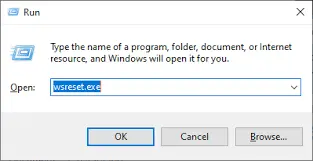
- Step 2: Wait for the process to complete. The Microsoft Store will open automatically after the reset.
Method 2: Run Windows Store Troubleshooter
Windows provides built-in troubleshooters that help detect and fix common issues. The Windows Store troubleshooter is designed to check problems related to the Store app. It scans for errors in settings, services, and system files. It can also apply automatic fixes.
This method is useful when you are unsure about the exact cause of the issue. The troubleshooter performs a complete scan and identifies problems in the background. It also provides suggestions if it cannot fix a problem automatically.
Running the troubleshooter is simple and safe. It does not affect your files or installed programs. It is a reliable option if the first method does not solve the issue. It can often fix hidden problems that are not visible to the user.
Steps:
- Step 1: Open Settings. Go to System. Click on Troubleshoot. Select Other troubleshooters.
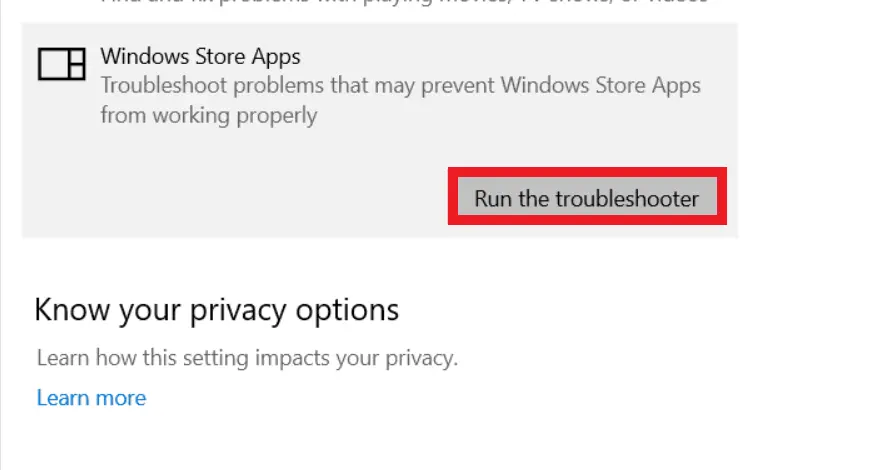
- Step 2: Find Windows Store Apps and click on Run. Follow the on-screen instructions.
Method 3: Reset Microsoft Store App
If the issue persists, try resetting the Microsoft Store app. This action restores the app to its default settings, clears stored data that may be causing errors, and resolves internal problems that can interfere with downloads.
Resetting the Store does not remove installed apps. It only affects the Store application itself. After the reset, you may need to sign in again with your Microsoft account. This is normal and part of the reset process.
This method is useful when the Store fails to open or downloads keep failing. It provides a clean state for the app. Many persistent issues are resolved after performing a reset.
Steps:
- Step 1: Go to Settings and open Apps. Select Installed apps and find Microsoft Store. Click on Advanced options.
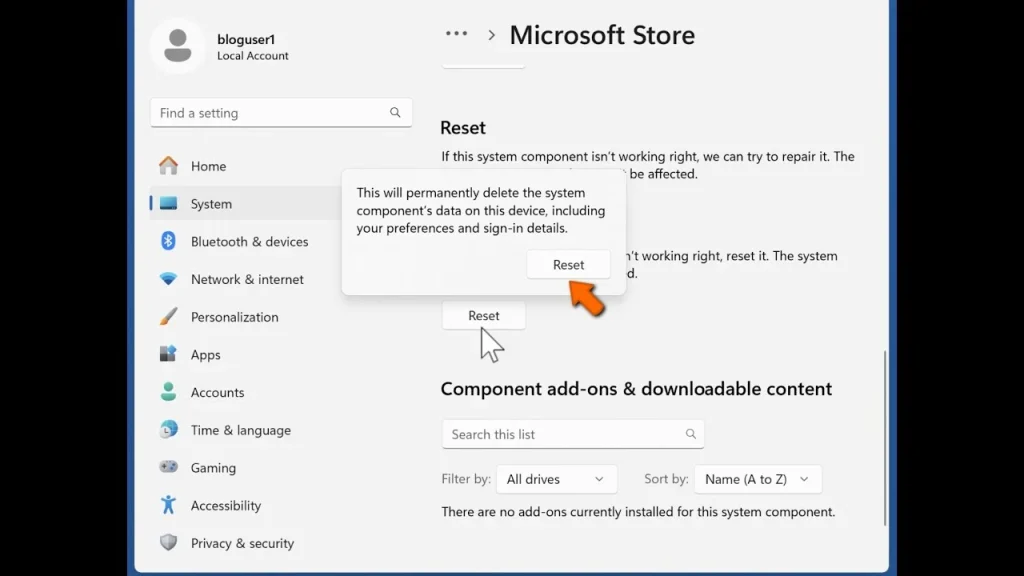
- Step 2: Scroll down and click Reset. Confirm the action and wait for the process to complete.
Method 4: Check Windows Update Services
The Microsoft Store depends on certain Windows services to function properly. Two important services are Windows Update and Background Intelligent Transfer Service. If these services stop running, downloads may not work.
Sometimes, these services stop due to system errors or temporary glitches. Restarting them can restore normal function. It ensures that downloads and updates work smoothly.
This method requires a few extra steps, but it is still easy to follow. It helps fix deeper issues that are not solved by basic methods. It also improves overall system performance.
Steps:
- Step 1: Press Windows + R, type services.msc, and press Enter to open the Services window.
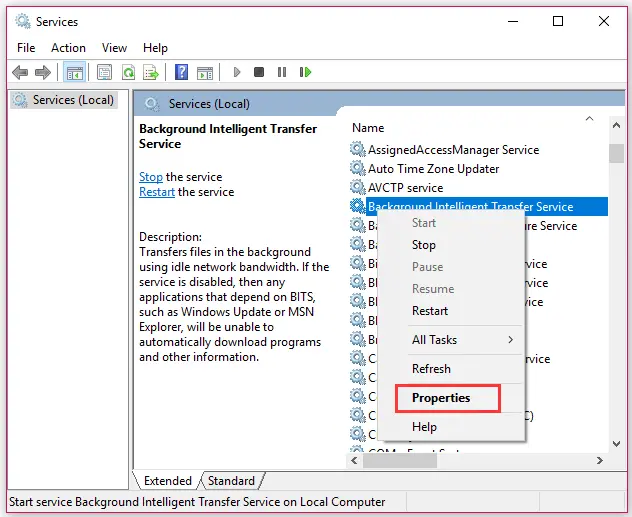
- Step 2: Locate Windows Update and Background Intelligent Transfer Service. Right-click each service and select Restart.
Author’s Tip
When you face problems with the Microsoft Store, it is important to stay calm and follow a clear process. Many users try multiple fixes at the same time. This can create confusion and make it harder to find the real issue. It is better to test one method at a time. After each step, check if the problem is solved. This approach saves time and reduces mistakes. It also helps you understand which method works best for your system.
You should also keep your system in good condition. Install updates regularly and avoid filling your system drive completely. A clean and updated system works better and has fewer errors. Try not to install unknown apps from untrusted sources. These apps can affect system performance and cause conflicts. Simple habits like these can prevent many problems in the future.
Conclusion
Microsoft Store download issues can be frustrating, but they are usually easy to fix. Most problems are caused by small errors like corrupted cache, incorrect settings, or inactive services. These issues may look serious at first, but they can be resolved with simple steps. By following the methods in this guide, you can fix issues downloading from the Microsoft Store on Windows without needing expert help.
It is always a good idea to start with basic checks before moving to advanced methods. This saves time and effort. Regular system maintenance also helps prevent such issues. Keep your system updated and follow safe usage practices. With the right approach, you can ensure smooth and error-free downloads from the Microsoft Store.
FAQs
1. Why is my Microsoft Store not downloading apps?
This problem usually happens due to a weak or unstable internet connection, corrupted cache files, or disabled system services. In some cases, incorrect system settings or pending updates can also cause issues. These factors can prevent the Store from starting or completing downloads. You can fix the problem by checking your internet connection, clearing the Store cache, and making sure required services are running properly.
2. How do I restart Microsoft Store services?
You can restart Microsoft Store related services through the Services window. First, open the Run dialog box and type services.msc. Then press Enter to open the Services panel. Look for services like Windows Update and Background Intelligent Transfer Service. Right-click on each one and select Restart. This helps restore normal function and can fix download issues.
3. Will resetting Microsoft Store remove my data?
Resetting the Microsoft Store will not remove your personal files or installed apps. It only clears the app data and restores the Store to its default settings. This process helps fix errors caused by corrupted files or incorrect configurations. After the reset, you may need to sign in again, but your system data will remain safe.
Author Bio:
Dinesh Lakhwani 

Dinesh Lakhwani, the entrepreneurial brain behind “TechCommuters,” achieved big things in the tech world. He started the company to make smart and user-friendly tech solutions. Thanks to his sharp thinking, focus on quality and the motto of never giving up, TechCommuters became a top player in the industry. His commitment to excellence has propelled the company to a leading position in the industry.
Popular Post











Recent Post
How To Fix Issues Downloading from the Microsoft Store On Windows
Introduction: Downloading apps from the Microsoft Store should be a simple task. You open the Store, search for an app, and click install. In most cases, the process works without any problem. However, there are times when the download does not start. In some cases, it may stay stuck at a certain percentage. You may […]

How To Fix Windows Update Issues Easily On Windows [2026]
Introduction Windows updates play an important role in keeping a computer stable and secure. They bring new features, fix known bugs, and improve overall performance. When updates work as expected, the system runs smoothly. However, when they fail, users often face slow performance, missing features, or security risks. This is why it becomes important to […]

How To Check If Your PC Is Infected? [Complete Guide]
Computers now sit at the center of almost everything we do. Well, yes! From sending emails to watching videos, we depend on them without much thought. Because of this, even a small issue can disrupt daily tasks. One common problem is hidden malware. It does not always show clear signs at first. It can enter […]

Repair Apps And Programs: Repair Apps That Aren’t Working
Computers have become an essential part of everyday life, supporting work, study, communication, and entertainment. Most of these activities rely on apps and programs, so when one stops functioning, even simple tasks can be disrupted. Common problems include error messages, frozen screens, or apps that fail to open. On Windows systems, such issues often arise […]

Troubleshooting Microphone Privacy Settings: Complete Guide
Sound is a basic part of how we use computers today. People attend meetings, record audio, speak to others, and use voice tools almost every day. A working microphone makes all these tasks easy. When the microphone fails, even simple work becomes difficult. Many users first think the device is broken. In reality, the issue […]

Windows Sound Settings – Sound Control Panel: Complete Guide
Sound plays an important role in how we use a computer every day. It supports both work and leisure. You need it for meetings, videos, music, and alerts. When audio fails, even simple tasks become difficult. Many users feel stuck when sound issues appear. This usually happens because they are not familiar with Windows Sound […]

Run a Troubleshooter For PC Issues Windows: Complete Guide
A computer plays an important role in everyday life. People use it for work, study, communication, and entertainment. When a problem appears, it can interrupt everything. Even a small issue can waste time and create frustration. Many users feel unsure about how to fix such problems. They often think they need expert help. In reality, […]
![Adjusting Audio Output Settings Complete Guide [2026]](https://www.techcommuters.com/wp-content/uploads/2026/03/Adjusting-Audio-Output-Settings-Complete-Guide.webp)
Adjusting Audio Output Settings: Complete Guide [2026]
Sound is part of almost everything we do on a computer. It lets you watch videos, join calls, play music, and hear alerts. When the audio stops working the right way, it can interrupt both work and daily use. That is why adjusting audio output settings matters for every user. Many people get unsure when […]

Artificial Intelligence Explained: Concepts, Terminology, Benefits, and Future Trends
Artificial Intelligence, or AI, is basically computers doing things that usually need a human brain. We’re talking about stuff like learning from experience, figuring out problems, understanding language, and making decisions. It’s not magic, just a lot of data, pattern-spotting, and math behind the scenes. Now, AI doesn’t actually think or feel like we do. […]

Resolving Microphone Detection Problems: Latest Guide [2026]
Microphones are important tools in daily life. People use them for office meetings, online classes, interviews, gaming, customer support, and content creation. When a system fails to detect a microphone, communication stops at once. This situation can cause stress and confusion. Many users believe the microphone is damaged. In reality, most problems are simple and […]

