How to Fix Instagram Reels Not Working (10 Methods)
Last updated on November 29th, 2024 at 4:25 pm
Whether you want to follow the latest trends or wish to engage with your Instagram followers, IG Reels can help you with everything. But what if Instagram Reels are not working for you?
Sounds scary! But it is possible. Despite Instagram being one of the most popular photos sharing platforms, it still faces numerous technical glitches that can cause Instagram Reels not to work for you, such as:
- The IG Reels feature is not showing up on your account.
- Unable to watch Reels due to the “Something Went Wrong” error.
- IG Reels aren’t posting or uploading.
- Reels keep on buffering or freezing.
- You can’t see Instagram Reels in the feeds.
- Audio for Instagram Reels is not working, and so on.
Now, whatever problem you are facing with your IG Reels, everything is fixable. We have already shared 10 easy methods to fix Instagram Reels not working for you for your convenience. So, let’s get started.
How to Fix Instagram Reels Not Working — Quickly and Easily
Are you missing out on all the latest music videos, dance moves, or social media trends? Then, let’s not waste any more time and fix your Instagram Reels now:
Fix 1. Open Instagram Reels from multiple locations
Before moving ahead, make sure that the Instagram Reels feature is actually not available for you. For this, you have to access or upload Instagram Reels from different locations on your app, such as:
- Navigate to the bottom of your app > Locate Reels Option.
- Tap on the + icon on your screen > Check if there is your Reels option available.
- Tap on the Search bar to open the Explore page > Check if Public Reels appear in the search results.
- Go to your Instagram Stories > Check if you find the Reels option at the bottom of your screen.
- Move to someone’s IG profile > Check if the IGTV option is available.
- Swipe left to right on your Instagram account > Search for the Reels option at the bottom tab.
Fix 2. Sign-Out and Sign Back In to your Instagram account
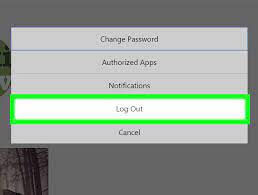
One of the simplest fixes to make your Instagram Reels work is the Sign-Out and Sign In technique. If Instagram Reels aren’t showing on your screen or you have multiple accounts logged in on your IG app, this method is very helpful for you.
Simply head over to Settings on your IG account from the hamburger menu in the top-right corner. Scroll to the bottom and tap on the Log Out option. If you have logged in to multiple accounts, select the account with Instagram Reels not working issue.
Now, you can sign back into your Instagram account using your username and password. In most cases, this will fix the Instagram Reels issue for you.
Fix 3. Restart or Refresh your Instagram page
If the simple sign-out-and-in method didn’t work for you, you could try to reboot your IG app or the last session on your web browser. There are chances that the Instagram app isn’t initiated properly, which can lead to the Instagram Reels not working.
You can press the reload button or press the Ctrl + R keys (for Windows) and the Command + R keys (for macOS) on a web browser. You can also hard reset using the Ctrl + F5 on Windows and Command + Option + R on macOS.
For the Instagram app, remove your app from your Recent Apps or App Switcher. Then, relaunch the IG app and check if the Reels are working for you now.
This method will remove some minor cache issues associated with the Instagram page for you.
Fix 4. Restart your device
If the refreshing or rebooting Instagram app didn’t work, you could try to restart your device. To do so, Android users should simply hold the power button until the restart option appears and then tap on it.
For iOS devices, press the volume button and the side button until the power off slider appears on your screen. Then, drag the slider and wait for 30 seconds to turn on your device. Now, just go and check if Instagram Reels are visible to you.
Fix 5. Change account settings from Private to Public
If your Instagram Reels are only viewed by your followers, first check who can see your Reels. Here if you have set your account’s privacy settings to not show your Reels to everyone, you have to change it.
By making your account Public, all your Reels are accessible to anyone. So, if you have a Private account, turn it into Public as follows:
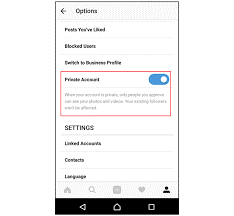
Tap on your profile picture > Hamburger menu on the top-right corner > Settings > Privacy > Disable the toggle next to Private Account, and your account will become public.
Fix 6. Update your Instagram app
If you can’t see the Reels feature on your app, you should update your Instagram app. Especially if you have recently updated your device’s OS, you need to install the compatible app version to support it.
To update your Instagram app, simply head over to Apple App Store or Google Play store, search for the Instagram app. If there’s an update available for your device, tap on the Update button and check if your Instagram Reels not working problem is fixed or not.
Fix 7. Update your Operating System
Another reason behind your Instagram Reels not working can be your outdated operating system. If your device’s OS isn’t compatible to support the Reels feature, it can cause a problem.
To confirm this, log in to your Instagram account using any other Reels compatible device and check if Reels are now working for you. If they are, head over to your device’s system settings and click on the update button.
Fix 8. Clear the Instagram app or Web Browser Cache
The more videos, stories, or photos you like, share, or post on your Instagram account, the more cache volume will increase for you. When these caches accumulate, it will consume more space and lead to app bugs that can cause Instagram Reels to not work properly. Therefore, it is recommended to delete the Instagram cache from time to time.
To clear the cache on the mobile app, follow these steps:
Open the app Settings > Apps & notifications > Select Instagram from the list.
Here you can also uninstall the Instagram app from your device. This will automatically delete away all the cache files related to the app.
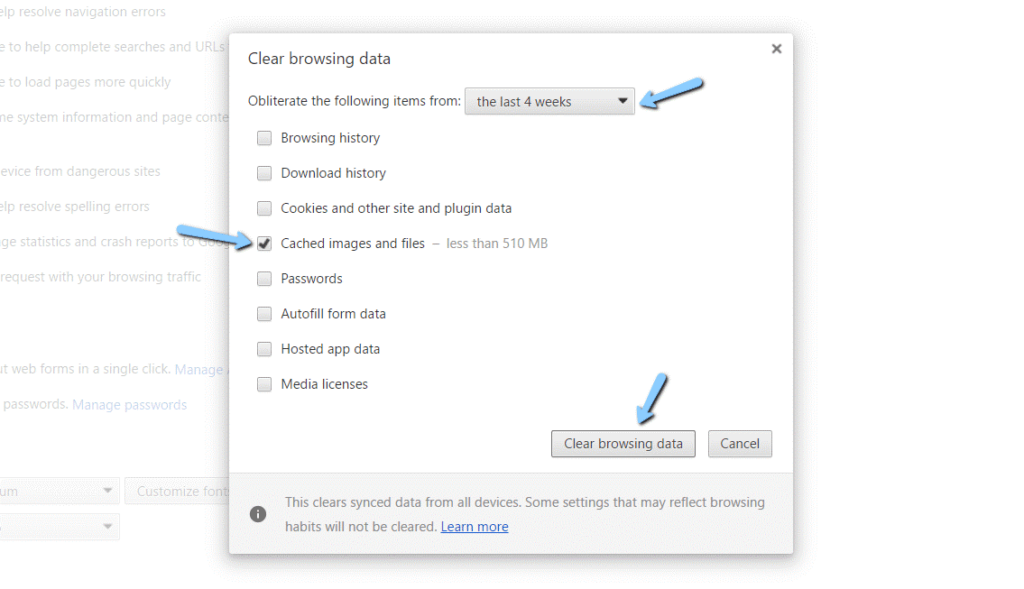
If you access Instagram on your computer’s web browser, you need to clear the web browser cache to fix the Reels not working problem. Every web browser has different procedures to clear the cache. Let’s say if you are a Google Chrome user, you can clear the web browser cache as:
- Press Ctrl + H keys together to access your browsing history.
- Click on the Clear Browsing Data button.
- Under Basic, make sure that all the options are checked. Also, always select a time range of All-time and then click on the Clear Data button.
Go to your Instagram account, and you will probably see your Instagram Reels now.
Fix 9. Wait until Instagram Reels available in your country
Many Instagram features are restricted to some countries only, like Shoppable, Reels, and others. As of 2020, Instagram Reels were only available for 50 countries worldwide.
So, here if Reels aren’t available for your country, you probably have to wait until Instagram Reels launches in your area. However, if you really want to watch Reels, you can try two methods:
- You can use VPN to access the Instagram app.
- Or, you can change the location of your app store.
There’s no guarantee that these methods will work, but you can give it a shot.
Fix 10. Add Reels to your profile gallery
Lastly, if Instagram Reels don’t appear in your feeds, you can fix this by adding them to your profile gallery. To appear Reels in your profile gallery, follow these steps:
- Tap on your Instagram profile picture.
- Select the Reels tab and then a Reels video.
- Tap on the three dots at the bottom of your Reels video.
- Select the Add to Profile Grid option.
- Now, the Reels video will be part of your profile gallery!
Wrap Up
There you go, Instagrammers. We have shared 10 awesome methods to fix Instagram Reels not working for you. Now, depending upon your Reels problem, you can implement the fix and enjoy Reels.
However, it is recommended to start with easy solutions like signing out before trying anything extreme like reinstalling your IG app.
We hope you find this post helpful! Don’t forget to like and share this post with other Instagrammers.
Author Bio:
Dinesh Lakhwani 

Dinesh Lakhwani, the entrepreneurial brain behind “TechCommuters,” achieved big things in the tech world. He started the company to make smart and user-friendly tech solutions. Thanks to his sharp thinking, focus on quality and the motto of never giving up, TechCommuters became a top player in the industry. His commitment to excellence has propelled the company to a leading position in the industry.
Popular Post











Recent Post

How To Fix Issues Downloading from the Microsoft Store On Windows
Introduction: Downloading apps from the Microsoft Store should be a simple task. You open the Store, search for an app, and click install. In most cases, the process works without any problem. However, there are times when the download does not start. In some cases, it may stay stuck at a certain percentage. You may […]

How To Fix Windows Update Issues Easily On Windows [2026]
Introduction Windows updates play an important role in keeping a computer stable and secure. They bring new features, fix known bugs, and improve overall performance. When updates work as expected, the system runs smoothly. However, when they fail, users often face slow performance, missing features, or security risks. This is why it becomes important to […]

How To Check If Your PC Is Infected? [Complete Guide]
Computers now sit at the center of almost everything we do. Well, yes! From sending emails to watching videos, we depend on them without much thought. Because of this, even a small issue can disrupt daily tasks. One common problem is hidden malware. It does not always show clear signs at first. It can enter […]

Repair Apps And Programs: Repair Apps That Aren’t Working
Computers have become an essential part of everyday life, supporting work, study, communication, and entertainment. Most of these activities rely on apps and programs, so when one stops functioning, even simple tasks can be disrupted. Common problems include error messages, frozen screens, or apps that fail to open. On Windows systems, such issues often arise […]

Troubleshooting Microphone Privacy Settings: Complete Guide
Sound is a basic part of how we use computers today. People attend meetings, record audio, speak to others, and use voice tools almost every day. A working microphone makes all these tasks easy. When the microphone fails, even simple work becomes difficult. Many users first think the device is broken. In reality, the issue […]

Windows Sound Settings – Sound Control Panel: Complete Guide
Sound plays an important role in how we use a computer every day. It supports both work and leisure. You need it for meetings, videos, music, and alerts. When audio fails, even simple tasks become difficult. Many users feel stuck when sound issues appear. This usually happens because they are not familiar with Windows Sound […]

Run a Troubleshooter For PC Issues Windows: Complete Guide
A computer plays an important role in everyday life. People use it for work, study, communication, and entertainment. When a problem appears, it can interrupt everything. Even a small issue can waste time and create frustration. Many users feel unsure about how to fix such problems. They often think they need expert help. In reality, […]
![Adjusting Audio Output Settings Complete Guide [2026]](https://www.techcommuters.com/wp-content/uploads/2026/03/Adjusting-Audio-Output-Settings-Complete-Guide.webp)
Adjusting Audio Output Settings: Complete Guide [2026]
Sound is part of almost everything we do on a computer. It lets you watch videos, join calls, play music, and hear alerts. When the audio stops working the right way, it can interrupt both work and daily use. That is why adjusting audio output settings matters for every user. Many people get unsure when […]

Artificial Intelligence Explained: Concepts, Terminology, Benefits, and Future Trends
Artificial Intelligence, or AI, is basically computers doing things that usually need a human brain. We’re talking about stuff like learning from experience, figuring out problems, understanding language, and making decisions. It’s not magic, just a lot of data, pattern-spotting, and math behind the scenes. Now, AI doesn’t actually think or feel like we do. […]

Resolving Microphone Detection Problems: Latest Guide [2026]
Microphones are important tools in daily life. People use them for office meetings, online classes, interviews, gaming, customer support, and content creation. When a system fails to detect a microphone, communication stops at once. This situation can cause stress and confusion. Many users believe the microphone is damaged. In reality, most problems are simple and […]

