How To Fix Android Auto Rotate Not Working
Last updated on January 15th, 2025 at 9:02 am
Introduction:
Is auto rotate not working? We have got you covered. Our smartphones have become indispensable companions that help us in getting things done seamlessly. One such handy feature of our smartphone is auto-rotate, which automatically allows us to switch between portrait and landscape modes. Whether you’re browsing the web, watching videos, or playing games, the auto-rotate function ensures a dynamic viewing experience. If you find yourself frustrated with an unresponsive auto-rotate on your Android device, fear not!
In this comprehensive guide, we will explore some potential causes behind this issue and provide you with practical solutions to get your auto-rotate feature back up and running in no time.
Why is Android Auto Rotate Not Working?
The auto-rotate feature on Android devices may not work due to the following reasons:
- Disabled Screen Rotation Setting: Check if the screen rotation setting is enabled in the Quick Settings panel.
- App-Specific Settings: Some apps have settings that override the system’s auto-rotate feature. Make sure auto-rotate is enabled within the app.
- Software Glitches or Updates: Outdated or buggy software can disrupt auto-rotate. Keep your device’s software up to date to avoid such issues.
These are the common culprits behind Android auto-rotate not working. Now, let’s explore the solutions to get it back on track.
How to Fix the Auto Rotate Not Working Issue on Android?
Solution 1: Restart your Device
Restarting your Android device can often resolve various software glitches and temporarily fix issues with the auto-rotate feature. Here’s how you can do it:
- Press and hold the power button on your device until the power menu appears.
- Tap on the “Restart” or “Reboot” option.
- Wait for your device to power off and then turn it back on.
Once your device restarts, check if the auto-rotate feature is functioning properly. If not, proceed to the next solution.
Solution 2: Check the Auto-Rotation Settings
To address the issue with the auto-rotate feature, it’s important to verify and adjust the relevant settings on your Android device. Here’s a step-by-step guide:
- Head to the Settings app. Locate it in your app drawer or by swiping it down from the top of the screen and tapping the gear icon.
- Scroll down until you find the “Display” or “Display & Brightness” option. Tap on it to proceed.
- Look for the “Auto-rotate screen” option within the menu. Ensure that it is enabled or toggled on.
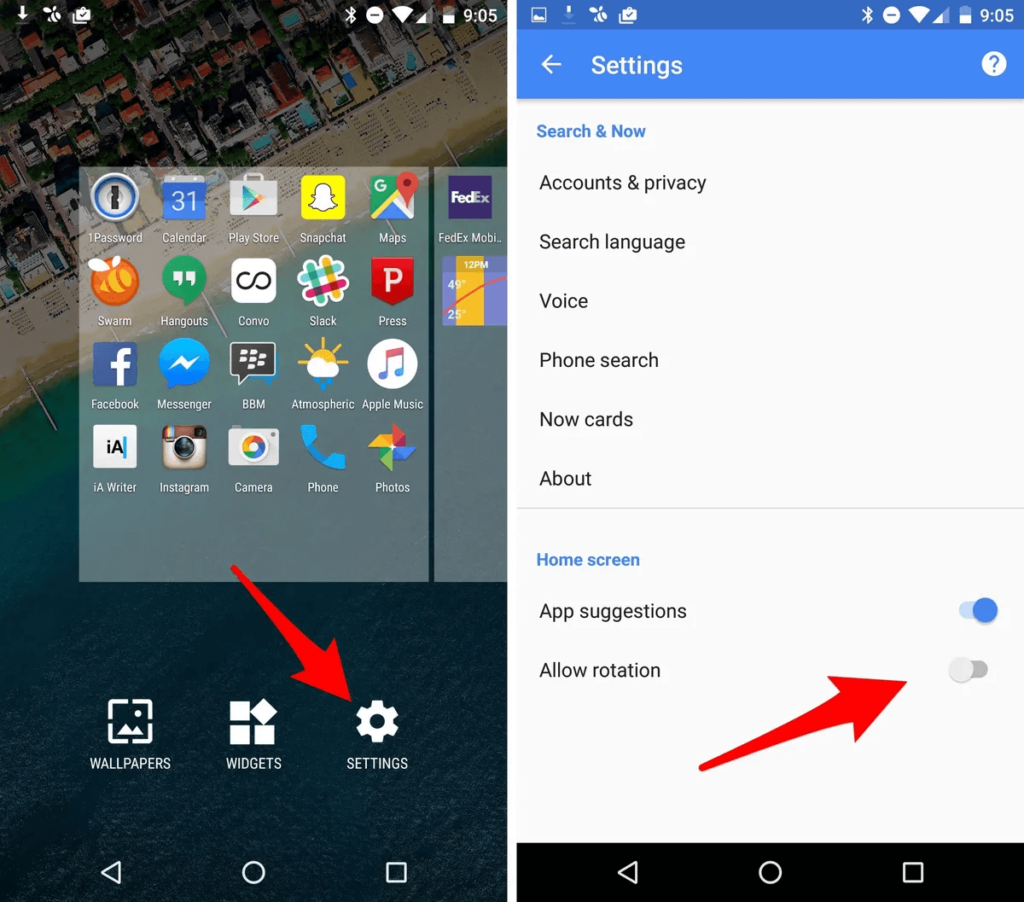
- If the option is already enabled, consider toggling it off for a moment and then back on to refresh the setting.
- Exit the settings and proceed to test the auto-rotate feature by physically rotating your device to observe if the screen orientation adjusts accordingly.
If the issue persists, you can try the below-listed solutions.
Solution 3: Review App-Specific Rotation Settings
Sometimes, the auto-rotate issue may be specific to certain apps that have their rotation settings. These apps, including video players and launchers, typically disable screen auto-rotation by default to minimize distractions and unwanted orientation changes. However, they usually offer a manual rotation option when needed.
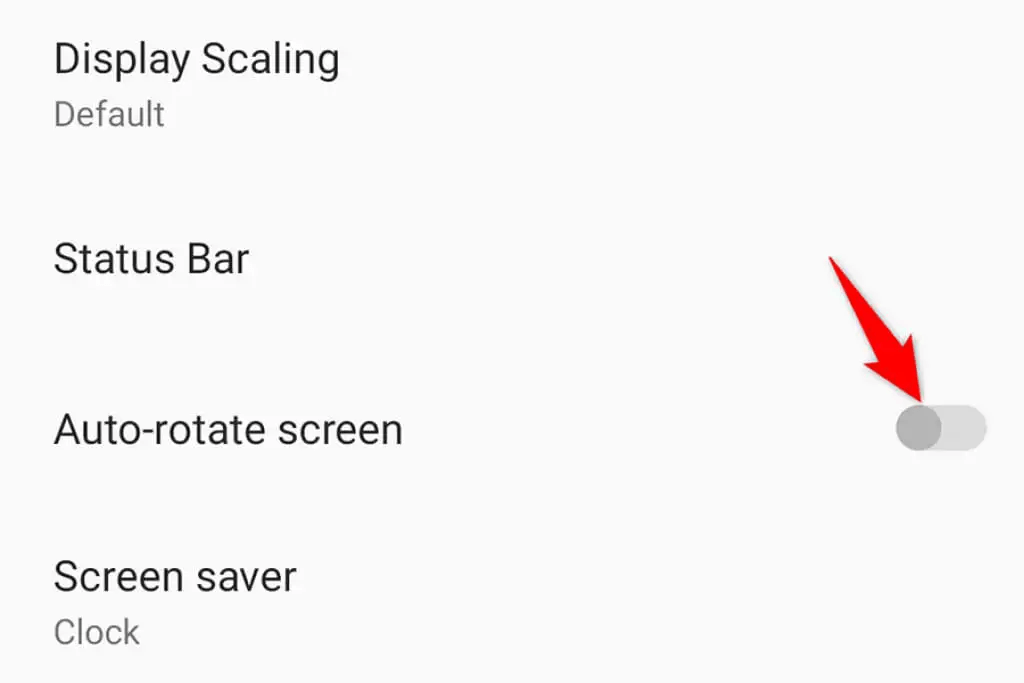
It’s important to note that some apps do not support screen rotation at all. These apps can only be used in portrait mode regardless of your device’s auto-rotate setting.
Solution 4: Update Your Phone
Updating your phone’s software can often resolve issues related to Android auto rotation not working. Software updates often include bug fixes, stability improvements, and enhancements that can address various problems.
- Connect to a stable Wi-Fi network.
- Open the Settings app and head to the System or About Phone section.
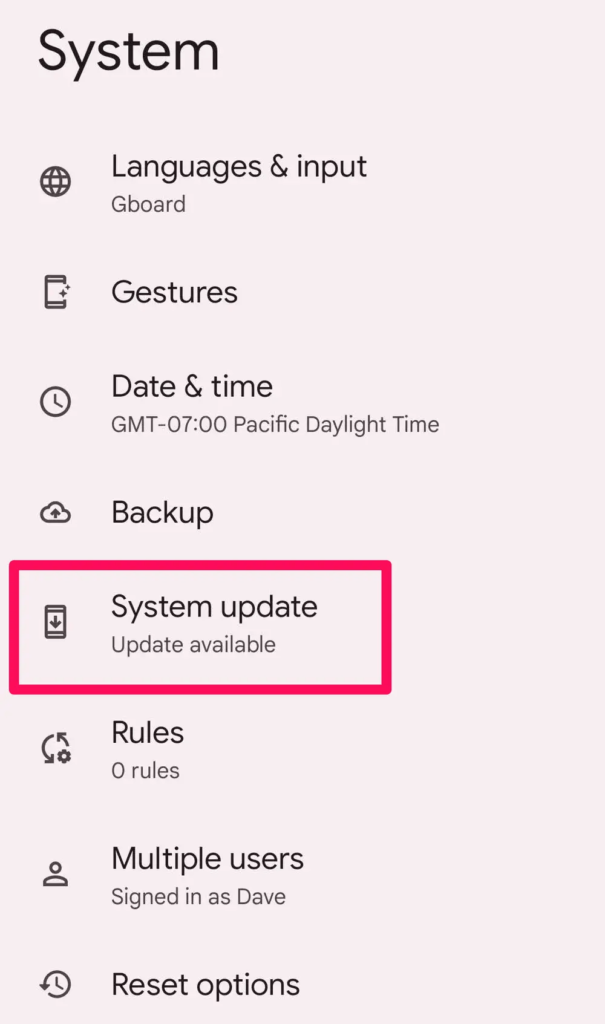
- Check for software updates.
- Download and install the update if available.
- Follow the on-screen instructions and wait for the installation to complete.
Check if the auto-rotate function is working properly after upgrading the Android OS.
Solution 5: Perform a Factory Reset
Performing a factory reset can potentially fix issues related to auto rotate not working on your device. However, before proceeding with a factory reset, it’s advisable to try some other troubleshooting steps first, as a factory reset should be considered a last resort.
Here’s a step-by-step guide in short points for performing a factory reset on an Android phone:
- Open the Settings app.
- Go to the System or System & Updates section.
- Look for the “Reset” or “Reset option”.
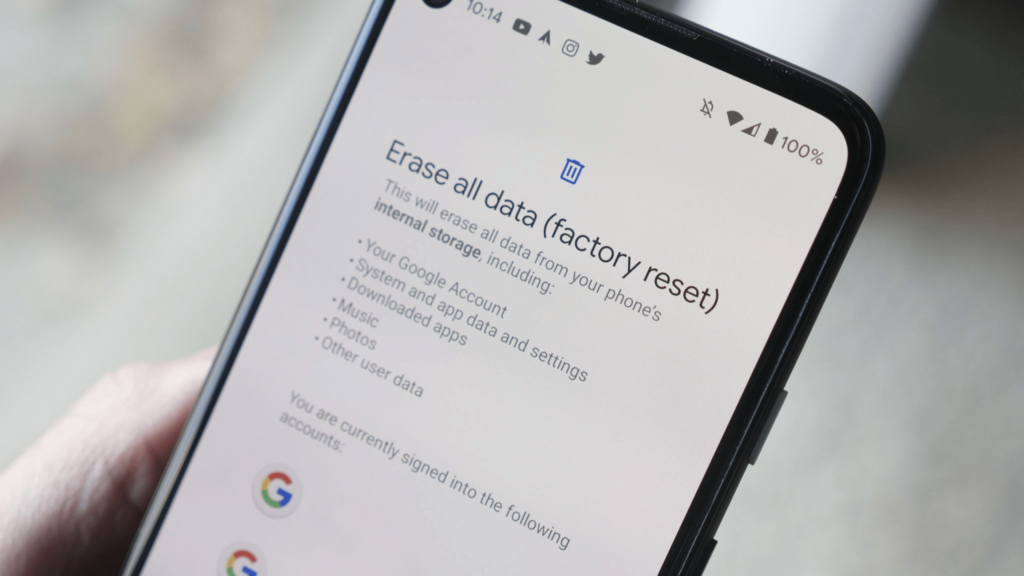
- Select “Factory data reset” or “Reset phone”.
- Enter your device’s password when prompted.
- Wait for the reset process to complete.
After performing a factory reset, check if the issue was resolved.
Solution 6: Use a Screen Rotation App
If the auto-rotate feature is not working on your Android device, you can try using a third-party screen rotation app as an alternative. These apps are designed to manually control the screen orientation of your device.
Here’s how you can go about using a third-party screen rotation app on Android:
- Open the Google Play Store on your Android device.
- Search for “Rotation Control” in the search bar.
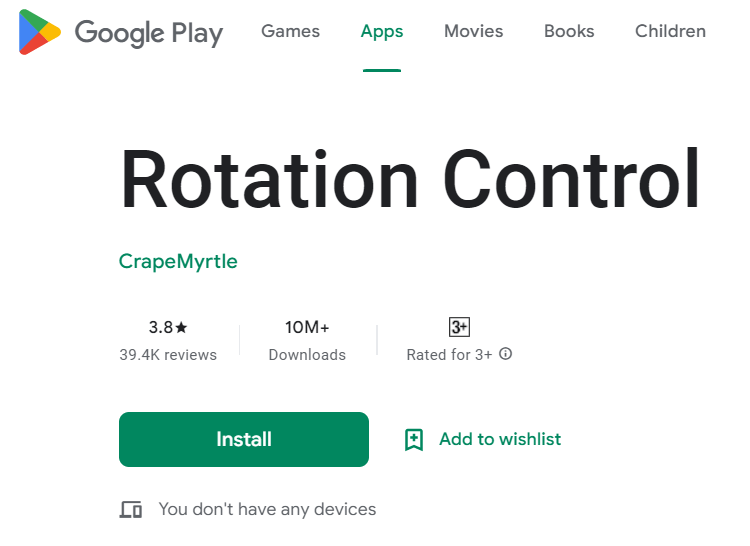
- Install the app by tapping on the “Install” button.
- Once the installation is complete, open the app.
- Follow the instructions provided by the app to set up and configure screen rotation settings.
You can use it as an alternative solution if none of the above-listed methods work.
Conclusion
Experiencing issues with the auto-rotate feature on your Android device can be frustrating, but there are several solutions you can try to resolve the problem. In this blog post, we explored various troubleshooting steps to fix the Android auto rotate not working issue. By following these troubleshooting steps, you’ll be able to tackle the auto-rotate not working issue on your Android phone and regain the convenience and flexibility of screen rotation.
Author Bio:
Dinesh Lakhwani 

Dinesh Lakhwani, the entrepreneurial brain behind “TechCommuters,” achieved big things in the tech world. He started the company to make smart and user-friendly tech solutions. Thanks to his sharp thinking, focus on quality and the motto of never giving up, TechCommuters became a top player in the industry. His commitment to excellence has propelled the company to a leading position in the industry.
Popular Post











Recent Post

Troubleshooting Microphone Privacy Settings: Complete Guide
Sound is a basic part of how we use computers today. People attend meetings, record audio, speak to others, and use voice tools almost every day. A working microphone makes all these tasks easy. When the microphone fails, even simple work becomes difficult. Many users first think the device is broken. In reality, the issue […]

Windows Sound Settings – Sound Control Panel: Complete Guide
Sound plays an important role in how we use a computer every day. It supports both work and leisure. You need it for meetings, videos, music, and alerts. When audio fails, even simple tasks become difficult. Many users feel stuck when sound issues appear. This usually happens because they are not familiar with Windows Sound […]

Run a Troubleshooter For PC Issues Windows: Complete Guide
A computer plays an important role in everyday life. People use it for work, study, communication, and entertainment. When a problem appears, it can interrupt everything. Even a small issue can waste time and create frustration. Many users feel unsure about how to fix such problems. They often think they need expert help. In reality, […]
![Adjusting Audio Output Settings Complete Guide [2026]](https://www.techcommuters.com/wp-content/uploads/2026/03/Adjusting-Audio-Output-Settings-Complete-Guide.webp)
Adjusting Audio Output Settings: Complete Guide [2026]
Sound is part of almost everything we do on a computer. It lets you watch videos, join calls, play music, and hear alerts. When the audio stops working the right way, it can interrupt both work and daily use. That is why adjusting audio output settings matters for every user. Many people get unsure when […]

Artificial Intelligence Explained: Concepts, Terminology, Benefits, and Future Trends
Artificial Intelligence, or AI, is basically computers doing things that usually need a human brain. We’re talking about stuff like learning from experience, figuring out problems, understanding language, and making decisions. It’s not magic, just a lot of data, pattern-spotting, and math behind the scenes. Now, AI doesn’t actually think or feel like we do. […]

Resolving Microphone Detection Problems: Latest Guide [2026]
Microphones are important tools in daily life. People use them for office meetings, online classes, interviews, gaming, customer support, and content creation. When a system fails to detect a microphone, communication stops at once. This situation can cause stress and confusion. Many users believe the microphone is damaged. In reality, most problems are simple and […]

How To Switch To A Dark Background Theme In Windows [2026]
Most people spend many hours each day in front of a computer screen. Office work, online classes, editing, browsing, and streaming all require long screen time. A bright white background may look clean at first. However, over time, it can feel sharp and tiring. The strong contrast between white backgrounds and black text may cause […]

How to Switch From Local To Microsoft Account On Windows
Many users begin with a local account when they set up a new Windows computer. A local account works only on that single device. It stores settings, files, and preferences locally. It does not connect to online Microsoft services. For basic offline use, it works well. However, as digital needs grow, many users want better […]

How to Switch Windows 10 to a Local Account: Complete Guide
Windows 10 allows users to sign in with either a Microsoft account or a local account. When you set up a new computer, the system often suggests using a Microsoft account. This account connects your device to Microsoft services such as Outlook, OneDrive, and the Microsoft Store. It also syncs settings, themes, and passwords across […]

How To Change Default Apps For File Types In Windows
Windows is designed to make using your computer easy. One way it does this is by assigning default apps to different file types. This means when you open a file, Windows automatically opens it with a specific program. For example, photos may open with Photos, music with Groove Music, and PDFs with Edge. These default […]

