How to Change Mouse Scrolling Settings In Windows

A mouse is one of the most used computer tools. People use it every day. They scroll through emails. They scroll through documents. They scroll through websites and images. The movement becomes automatic. Most users do not notice it. That is why problems often go unnoticed.
Scrolling problems show up slowly. At first, it feels minor. Pages move too quickly. Sometimes they move too slowly. Over time, these small issues grow. Eyes get tired. Hands feel stiff. Focus breaks easily. Work feels heavier than it should.
Many users blame age or long hours. The real cause is often a comfort mismatch. The mouse moves faster than the brain expects. Or slower than the hand wants. This gap creates stress. Learning how to change mouse scrolling settings in Windows gives users control over this experience.
Scrolling should feel calm. It should feel predictable. It should support the task, not fight it. Windows includes simple tools to adjust this behavior. They are easy to reach. They are safe to change. When set correctly, the computer feels easier to use.
Why You Need to Adjust Mouse Scrolling
Comfort Drives Productivity
Comfort decides how long you can work without strain. Many people focus on screens or keyboards. They forget the mouse. The scroll wheel plays a big role. It moves content. It guides the eyes. It sets the rhythm of reading.
If scrolling is too fast, the eyes rush. The brain works harder. If scrolling is too slow, the wrist repeats the movement. Both create fatigue. Over hours, this adds up. That is why users often need to change mouse scrolling settings in Windows to restore balance.
Comfort also affects accuracy. Smooth scrolling helps you stop at the right place. It reduces missed lines. It supports steady attention. These small wins improve the whole workday.
Reasons scrolling adjustment matters
- Less wrist fatigue
When the scroll speed is set correctly, the wrist does not need to move as often. Fewer wheel turns mean less repeated motion. This reduces tension during long hours of use. Over time, the wrist feels more relaxed and steady. - Reduced finger pressure
A smooth scroll speed needs less force. Fingers do not have to push or flick the wheel repeatedly. This lowers strain in the fingertips. It also makes scrolling feel lighter and more controlled. - Better reading comfort
Proper scrolling keeps text on the screen longer. Lines move at a pace that matches eye movement. This helps the reader stay focused. It also reduces the need to scroll back and forth. - Improved document navigation
Finding headings and sections becomes easier. Pages move in predictable steps. You can stop exactly where needed. This saves time during editing or review work. - Cleaner web browsing
Web pages feel more stable while scrolling. Sudden jumps are reduced. Images and text load in a calm way. Browsing feels smoother and less distracting. - Support for long sessions
Long work sessions become easier on the body. Strain does not build as quickly. Hands and arms stay comfortable. This helps maintain energy throughout the day. - Adaptation to screen size
Large screens show more content at once. They often need a slower scroll speed. Smaller screens may need faster movement. Adjusting speed helps match the display size. - Improved focus
When movement feels controlled, attention stays on content. The brain stops reacting to motion. This supports deeper focus and better understanding.
When You Should Not Change Mouse Scrolling
Consistency Can Matter More
Not every situation calls for adjustment. Sometimes, stability is more important. Shared computers require uniform behavior. One person’s comfort may be another’s confusion.
Work environments may require standard settings. Training materials expect default behavior. Changing scroll speed may create learning gaps. In such cases, it is better to leave settings unchanged.
Muscle memory also matters. Some users have used the same scroll speed for years. Their hands move without thought. Changing settings may reduce confidence. It can slow work at first.
Situations where change is not ideal
- Shared household computers
In shared homes, many people use the same system. Each person has different comfort needs. Changing scroll settings for one user may confuse others. Neutral settings help everyone adjust easily. - Workplace controlled systems
Office computers often follow company rules. IT teams manage system behavior. Changes to mouse settings may be restricted. Keeping defaults avoids policy issues and support problems. - Training or classroom devices
Learning environments rely on consistency. Teachers and guides assume standard behavior. Altering scroll speed may make lessons harder to follow. Defaults support smoother learning. - Temporary or borrowed laptops
Short-term use does not require personal tuning. Spending time adjusting settings offers little benefit. It is better to leave the system unchanged. - Accessibility tools are already active
Some users rely on accessibility features. Custom scroll settings may interfere with those tools. Keeping existing configurations helps maintain stability. - Technical troubleshooting sessions
Defaults make problem detection easier. Changes can hide real issues. Using standard settings supports a clear diagnosis. - Beginner user environments
New users need simple systems. Too many adjustments cause confusion. Default behavior builds confidence and familiarity. - Public access machines
Public systems are shared by many users. Personal changes are not suitable. Keeping default settings ensures fair and easy access for all.
Other Precautions You Should Keep in Mind
Change Slowly and Observe
Even small changes can feel large. Scrolling directly affects the senses. Sudden changes feel uncomfortable. It is best to move slowly.
Test each change. Use it for a few hours. Let your hand adapt. Do not judge immediately. Comfort builds with repetition.
Also consider software conflicts. Many mouse brands install their own control panels. These tools may override Windows settings. Always confirm which tool is active.
Important precautions
- Change values gradually
Small changes feel easier to accept. Sudden adjustments can feel strange. Gradual steps allow the hand to adapt naturally. Comfort improves over time. - Test in real tasks
Always test scrolling during actual work. Reading long text feels different from editing files. Real use shows whether the setting truly works. - Check mouse quality
Not all mouse wheels are smooth. Cheap hardware may feel rough or stiff. Settings help, but hardware quality sets the limit. - Confirm driver behavior
Some mouse brands install their own software. These tools may override system settings. Always check which control is active. - Avoid frequent changes
Constant tuning prevents the hand from adapting. Stability allows comfort to develop. Give each change time to settle. - Restart when needed
Some system changes apply fully after a restart. If behavior feels unchanged, restarting can help. - Watch eye comfort
Scrolling affects eye movement. Smooth motion reduces visual strain. Jumpy movement can cause fatigue. - Document preferred settings
System updates can reset values. Writing down preferred settings helps restore comfort quickly.
Questions You Should Ask Yourself
Does scrolling cause tension
Yes, it can. When scrolling speed does not match natural hand movement, the wrist works harder. Tightness often builds during long sessions. Fingers may feel strained. After proper adjustment, movement should feel smoother. The wrist should stay relaxed. Comfort should improve with continued use.
Do pages move unpredictably
Unpredictable movement makes reading difficult. Pages may jump past important lines. This breaks focus and flow. Controlled scrolling helps the eyes track content easily. Steady movement supports calm reading and better understanding.
Do different programs feel uneven
Yes, this is common. Some programs react quickly to scroll input. Others move slowly. This creates confusion. Balanced scroll settings reduce this gap. They help different tools feel more consistent.
Is my mouse suitable for long use
Mouse quality matters a lot. Poor wheels may feel stiff or rough. No setting can fully fix weak hardware. Adjustments help, but comfort has limits. For long use, a well-built mouse gives better support.
How to Change Mouse Scrolling Settings In Windows
Simple and Built-In Control
Windows includes built-in controls. No downloads are needed. The settings are safe. You can reverse them anytime.
Learning how to change mouse scrolling settings in Windows takes only a few minutes. The benefits can last for years.
Three clear steps
- Open system settings
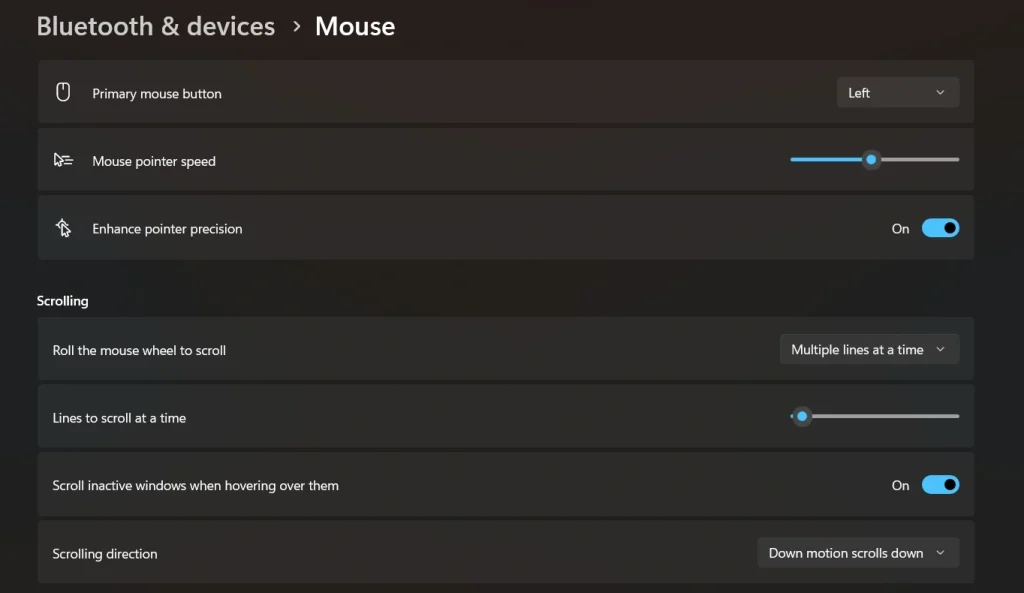
Click the Start menu. Open Settings. Choose Bluetooth and Devices. Select Mouse.
- Adjust scrolling behavior
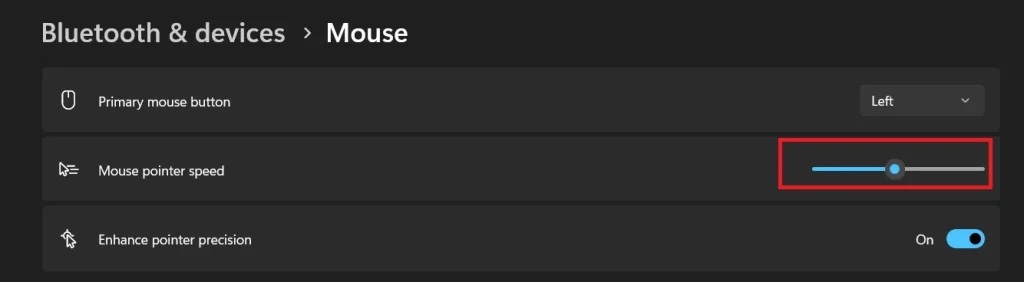
Set how many lines move per scroll notch. Enable inactive window scrolling if useful.
- Test and refine
Open a long page. Scroll slowly. Adjust until movement feels steady.
Author’s Tip
Scrolling comfort does not stay the same forever. Work habits change with time. Tasks change during the day. Reading long articles often feels better with slower scrolling. It allows the eyes to rest on each line. Browsing short pages or image feeds may feel better with faster movement. Comfort improves when settings match the task.
Posture also plays an important role. Mouse height affects wrist movement. Arm support reduces pressure on the shoulder. Screen distance helps the eyes stay relaxed. When the body is properly aligned, scrolling feels natural and light. Small adjustments in setup often create the biggest improvement in comfort and control.
Conclusion
Scrolling touches every task we do on a computer. It guides how fast content moves on the screen. It affects how our eyes follow text. It shapes how our hands react. When scrolling feels wrong, stress builds quietly. The user may not notice it at first. Over time, fatigue appears. Focus drops. Work feels heavier than it should.
Taking control of scrolling brings relief. Careful adjustment creates smoother movement. The screen responds in a predictable way. Reading becomes calmer. Browsing feels steady. Many users report better comfort and stronger focus after small changes. These improvements may seem minor at first, but they last. Over weeks and months, they make daily computer use easier and more pleasant.
Frequently Asked Questions
Does scroll adjustment affect all software?
Scroll changes usually apply across the system. Most programs respect the Windows mouse settings. Browsers, file managers, and document tools follow them closely. Some specialized software may behave differently. Design tools, games, or custom viewers can use their own scroll rules. In such cases, system changes may have a limited effect.
Can original settings be restored?
Yes, restoring the original setup is easy. Windows keeps default values available at all times. You can return to them from the same mouse settings page. No data is lost during this process. Restoring defaults helps if changes feel uncomfortable or confusing.
Does this apply to touchpads?
Often yes, but not always. Many touchpads follow Windows scrolling rules. This is common on standard laptops. Some touchpads use separate driver software. Those drivers may control scrolling independently. In such cases, changes must be made in the touchpad settings instead.
Author Bio:
Dinesh Lakhwani 

Dinesh Lakhwani, the entrepreneurial brain behind “TechCommuters,” achieved big things in the tech world. He started the company to make smart and user-friendly tech solutions. Thanks to his sharp thinking, focus on quality and the motto of never giving up, TechCommuters became a top player in the industry. His commitment to excellence has propelled the company to a leading position in the industry.
Popular Post











Recent Post

How To Check If Your PC Is Infected? [Complete Guide]
Computers now sit at the center of almost everything we do. Well, yes! From sending emails to watching videos, we depend on them without much thought. Because of this, even a small issue can disrupt daily tasks. One common problem is hidden malware. It does not always show clear signs at first. It can enter […]

Repair Apps And Programs: Repair Apps That Aren’t Working
Computers have become an essential part of everyday life, supporting work, study, communication, and entertainment. Most of these activities rely on apps and programs, so when one stops functioning, even simple tasks can be disrupted. Common problems include error messages, frozen screens, or apps that fail to open. On Windows systems, such issues often arise […]

Troubleshooting Microphone Privacy Settings: Complete Guide
Sound is a basic part of how we use computers today. People attend meetings, record audio, speak to others, and use voice tools almost every day. A working microphone makes all these tasks easy. When the microphone fails, even simple work becomes difficult. Many users first think the device is broken. In reality, the issue […]

Windows Sound Settings – Sound Control Panel: Complete Guide
Sound plays an important role in how we use a computer every day. It supports both work and leisure. You need it for meetings, videos, music, and alerts. When audio fails, even simple tasks become difficult. Many users feel stuck when sound issues appear. This usually happens because they are not familiar with Windows Sound […]

Run a Troubleshooter For PC Issues Windows: Complete Guide
A computer plays an important role in everyday life. People use it for work, study, communication, and entertainment. When a problem appears, it can interrupt everything. Even a small issue can waste time and create frustration. Many users feel unsure about how to fix such problems. They often think they need expert help. In reality, […]
![Adjusting Audio Output Settings Complete Guide [2026]](https://www.techcommuters.com/wp-content/uploads/2026/03/Adjusting-Audio-Output-Settings-Complete-Guide.webp)
Adjusting Audio Output Settings: Complete Guide [2026]
Sound is part of almost everything we do on a computer. It lets you watch videos, join calls, play music, and hear alerts. When the audio stops working the right way, it can interrupt both work and daily use. That is why adjusting audio output settings matters for every user. Many people get unsure when […]

Artificial Intelligence Explained: Concepts, Terminology, Benefits, and Future Trends
Artificial Intelligence, or AI, is basically computers doing things that usually need a human brain. We’re talking about stuff like learning from experience, figuring out problems, understanding language, and making decisions. It’s not magic, just a lot of data, pattern-spotting, and math behind the scenes. Now, AI doesn’t actually think or feel like we do. […]

Resolving Microphone Detection Problems: Latest Guide [2026]
Microphones are important tools in daily life. People use them for office meetings, online classes, interviews, gaming, customer support, and content creation. When a system fails to detect a microphone, communication stops at once. This situation can cause stress and confusion. Many users believe the microphone is damaged. In reality, most problems are simple and […]

How To Switch To A Dark Background Theme In Windows [2026]
Most people spend many hours each day in front of a computer screen. Office work, online classes, editing, browsing, and streaming all require long screen time. A bright white background may look clean at first. However, over time, it can feel sharp and tiring. The strong contrast between white backgrounds and black text may cause […]

How to Switch From Local To Microsoft Account On Windows
Many users begin with a local account when they set up a new Windows computer. A local account works only on that single device. It stores settings, files, and preferences locally. It does not connect to online Microsoft services. For basic offline use, it works well. However, as digital needs grow, many users want better […]

