Top 10 Photo Editors for iPhone in 2026: Complete Guide
Last updated on December 29th, 2025 at 3:34 pm
Are you a professional photographer? Or, Do you want to edit your social media marketing photos? Today, you can easily enhance the appearance of your iPhone clicks with a photo editor. From the iOS App Store, you can install various dynamic photo editors for iPhone and touch up your photos’ visual features. There are a series of awesome photo editors for iOS available. But, for your convenience, our tech team has searched for the ten best apps to edit photos on iPhone to download now!
Before You Start, First Know The Answer To These Questions:
1. Why do iPhone photo editors use different file formats?
Many apps use different formats because each format serves a specific purpose. Some keep more details for editing, while others make sharing easier. When an app saves in a high-quality format, it keeps more data from the original shot, which helps when you adjust colors, shadows, or sharpness. Lighter formats are useful when you want quick uploads or need to save storage space. A good editor usually lets you choose the format so you can match the file to your needs.
2. Do iPhone photo editors reduce image quality after editing?
Image quality can change depending on how the app handles compression and export settings. Most modern editors try to keep the original resolution intact unless you apply heavy filters or crop the image significantly. Some apps allow manual control over export quality, which helps you keep the final photo as close as possible to the original. Checking the export options before saving usually prevents any unwanted change in clarity.
3. Can these editors handle large RAW files smoothly?
Many of today’s iPhone editors support RAW files, but the speed and smoothness depend on how well the app is optimized. RAW files are large, so some tools take longer to load adjustments or previews. Editors with strong processing engines tend to handle these files with less delay. If you often work with RAW, choosing an app built for professional-level editing will give you a smoother workflow and more stable performance.
How We Have Made This List
We tested a wide range of iPhone photo editors available in 2026 and focused on tools that deliver real creative value. The list highlights editors that balance ease of use, power, and adaptability. We looked at how well each app helps you improve photos, express your style, and match modern mobile photography needs.
- Editing quality and control
We checked how precisely you can adjust exposure, color, sharpness, and tone. - AI and smart tools
Editors with effective AI features that simplify complex edits scored higher. - User interface and learning curve
Easy menus and intuitive gestures make an app more accessible for regular use. - Speed and responsiveness
A fast, stable app matters when you edit high-resolution images on the go. - Creative effects and filters
Offers like artistic filters, texture tools, and preset packs add fun and variety. - Layering and advanced tools
We noted tools that go beyond basics with blending, curves, and selective edits. - Export quality and formats
How well an app saves photos without unwanted compression or color issues. - Support and updates
Frequent updates and good help resources showed commitment to long-term use.
Top 5 Comparison Table
Below is a snapshot of five strong photo editors for iPhone in 2026. The table highlights their core strengths so you can see which aligns with your style and workflow.
| App | Editing Power | Ease of Use | AI Tools | Best For |
| Focos | Excellent depth editing | Easy | Smart portrait tools | Portrait and bokeh effects |
| PicsArt Photo & Video Editor | Strong creative suite | Easy | Many automated effects | Social and creative edits |
| Photoshop Express Photo Editor | High control | Moderate | Good autocorrections | Detailed image refinement |
| LightX Photo Editor & Retouch | Comprehensive tools | Moderate | Good retouching AI | Precision edits and retouch |
| Darkroom | Professional workflows | Easy | Smart adjustments | Fast pro-level work |
10 Best Photo Editors for iPhone in 2026 — Must Try
This time, our team raided the App Store in search of the best photo editing apps for iOS. After trying numerous apps for iPhone, we have selected the following ten must-try photo editors:
1. Focos
App Store Rating: 4.7/5
Complicated iOS: iOS 11.0 or higher
Developer: Xiaodong Wang
In-app Purchases: Yes
Price: Free. Lifetime subscription for $11.99
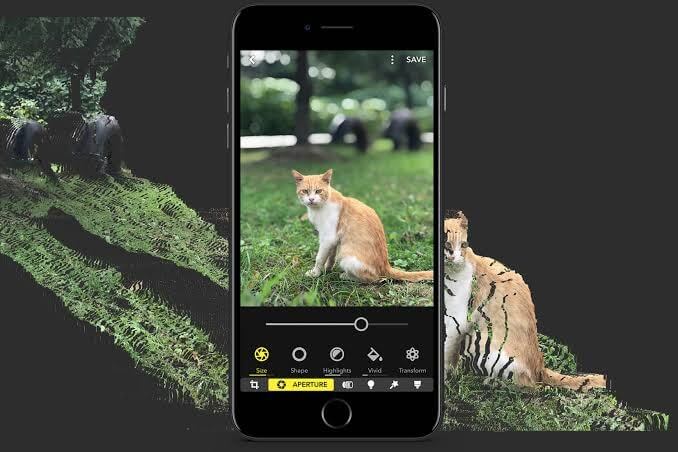
Focos is a futuristic app to edit images on iOS. This computational phototherapy tool provides a DSLR-like experience on your iPhone or iPad. The large bokeh effects offered by professional cameras can be achieved with Focos. Using advanced photo editing technology, you can make unlimited changes to your photos, add multiple lights in 3D space, change the aperture and dramatically extend the limits of editing tools.
Candid Features
- You can take shallow depth and 3D images with the app.
- Focos can simulate the large aperture to create real bokeh effects.
- You can refocus already taken portrait photos with a click.
- You can select effects from the wide aperture diaphragm to create different bokeh effects.
- Easily professional photos can be generated with swirly, bilinear, creamy, and reflex effects.
Pros
- Precisely work with App Pencil.
- Smooth user interface.
- Built-In video tutorials.
- Free features are sufficient for regular users.
Cons
- 3D space features need improvement.
- A bit of a learning curve is involved.
2. PicsArt Photo & Video Editor
App Store Rating: 4.6/5
Complicated iOS: iOS 12.0 or higher
Developer: PicsArt, Inc.
In-app Purchases: Yes
Price: 7 days free trial. Gold subscription for $8 a month or $47.88 for an annual subscription.
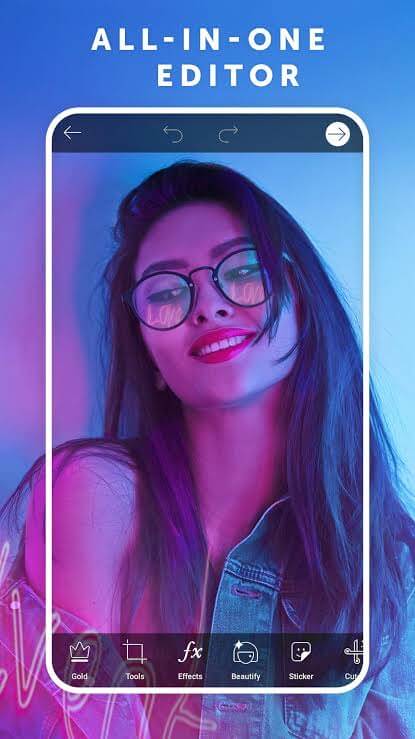
PicsArt is an all-purpose photo editing app for iPhone. With this quick and easy tool, you can edit photos, videos, make collages, stickers, add photo effects, and so much more. PicsArt allows you to unleash your creativity without any learning curve. Once you upgrade to PicsArtGold, you won’t ever need any other editing tool.
Candid Features
- You can edit professional-like features on your iPhone using numerous hot filters, background erasers, 200+ aesthetic fonts, special beauty tools, etc.
- You can tell exciting stories from scratch with an outstanding video maker and AI music generator.
- Store your beautiful photo memories with photo grids, scrapbooks, frames, and freestyle collages.
- You can explore over 60+ million iMessage stickers for fun messaging and even turn your photos into stickers.
Pros
- Enormous and complete facilities.
- Clean interface.
- Over 3,000 editing tools.
- More than 200 fonts.
Cons
- Expensive gold version.
- Internet connection is required to use some editing features.
- Video editing isn’t free.
3. Photoshop Express Photo Editor
App Store Rating: 4.6/5
Complicated iOS: iOS 12.0 or higher
Developer: Adobe
In-app Purchases: No
Price: Free. Premium for $4.99 per month.
Photoshop Express is the Editor’s Choice photo editing app for iOS. It is Adobe family tools that deliver a full spectrum of free photo effects and editing tools. You can give a personalized touch to your photos with borders and text, make picture collages, enhance color and imagery, quick fixes, and more. To gain professional photo editing experience on your iPhone, this tool contains all the right features.
Candid Features
- The editor can work on an image while the rest remain untouched with the Selective Editing feature.
- To enhance your special moments, you can use photo effects from looks categories such as Black and White, Portrait, Nature, and Duo tunes.
- With ready-to-use gradients, layouts, and backgrounds, you can easily create high-quality photo collages.
- You can personalize stickers, captions, and memes for fun chats.
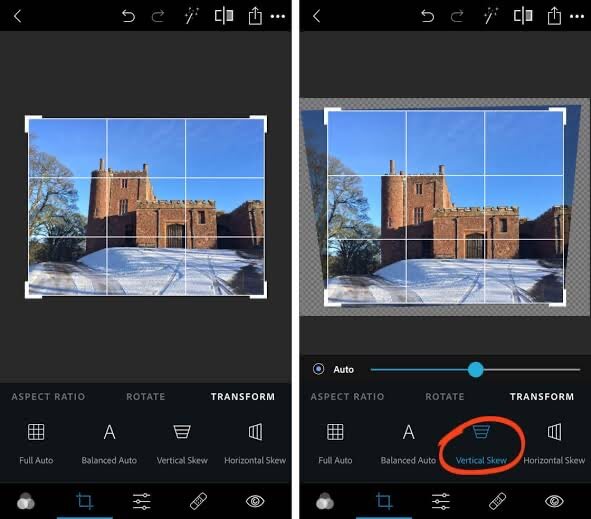
- Photoshop Express offers some unique editing features like quick fixes, blur, removing noise, perspective corrections, and more.
Pros
- Many professional editing tools.
- Simple interface.
- Attractive memes.
Cons
- Weak retouching option.
- Expensive creative cloud subscription.
4. LightX Photo Editor & Retouch
App Store Rating: 4.6/4
Complicated iOS: iOS
Developer: Andoe Communication
In-app Purchases: Yes
Price: Free. Paid subscription for $3.
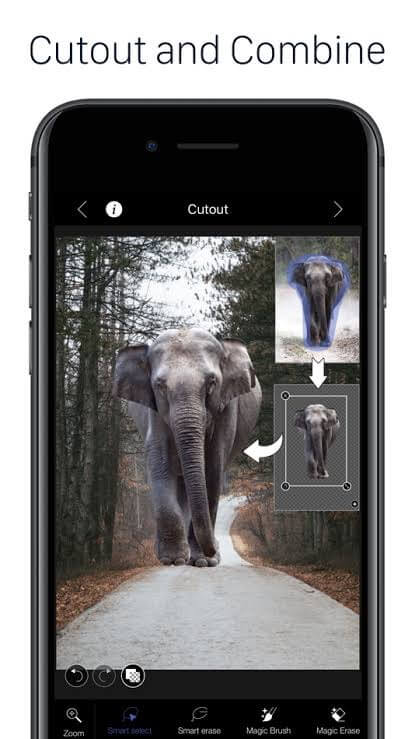
LightX is a smart free photo editing app for the iPhone with many advanced features. It is a photo editor for iOS to adorn photos with frames, stickers, cool backgrounds, and much more. You can even create engaging social media posters using tools like text, color mixing, vignette effects, etc. Additionally, if you want to retouch your clients’ headshots, you have brightness, exposure, hue, shadows, and other photo-enhancing tools.
Candid Features
- It is a fun app that lets you superimpose your cutout on any background.
- LightX is a smart tool that can automatically select similar color splash regions.
- Using blend mode, you can mix photos, create double exposure, and more.
- It is the right tool to edit your selfies with a variety of selfie filters.
Pros
- A large collection of stickers and frames.
- Easy to use.
- Good for beginners.
Cons
- No orientation support.
- No cloning image option.
5. Darkroom
App Store Rating: 4.6/5
Complicated iOS: iOS 11.0 or higher
Developer: Bergen Co.
In-app Purchases: Yes
Price: Free. Darkroom+ for $3.99 per month.
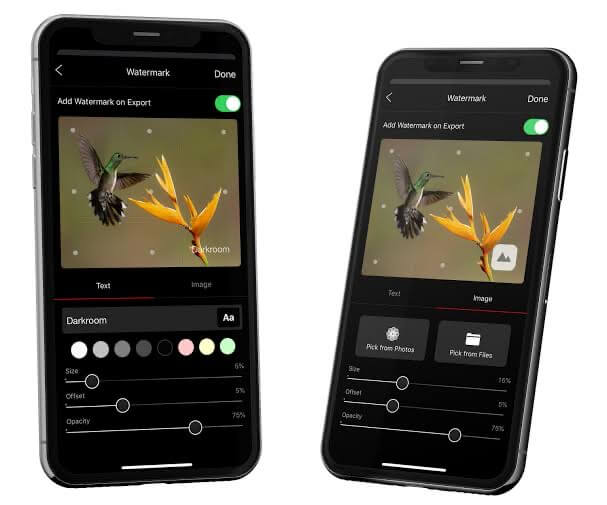
With Darkroom, you can bring your photo to life for free. This universal photo editor has been the winner of “Apple Design Award 2020” and “Best App of the Apple Store in 2015.” Darkroom can edit your RAW, Live, and Portrait photos along with your videos. For the most dynamic color tools, try Darkroom for sure.
Candid Features
- All Darkroom features and filters are video-compatible and super fast.
- You can edit the foreground and background of your portrait photos separately with Darkroom.
- Full resolution RAW editing is possible with the app.
- With Darkroom+, you can fully manage your iCloud Photo Library and create your personalized photo filters.
Pros
- A highly functional and simple tool.
- Easy to customize.
- Complete photo and video editing solution.
Cons
- Expensive paid version.
- The application often crashes.
6. Photo Editor
App Store Rating: 4.5/5
Complicated iOS: iOS 9.3 or higher
Developer: Axiem Systems
In-app Purchases: Yes
Price: Free. Pro for $1.99 per month
Photo Editor is a simple image editing app for iPhone to make beautiful photos in no time. The tool offers multiple stunning filters, frames, stickers, and many other creative tools. Additionally, you can apply effects, paint, draw, remove blemishes, whiten a smile, and so much more with the Photo Editor.
Candid Features
- You can use Color Splash to amplify color combinations in your photos.
- It’s easy to give a professional touch to your photos with vignette tools, smile whitening, blur filters, and more.
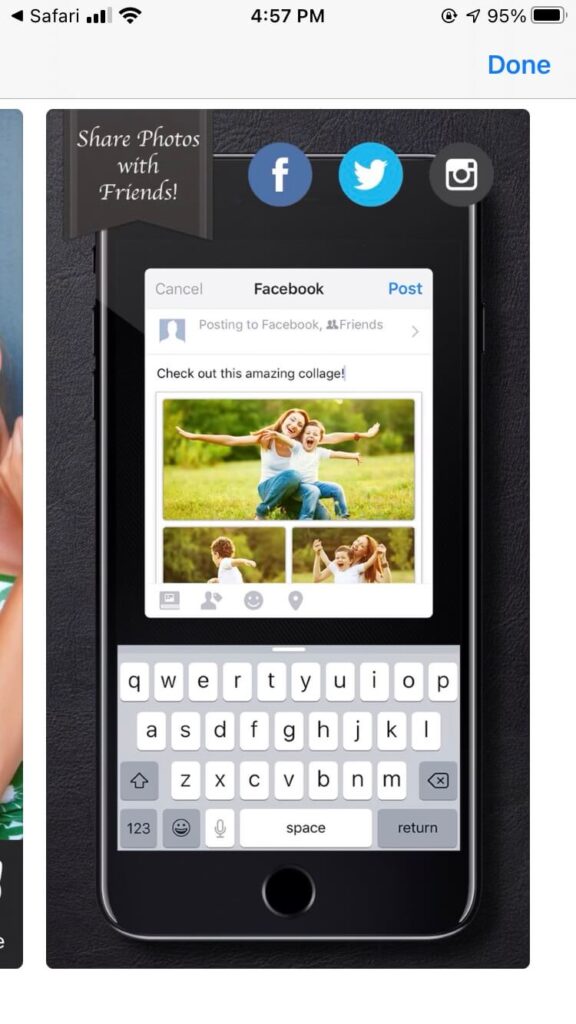
- You can share your edited photos with friends through Facebook, Twitter, Flickr, etc.
- It is a multilingual app that can be used in 15+ native languages.
Pros
- Coolest stickers.
- Good interface.
- Smooth editing.
Cons
- Too many in-app purchases.
- The app crashes under pressure.
7. Photo Lab
App Store Rating: 4.3/5
Complicated iOS: iOS 9.0 or higher
Developer: VicMan LLC
In-app Purchases: Yes
Price: Free with in-app purchases. Pro for $4.99 per month.
Photo Lab offers realistic effects and stylish filters to an ever-growing community of over 230 million users. It is a critically acclaimed photo editor for iOS containing 900+ photo editing effects, including AI-driven art style, background replacements, makeover options, realistic photomontages, and more. Photo Lab is a perfect app to run visual experiments with your photos.
Candid Features
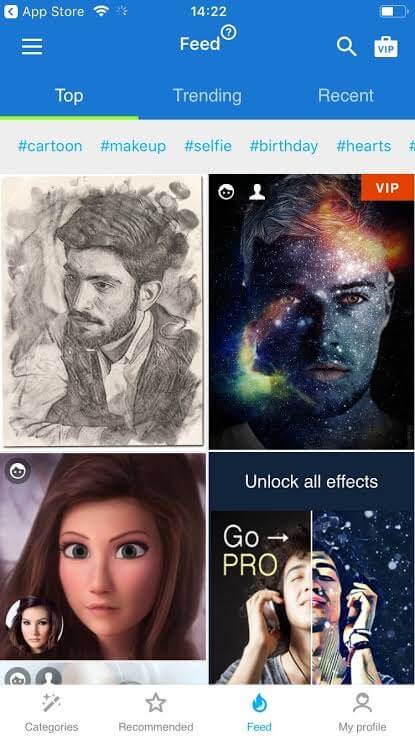
- The photomontage comes with automatic face detection that can make you a nurse, tiger, or gangster in one click.
- Using photorealistic effects, you can put your photo on a dollar bill or a magazine cover like Vogue, Playboy, etc.
- You can turn your photo into an art piece by selecting different techniques such as pen, charcoal, pastel, etc.
- Photo Lab allows you to make your personalized holiday greeting cards.
Pros
- 900+ photo editing effects.
- AI-based face detection.
- Cool backgrounds.
- Simple UI.
Cons
- Slow processing.
- Heat up the phone.
- Only three days free trial.
8. Snapseed
App Store Rating: 4.2/5
Complicated iOS: iOS 10.0 or higher
Developer: Google
In-app Purchases: No
Price: Free
Snapseed is a complete photo editor for the iPhone by Google. It is a free tool for professional photographers with multiple editing tools and filters, including brush, structure, HDR, and more. You can quickly save your personal looks with Snapseed and later on apply to new photos. Moreover, you’ll receive unlimited tutorial cards, tips, and tricks about Snapseed to improve your editing skills. If you want to learn photo editing on your iPhone for free, you won’t find a better tool.
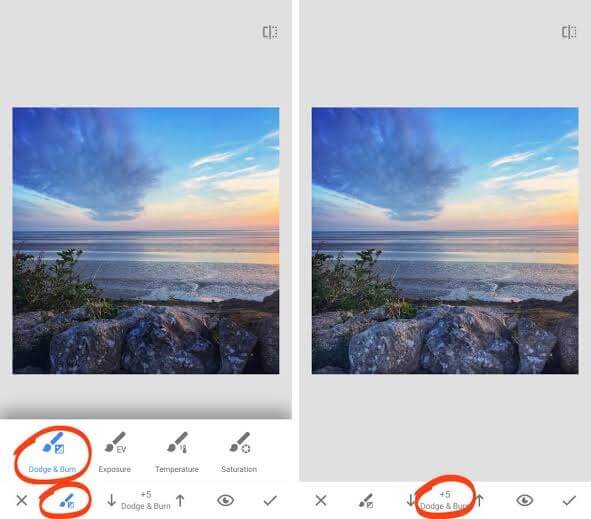
Candid Features
- You can open and tweak with native camera files and also export as JPG or RAW files.
- Automatically adjust exposure and color with the fine Tune Image feature.
- With Double Exposure, you can blend your two clicks and select the best shots from blend modes.
- Snapseed includes all the essential photo editing options such as HDR Scape, Drama, Noir, Vintage, Grunge, Frames, and much more.
Pros
- Completely free.
- Professional level preset and tools.
- Can edit RAW files.
- Intuitive user interface.
- Easy to use.
Cons
- General editor.
- Complicated learning curve.
- Save options aren’t very clear.
- Social media integration isn’t great.
9. Pixlr
App Store Rating: 3.8/5
Complicated iOS: iOS 10.0 or higher
Developer: Inmagine Lab Pte. Ltd
In-app Purchases: Yes
Price: Free with in-app purchases.
If you are looking for a free and easy photo editor for iOS, Pixlr is your tool. Without creating an account or paying any subscription fees, you can download the app and edit your special moments with over 2 million combinations of filters, overlay, and filters. Moreover, you can effortlessly share your creations with your friends or followers via email, Facebook, Instagram, and other social media networks.
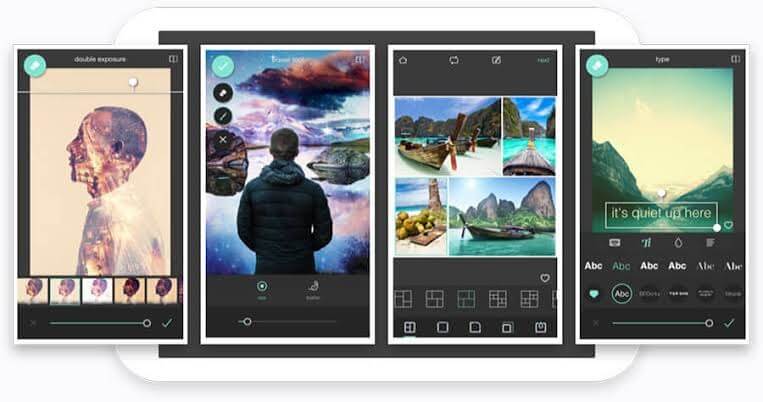
Candid Features
- Using vivid preset collages, customized ratios, background, and grid style, you can seamlessly create photo collages.
- You can beautify your portraits with blemish removal, red-eye, teeth whitening, and many other simple tools.
- You can create professional photos with Color Splash and Focal Blur-like effects.
- There are multiple effects, borders, overlays, and frames available to turn a simple photo into an extraordinary art piece.
Pros
- User-friendly app.
- Good for beginners.
Cons
- The free version only works with the internet.
- Needs a major bug fix improvement.
10. Photo Splash
App Store Rating: 3.7/5
Complicated iOS: iOS 9.0 or higher
Developer: Pixel Force Private Limited
In-app Purchases: Yes
Price: Free with in-app purchases. Full subscription for $6.99 per month.
Photo Splash is a free photo editing app for iPhone with special selective colorization effects. If you like to tweak with the black and white color combination of your photos, this photo editor is specifically designed for color management. Photo Splash is simple to create bold and vibrant photo colors with a tap.
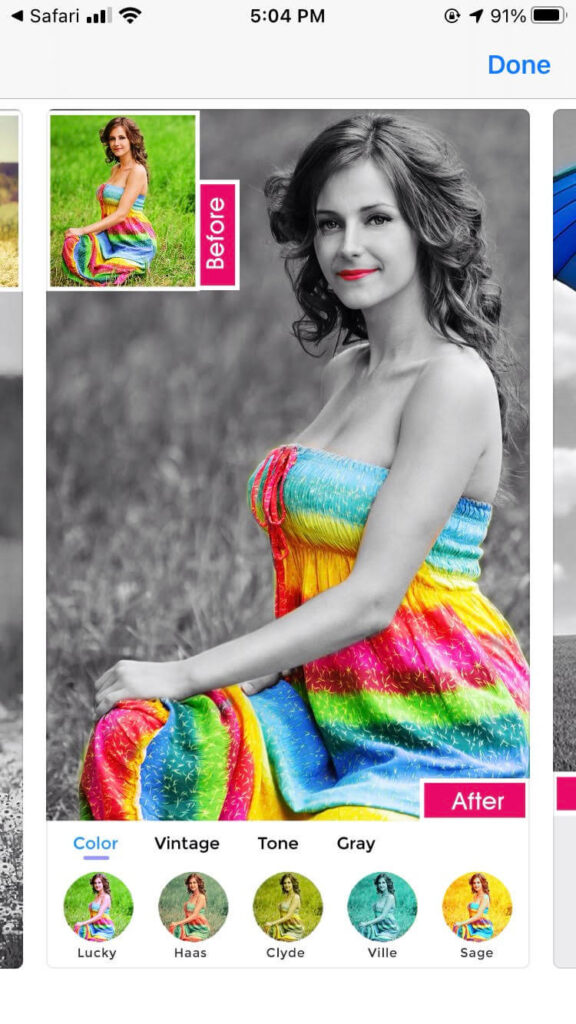
Candid Features
- With easy gesture detection, you can zoom in or out to do detailed splash work.
- The preview window enables you to know what is happening behind your taps.
- The gray to color and color to gray features are very clean.
- You can create photo albums and clipboards with the app share via email or social media platforms.
Pros
- Easy to use.
- Great gray to color and color to gray features.
Cons
- The free version shows lots of ads.
- Too many in-app purchases.
Conclusion
The best photo editors for iPhone in 2026 show how far mobile creativity has come. Simple adjustments like brightness and contrast are just the start. Top apps now include AI assistance, advanced retouching, and creative tools that help both beginners and experienced editors get the results they want. Your choice depends on how much control you want and whether you lean toward artistic effects or precise corrections.
For quick social edits, apps with broad creative features and smart filters help you produce eye-catching results fast. If you want fine control over every detail, editors with deeper adjustment tools and professional workflows give you more room to refine images. In either case, the right editor should fit your habits and help you work confidently with the iPhone camera’s powerful output.
FAQs
1. Do these photo editors work offline
Most let you edit photos without an internet connection. Some features, especially cloud presets or online filters, may require connectivity. Core editing stays local on your device.
2. Can I use these editors with RAW photos
Many support RAW formats, so you can work with uncompressed data. This gives you more control over exposure and color without losing quality.
3. Are in-app purchases necessary to unlock key features
Basic tools are usually free, but advanced tools, filters, and export options may require in-app purchases or subscriptions. You can start editing without them and decide later if you need extras.
Author Bio:
Dinesh Lakhwani 

Dinesh Lakhwani, the entrepreneurial brain behind “TechCommuters,” achieved big things in the tech world. He started the company to make smart and user-friendly tech solutions. Thanks to his sharp thinking, focus on quality and the motto of never giving up, TechCommuters became a top player in the industry. His commitment to excellence has propelled the company to a leading position in the industry.
Popular Post











Recent Post

How to Switch Windows 10 to a Local Account: Complete Guide
Windows 10 allows users to sign in with either a Microsoft account or a local account. When you set up a new computer, the system often suggests using a Microsoft account. This account connects your device to Microsoft services such as Outlook, OneDrive, and the Microsoft Store. It also syncs settings, themes, and passwords across […]

How To Change Default Apps For File Types In Windows
Windows is designed to make using your computer easy. One way it does this is by assigning default apps to different file types. This means when you open a file, Windows automatically opens it with a specific program. For example, photos may open with Photos, music with Groove Music, and PDFs with Edge. These default […]

How To Adjust The Mouse Pointer Speed: Complete Guide
Using a computer every day means you use the mouse a lot. The mouse pointer moves on the screen and helps you click, scroll, and select items. Many people never think about the speed of the mouse pointer. They have used the default setting for years. This can cause small problems over time. A slow […]

How to Change Mouse Scrolling Settings In Windows
A mouse is one of the most used computer tools. People use it every day. They scroll through emails. They scroll through documents. They scroll through websites and images. The movement becomes automatic. Most users do not notice it. That is why problems often go unnoticed. Scrolling problems show up slowly. At first, it feels […]

Keyboard Light Settings: Keyboard Lighting Control [Complete Guide]
Keyboards are no longer simple typing tools. Well, yes! Over time, they have evolved to include features that improve comfort, visibility, and overall experience. One of the most useful features today is keyboard lighting. It helps users work comfortably in low-light conditions. It also reduces strain when typing for long hours. Many users first notice […]

Customizing Pointer Appearance: Complete Guide
The way your mouse pointer looks on your computer may seem like a small detail. But customizing pointer appearance can make using your PC more comfortable and visually appealing. Many users do not realize that they can change the pointer size, color, and style to fit their needs. Whether you want a bigger pointer for […]

How To Choose a Computer Monitor: Monitor Buying Guide
Buying a monitor looks easy. Many people think all screens are the same. That belief causes regret later. A monitor is not just a display. It is a daily tool. You read on it. You work on it. You relax with it. Small problems become big over time. Poor brightness hurts eyes. Bad size causes […]

How To Get Help With File Explorer in Windows 11 [Complete Guide]
File Explorer is one of the most important tools in Windows 11. It is used to open folders, view files, and manage stored data. Almost every action on a Windows computer depends on it in some way. When users open documents, save downloads, or organize photos, File Explorer is always involved. Because it is used […]

How To Fix A Frozen Computer: Complete Guide [Windows 11/10]
A frozen computer is one of the most common problems Windows users face. The screen stops responding. The mouse pointer does not move. Keyboard inputs do nothing. You may hear the fan running loudly. Sometimes the system looks alive, but nothing works. This situation often happens when you are busy or working on something important. […]

How to Upgrade Computer RAM: Complete Guide
Upgrading RAM is one of the simplest ways to improve a computer. It helps the system feel faster and smoother. Apps open quicker. Browsers handle more tabs. Games and tools run with less delay. Many users search for how to upgrade computer RAM because it gives real results without high cost. You do not need […]

