Top 5 Bass Booster & Music Equalizer for Windows 11/10 [2026]

Last updated on December 22nd, 2025 at 2:26 pm
In 2026, improving sound on Windows is easier and more powerful than ever. Whether you’re into music, gaming, or just want better audio, using a bass booster or equalizer can make a big difference. These tools help you adjust sound to your liking—adding depth, clarity, and punch.
Windows 11 and 10 offer many options, but not all tools work the same way. Some are built for professionals, while others are easy for anyone to use.
In this guide, we’ve picked five top bass booster and equalizer apps based on what they do best and how well they perform.
Top 5 Bass Booster & Equalizer Tools for Windows (2026)
These five standout tools offer a mix of professional audio editing, real-time sound enhancement, and intuitive controls. Here’s a quick comparison to help you find the best fit for your needs:
| Tool | Key Features | Best For | Price Range | System Integration |
| Adobe Audition | Multitrack editing, spectral display, EQ presets | Professional audio editing | Premium (Subscription) | Limited (App-based) |
| Boom 3D | 3D surround sound, system-wide EQ, bass boost | Gaming, movies, casual users | Mid-range (One-time) | Full system-wide |
| WavePad Audio Editing | Audio restoration, EQ, batch processing | Podcasters, editors | Free & Premium | App-based |
| Audacity | Open-source, customizable EQ, plug-in support | Beginners, hobbyists | Free | App-based |
| FxSound | Real-time enhancement, bass boost, presets | Everyday listening | Affordable | Full system-wide |
How We Chose the Top Tools
Selecting the best bass booster and equalizer tools for Windows required a careful evaluation of performance, usability, and versatility. We tested dozens of applications and narrowed the list based on the following criteria:
- Audio Quality: Clarity, depth, and fidelity of sound after enhancement.
- Ease of Use: Intuitive interface and accessibility for users of all skill levels.
- System Integration: Ability to apply effects system-wide or within specific apps.
- Customization: Range of EQ bands, presets, and manual controls.
- Performance Impact: CPU and memory usage during operation.
- Compatibility: Support for Windows 10 and 11, including updates and patches.
- Value for Money: Pricing models and feature sets relative to cost.
- User Feedback: Ratings, reviews, and community support.
Best PC Equalizers for Windows 11/10/8/7 in 2026
Here we have tested and reviewed the best paid & free equalizers for the Windows system. The good news is these tools also work as a bass booster for your Windows PC.
1. Adobe Audition
Compatible OS: Windows 11/10/8/7
Price: $20.99/month
Official Website: Visit Here
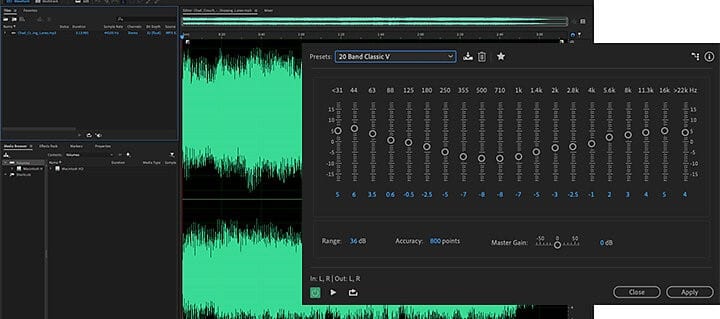
Adobe Audition offers graphic and parametric audio equalizers to help you balance your audio tracks. You can use this best digital audio editing software to create, mix, and design sound effects effortlessly. The graphic and parametric equalizers offer two different user interfaces and comes with the ability to change your sound settings precisely.
You can use graphic equalizers to make necessary adjustments across the frequency range. Parametric equalizers are useful to identify the audio frequencies you would like to boost or cut.
Features of Adobe Audition
- It offers two powerful equalizers including graphic and parametric equalizers to help you tweak sound settings.
- You can use it to boost or cut a range of frequencies or perform other tasks.
- It works on a simple & intuitive interface to deliver effective results.
- It allows you to use high-pass and low-pass filters.
- You can clean up audio with a spectral frequency display.
PROS:
- There are no hidden fees and it is free to use.
- Easy to set up procedure.
- Accommodates a variety of audio output devices.
- Supports solid multitrack editing capabilities.
CONS:
- Fewer sophisticated features as compared to the paid alternatives.
- The entire editing experience can be resource-intensive at times.
- Requires a subscription to move to proceed with advanced features.
How to use Adobe Audition?
Using Adobe Audition software is straightforward and all you have to do is:
STEP 1: Import your audio files into the Adobe Audition software.
STEP 2: Navigate to the timeline and start editing & trimming audio clips as per your needs.
STEP 3: Start applying audio effects like equalization, compression, and reverb to enhance the overall audio quality.
STEP 4: At this step, you can consider mixing more audio tracks to create something fresh and unique. Once you’ve done this, you can export your final audio into various file formats according to your needs and preferences.
| Recent Updates added to the Software: Improved overall performance and stability. It is equipped with advanced equalization and mastering tools. Top-notch audio mixing capabilities are added often. New noise reduction and restoration tools are added to the software. |
Reviews from:
Softonic: 3.7 Stars
PCMag: 3.5 Stars
TechRadar: 4 Stars
TECHCOMMUTER’S VERDICT: Adobe Audition is one of the most powerful audio editing software designed for enthusiasts and professionals. While it has a steep learning curve, users will get next-level control over how they manage and control audio.
2. Boom 3D
Compatible OS: Compatible only with Windows 10, Also supports macOS 10.10.3 or later
Price: $13.59
Official Page: Visit Here
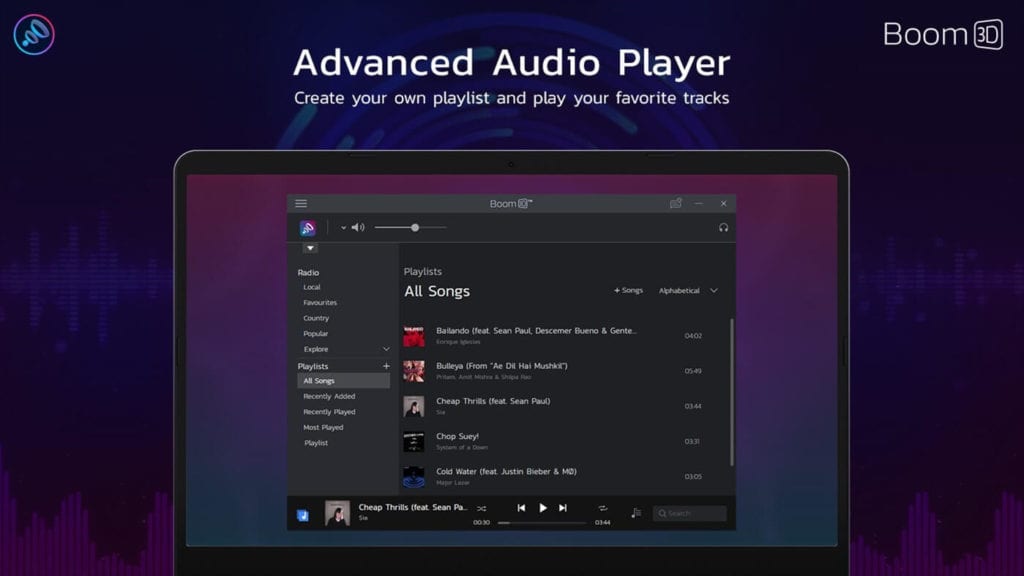
Boom 3D is one of the best PC equalizers that works well with Windows 10 and Mac devices. You can enjoy enhanced audio with all your streamed media with Boom 3D. It creates immersive 3D surround sound with music, movies, and games.
This award-winning pro audio enhancement app is designed to deliver effective results. You can use Boom 3D to play any media file with amazing 3D effects on any headphones, streaming service, any media, or from any player. With this powerful bass booster and equalizer for Windows 10, you don’t need any expensive hardware or speaker boosters. It has ratings of over 4.5 on the Windows Store and Mac Store.
Features of Boom 3D
- It helps you enjoy music, games, and movies with 3D surround sound.
- It offers an advanced 31-band equalizer for a precise audio experience.
- With built-in volume controllers, you can manage audio volume effortlessly.
- It offers state-of-the-art audio player to help you play locally stored songs.
- Join Boom to enjoy free access to over 20K radio stations.
PROS:
- Intuitive interface, suitable for both newbies & pro users.
- Great software for viewing movies and playing games.
- Customizable EQ presets.
- Incredibly adaptable audio settings.
- Highly compatible with multiple audio devices.
CONS:
- Beginners may find the UI daunting.
- Limited advanced features as compared to the counterparts.
How to use Boom 3D?
STEP 1: Install the latest version of Boom 3D from its official website.
STEP 2: From the homepage, select a music genre preset or begin adjusting the bass and treble settings manually using the equalizer.
STEP 3: At this point, you need to enable the 3D surround feature to enjoy an enhanced experience than ever before.
STEP 4: That’s all! Apply the recently made changes and enjoy an immersive sound quality experience with Boom 3D Windows software.
| Recent Updates added to the Software: Overall audio quality and performance have been improved with Volume Amplifier. Added bass boost presets for high-energy tracks.Now compatible with newer OS versions and gaming headsets as well. Improved precision audio control features to elevate your audio experience. |
Reviews from:
Softonic: 4.8 Stars
Microsoft: 3.9 Stars
Tech Radar: 4.5 Stars
TECHCOMMUTER’S VERDICT: Undoubtedly, Boom 3D is an ideal choice for audiophiles and gamers, as it is known for its sleek design, effortless usability, and unique 3D surround sound capabilities.
3. WavePad Audio Editing Software
Compatible OS: Windows 10/8.1/8/7/XP/Vista
Price: Starts from $29.99
Official website: Visit Here
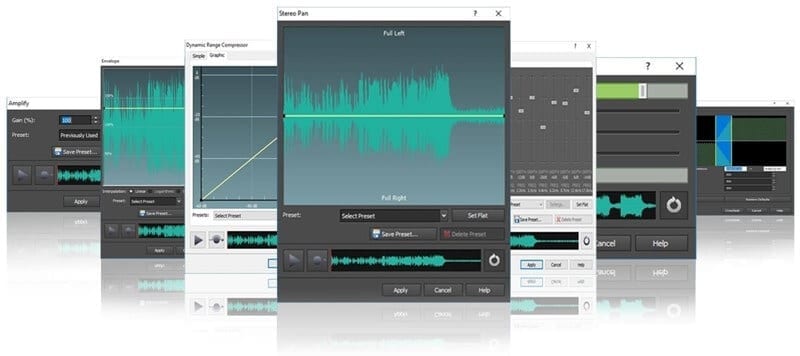
WavePad Audio Editing Software works as an advanced equalizer for Windows 10 or other Windows versions that you should try. You can use this software to cut, copy, split, and trim your audio files. It supports all major file formats and gives access to thousands of additional tools & effects.
Working as an advanced PC equalizer, it helps you tweak sound settings using various built-in features. It supports sample rates from 6 to 192kHz, stereo or mono, 8, 16, 24, or 32 bits.
Features of WavePad Audio Editing Software
- It is complete audio editing software that comes loaded with tons of editing and equalization features.
- It offers various audio effects to amplify, normalize, envelop, echo, equalize, or reverse sound.
- It works on a simple interface to deliver instant results.
- It allows you to create bookmarks and regions for quick searches.
- It allows you to edit audio files within videos.
PROS:
- Suitable for non-commercial use, it is free.
- Provides flexibility with both manual and preset choices.
- Multi-platform compatibility with Windows, macOS, Android & iOS.
- Supports batch processing and conversion of audio files flawlessly.
- Get a detailed view of the precise audio editing process.
CONS:
- For inexperienced users, manual adjustments can be complicated.
- Lacks advanced mixing capabilities.
- Getting full technical support can be a pricey affair.
How to use WavePad Audio Editing Software?
STEP 1: Navigate to the official NCH software website and get your hands on the latest version of the WavePad audio editing tool.
STEP 2: Launch the program and import the audio file you want to edit and enhance.
STEP 3: Use the toolbar to cut, copy, paste, or trim the audio and start applying audio effects from the built library as per your preference.
STEP 4: Save your file in the desired output format of your choice.
| Recent Updates added to the Software: Ensures better compatibility with new audio file formats. A lot of enhancements have been added to the interface. Tons of audio effects are included in the software for better customization. Enjoy improved performance and overall stability while editing batch files. |
Reviews from:
Softonic: 3.7 Stars
Microsoft: 4.1 Stars
Tech Radar: 4 Stars
TECHCOMMUTER’S VERDICT: Well, some users praise the software’s ease of use, but it lacks advanced features like multi-track support and more that are easily found in other professional-grade audio editing programs for Windows and other OSes.
4. Audacity
Compatible OS: Windows 11/10/8.1/7/Vista
Price: Free
Official Website: Visit Here
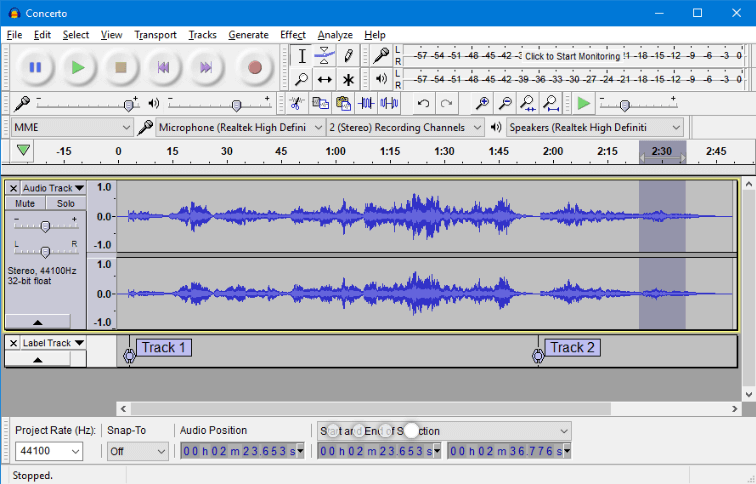
Audacity is free, open-source, and cross-platform audio software that is designed to deliver a seamless user experience. It is a multi-track audio editor and recorder for Windows, macOS, Linux, and other operating systems. It is developed by a group of volunteers as an open-source solution. Though equalization has been removed from Audacity, that is superseded by the two new effects including Filter Curve EQ and Graphic EQ.
Features of Audacity
- Filter Curve EQ uses drawn curves for equalization and helps you change the balance of high and low frequencies.
- Graphic EQ uses sliders for the equalization that is similar to hardware graphic equalizers.
- It allows you to increase the volume of some frequencies and reduce others.
- It is an advanced form of audio EQ and Tone controllers.
- It is free, open-source, and cross-platform software.
PROS:
- Free and open-source audio enhancement software.
- Enjoy distortion-free volume boost.
- Simple installation procedure.
- Supports a wide array of audio file formats.
- Has an active community and receives constant updates.
CONS:
- Certainly, more difficult to use than other software.
- Fewer equalization options as compared to the other options on this list.
How to use Audacity?
STEP 1: Install Audacity and start by importing your audio file.
STEP 2: To begin, you can start by capturing audio from a microphone or other input source.
STEP 3: To edit and cut audio clips, you need to use the timeline.
STEP 4: Use effects such as echo, noise reduction, and equalization.
STEP 5: You can export your finished audio in a number of different formats.
| Recent Updates added to the Software: Enhanced capacity to reduce noise. New real-time editing tools are added to the tool. Batch processing and multitrack audio playback have been improved. Improved compatibility with VST plugins.Updates for Windows 11 compatibility. |
Reviews from:
Softonic: 3.9 Stars
Microsoft: 4.2 Stars
Tech Radar: 4.5 Stars
TECHCOMMUTER’S VERDICT: Audacity is one of the most excellent free audio editing software that offers all the essential features for both recording and performing post-production tasks. It supports almost all popular audio file formats including AMR, MP2, ACR, M4A, OGG, WAV, and more, making it ideal for all types of users.
5. FxSound
Compatible OS: Windows 10/8/7
Price: Starts from $9.99/year
Official Website: Visit Here
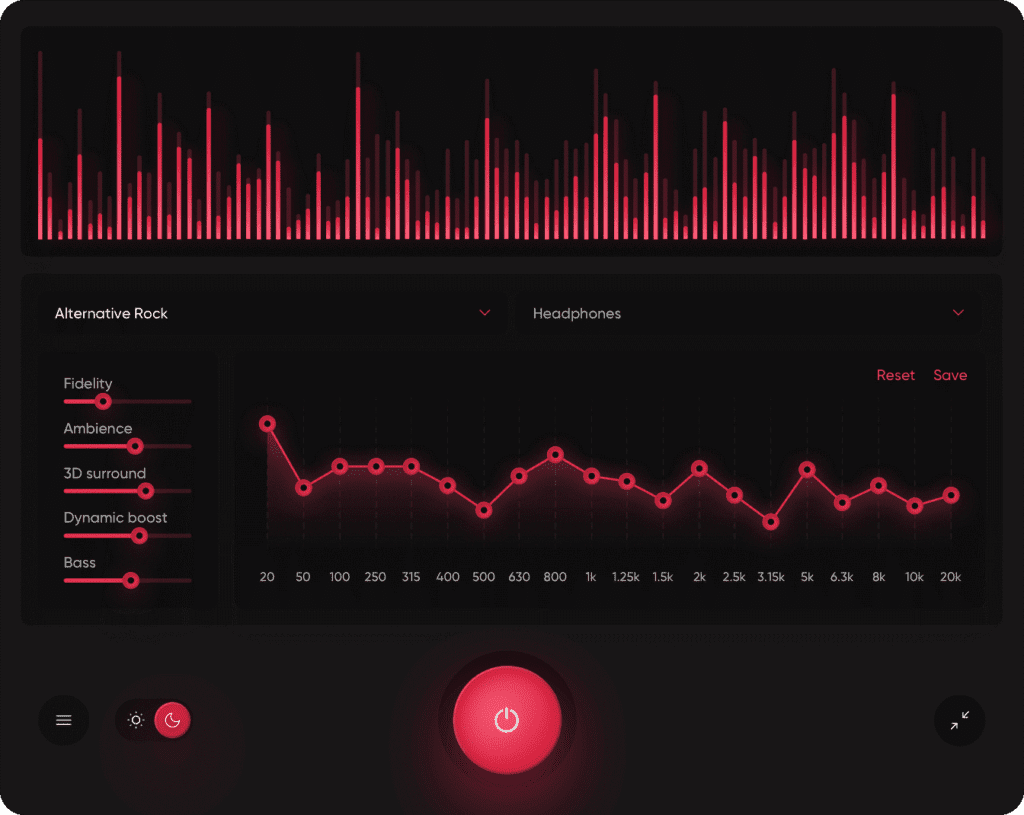
Being one of the best sound equalizers for Windows 10, FxSound boosts sound quality, clarity, and volume of audio on your PC. It also works as the best bass booster for Windows 10/8/7. It offers various functionalities & features to support sound on headphones and audio devices. You can use FxSound to enjoy perfect sound on any audio hardware.
Features of FxSound
- Its 20-band audio EQ balances your sound to your needs.
- With intuitive visualization, it lets you feel your music in a new way.
- It works as an effective bass booster for Windows.
- It offers various presets to deliver instant results.
- It is an advanced music equalizer for power users.
PROS:
- Incredibly adaptable software with simple controls.
- Effective bass boost and 3D surround sound functionality.
- Tons of customizable presets for enhancing the overall audio experience.
- Solid real-time audio enhancement like never before.
- Works seamlessly with tons of audio apps and devices without any hiccups.
CONS:
- Less useful for movie or game audio; primarily targeted toward music files.
- Can introduce audio latency in specific scenarios.
- Needs a stable Internet connection to work properly.
How to use FxSound?
STEP 1: Install FxSound on your computer.
STEP 2: Start the program, which will run in the background while you are free to work on other projects.
STEP 3: Depending on your needs, simply select from a variety of presets (e.g., Music or Movie).
STEP 4: At this step, you can start modifying the Equalizer’s Settings, and use the bass, mid-range, and treble sliders to fine-tune the sound.
STEP 5: Use FxSound to play your media for a more engaging audio experience.
| Recent Updates added to the Software: Provides rich bass and clear audio without any distortion. Revamping its user interface for better usability. Regularly adding new presets that cater to different listening environments. Updated existing game and movie audio presets as well. Bluetooth devices now have improved bass boost capabilities. |
Reviews from:
Softonic: 3.7 Stars
Microsoft: 4.2 Stars
Trustpilot: 3.6 Stars
TECHCOMMUTER’S VERDICT: For people looking for a simple tool to improve the quality of their audio without getting into complicated settings, FxSound is ideal.
Conclusion
So this was a detailed review of the best PC equalizers for Windows 11/10/8/7 and other versions. Do try any of these equalizers for Windows and share your experience in the comments below.
FREQUENTLY ASKED QUESTIONS:
Q1. Which free audio editing program is the best for Windows?
A1. With many capabilities of audio editing and enhancement kept in mind, we believe Audacity is an excellent free audio editing program that you should consider using in 2026.
Q2. What kinds of audio files can I use WavePad to edit?
A2. MP3, WAV, FLAC, M4A, and many other formats are supported by WavePad.
Q3. How can I make my audio equal?
A3. An equalizer can be used to change the audio’s various frequency bands’ levels. A lot of audio editing programs, such as Adobe Audition and Audacity, come with equalizers built in.
Q4. Can I use both an equalization and a bass booster at once?
A4. It is possible to further improve your audio by using an equalization and a bass booster at the same time.
Q5. Is WavePad compatible with mobile devices?
A5. Yes, in addition to PC versions, WavePad is accessible on the iOS and Android operating systems.
Q6. Can I harm my speakers by using a bass booster?
A6. Your speakers may get damaged if you use a bass enhancer at high volume levels. It’s crucial to use the bass boost function sensibly.
Author Bio:
Dinesh Lakhwani 

Dinesh Lakhwani, the entrepreneurial brain behind “TechCommuters,” achieved big things in the tech world. He started the company to make smart and user-friendly tech solutions. Thanks to his sharp thinking, focus on quality and the motto of never giving up, TechCommuters became a top player in the industry. His commitment to excellence has propelled the company to a leading position in the industry.
Popular Post











Recent Post

How to Switch Windows 10 to a Local Account: Complete Guide
Windows 10 allows users to sign in with either a Microsoft account or a local account. When you set up a new computer, the system often suggests using a Microsoft account. This account connects your device to Microsoft services such as Outlook, OneDrive, and the Microsoft Store. It also syncs settings, themes, and passwords across […]

How To Change Default Apps For File Types In Windows
Windows is designed to make using your computer easy. One way it does this is by assigning default apps to different file types. This means when you open a file, Windows automatically opens it with a specific program. For example, photos may open with Photos, music with Groove Music, and PDFs with Edge. These default […]

How To Adjust The Mouse Pointer Speed: Complete Guide
Using a computer every day means you use the mouse a lot. The mouse pointer moves on the screen and helps you click, scroll, and select items. Many people never think about the speed of the mouse pointer. They have used the default setting for years. This can cause small problems over time. A slow […]

How to Change Mouse Scrolling Settings In Windows
A mouse is one of the most used computer tools. People use it every day. They scroll through emails. They scroll through documents. They scroll through websites and images. The movement becomes automatic. Most users do not notice it. That is why problems often go unnoticed. Scrolling problems show up slowly. At first, it feels […]

Keyboard Light Settings: Keyboard Lighting Control [Complete Guide]
Keyboards are no longer simple typing tools. Well, yes! Over time, they have evolved to include features that improve comfort, visibility, and overall experience. One of the most useful features today is keyboard lighting. It helps users work comfortably in low-light conditions. It also reduces strain when typing for long hours. Many users first notice […]

Customizing Pointer Appearance: Complete Guide
The way your mouse pointer looks on your computer may seem like a small detail. But customizing pointer appearance can make using your PC more comfortable and visually appealing. Many users do not realize that they can change the pointer size, color, and style to fit their needs. Whether you want a bigger pointer for […]

How To Choose a Computer Monitor: Monitor Buying Guide
Buying a monitor looks easy. Many people think all screens are the same. That belief causes regret later. A monitor is not just a display. It is a daily tool. You read on it. You work on it. You relax with it. Small problems become big over time. Poor brightness hurts eyes. Bad size causes […]

How To Get Help With File Explorer in Windows 11 [Complete Guide]
File Explorer is one of the most important tools in Windows 11. It is used to open folders, view files, and manage stored data. Almost every action on a Windows computer depends on it in some way. When users open documents, save downloads, or organize photos, File Explorer is always involved. Because it is used […]

How To Fix A Frozen Computer: Complete Guide [Windows 11/10]
A frozen computer is one of the most common problems Windows users face. The screen stops responding. The mouse pointer does not move. Keyboard inputs do nothing. You may hear the fan running loudly. Sometimes the system looks alive, but nothing works. This situation often happens when you are busy or working on something important. […]

How to Upgrade Computer RAM: Complete Guide
Upgrading RAM is one of the simplest ways to improve a computer. It helps the system feel faster and smoother. Apps open quicker. Browsers handle more tabs. Games and tools run with less delay. Many users search for how to upgrade computer RAM because it gives real results without high cost. You do not need […]

