Top 10 Best Authenticator Apps In 2026

Last updated on December 26th, 2025 at 3:15 pm
In today’s digital world, hacking and data leaks are common, even with solid security elements in place. One can still access a strong password with advanced software or hacking skills. Here, multifactor authentication (MFA) or two-factor authentication (2FA) is helpful for securely protecting social media, banking, and other personal data by giving an additional safety layer.
Many authenticator apps available in the market, like NordVPN, provide this additional security. We have compiled a list of the top 10 options we found, considering their integration and features. Let’s get started.
How We Have Made This List
Choosing the best authenticator apps in 2026 requires more than popularity alone. We focused on real-world use, long-term reliability, and how well each app fits into daily login habits. The tools on this list were reviewed using practical criteria that matter to both personal and professional users.
• Security standards
We checked whether each app follows trusted authentication methods and protects code from unauthorized access.
• Ease of setup
Apps that take too long to configure or confuse new users were rated lower.
• Account recovery options
Losing a phone is common. We looked at how easily users can regain access to their accounts.
• Cross-device support
Apps that work across phones, desktops, and browsers scored higher.
• Backup and sync features
Secure backups help users avoid permanent lockouts.
• Offline functionality
We preferred apps that generate codes even without internet access.
• User interface clarity
Clear screens and readable codes improve everyday use.
• Brand trust and update history
Apps with consistent updates and a strong reputation ranked better.
Before you start, know the answers to these questions:
1. What happens if I lose my phone with my authenticator app
This is one of the biggest hidden risks. Without backups or recovery keys, users can lose access permanently. Apps with secure backup options reduce this risk, but users must enable them in advance.
2. Can authenticator apps lock me out during travel or emergencies
Some users worry about access when phones are lost, damaged, or out of battery. Offline code generation helps, but recovery planning is essential before relying fully on an authenticator.
3. Is using multiple authenticator apps a bad idea
Using more than one app can add confusion but also reduce risk. Some users keep a secondary authenticator or backup device for critical accounts to avoid lockouts.
Top 5 Authenticator Apps Comparison
To make selection easier, the table below compares the top authenticator apps based on usage style, platform support, and key strengths. Each of these tools serves a slightly different type of user in 2026.
| App | Best For | Platform Support | Key Strength | Notes |
| NordVPN Authenticator | Privacy-focused users | Mobile, desktop | Strong security focus | Works well with Nord accounts |
| Google Authenticator | Simple two-factor needs | Android, iOS | Fast and minimal | No advanced recovery tools |
| Microsoft Authenticator | Microsoft ecosystem users | Android, iOS | Passwordless login support | Deep system integration |
| Authy (Twilio) | Multi-device users | Mobile, desktop | Encrypted cloud backup | Useful for switching devices |
| LastPass Authenticator | Password manager users | Android, iOS | Push-based approvals | Works best with LastPass |
10 Best Authenticator Apps of 2026
Overall, a wide range of options is available from top service providers, promising high-quality privacy and protection with the apps. Here are the finest authenticator apps we found after careful evaluation.
1. NordVPN
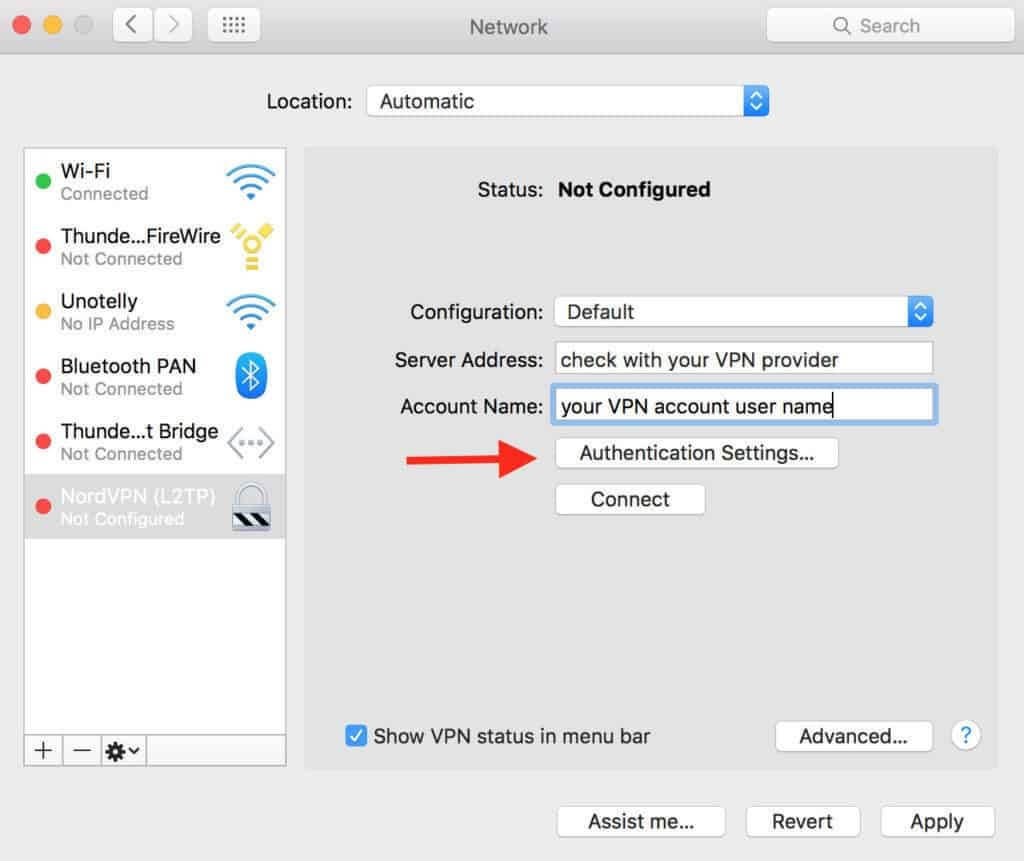
NordVPN is not a traditional authenticator tool, but it does offer stable and secure connections globally. This software is generally used for high-speed VPN links across various devices with unlimited bandwidth and a zero throttling guarantee. You can use one account to secure around six devices, including routers.
Here, you can apply MFA authentication for additional data safety. Security key is another option to enable MFA on NordVPN.
Compatibility: Windows, Linux, macOS, Android, iOS
Price: $4.92 per month
Features:
- Supports diverse security keys for USB access, like Yubikey 5 series, MultiPass FIDO K25, etc.
- Do not log private data for security during connections.
- Next-gen encryption protection.
- Multi-channel accessibility and protection.
Pros:
- Strong encryption protection
- MFA authentication support
- Connects and works with many devices/OS types
Cons:
- Not an authentication tool primarily
2. Google Authenticator
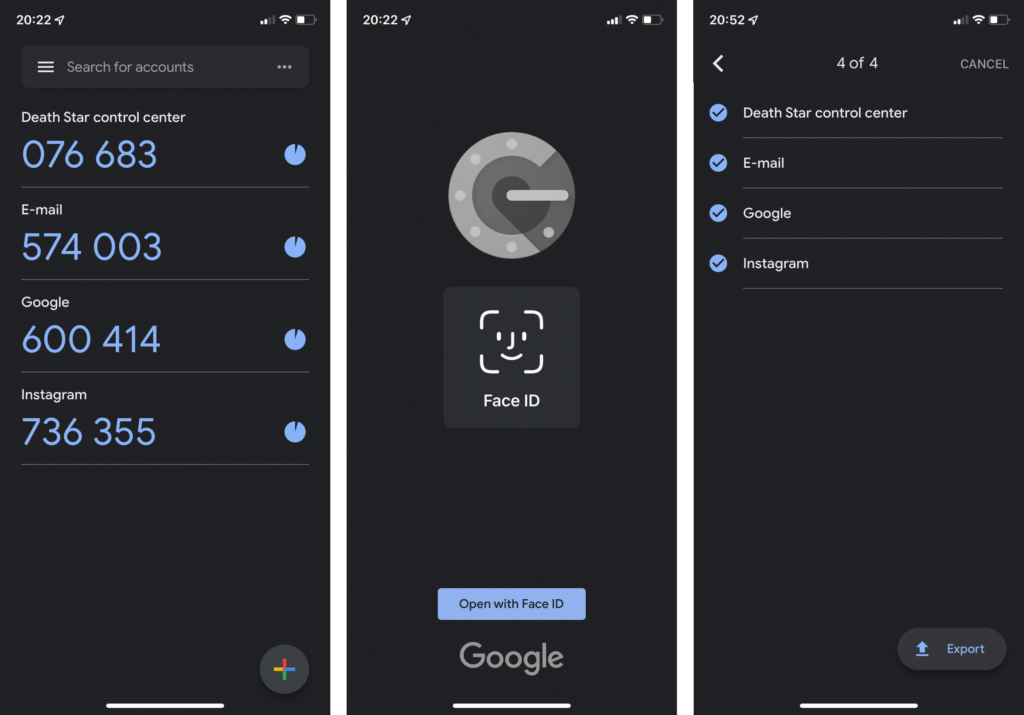
This is the best 2FA app among the available options that offer standard usage quality but robust security benefits. It allows you to set up the two-factor authentication mode with the built-in features alone.
Compatibility: iPhone and iPad
Price:
Features:
- Import data for account codes from old device
- Import/export all tokens in one turn
- You can use Touch ID/Face ID for app access on iOS devices
- Search by your token name in iOS versions
Pros:
- No account creation is necessary
- Simple interface
- Search by your token name on
Cons:
- Cannot hide codes
- Zero cloud sync/backup feature
3. Microsoft Authenticator
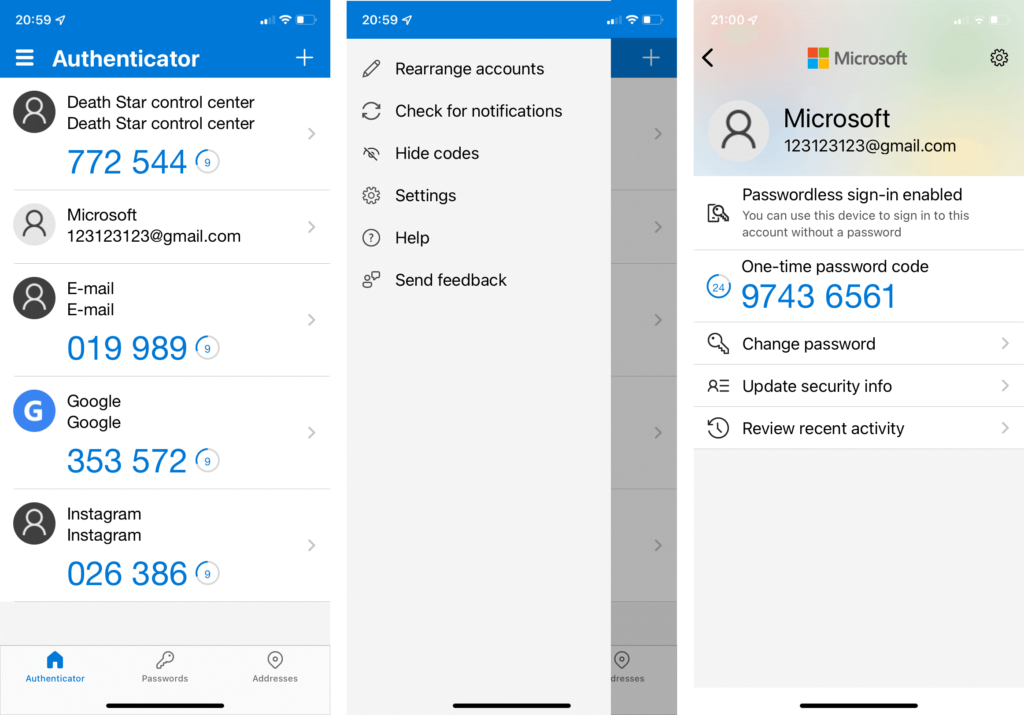
Another best 2FA app to use is Microsoft Authenticator. The applications include diverse, high-quality features like storing tokens into the cloud. You can hide codes and safeguard the app login with 2FA protection. You can easily log in and confirm your ID with one-tap ability if you use your Microsoft accounts regularly.
Compatibility: iOS, Android
Price: Free
Features:
- Face ID, fingerprint, PIN code-protected access
- Simple Microsoft account login process
- You can operate without having a Microsoft account if the cloud backup is disabled
- Cloud sync/backup feature
Pros:
- Simple to use
- Supports Apple Watch
- One-click function with Microsoft apps
Cons:
- Not open-source
- Large size
4. Authy (Twilio)
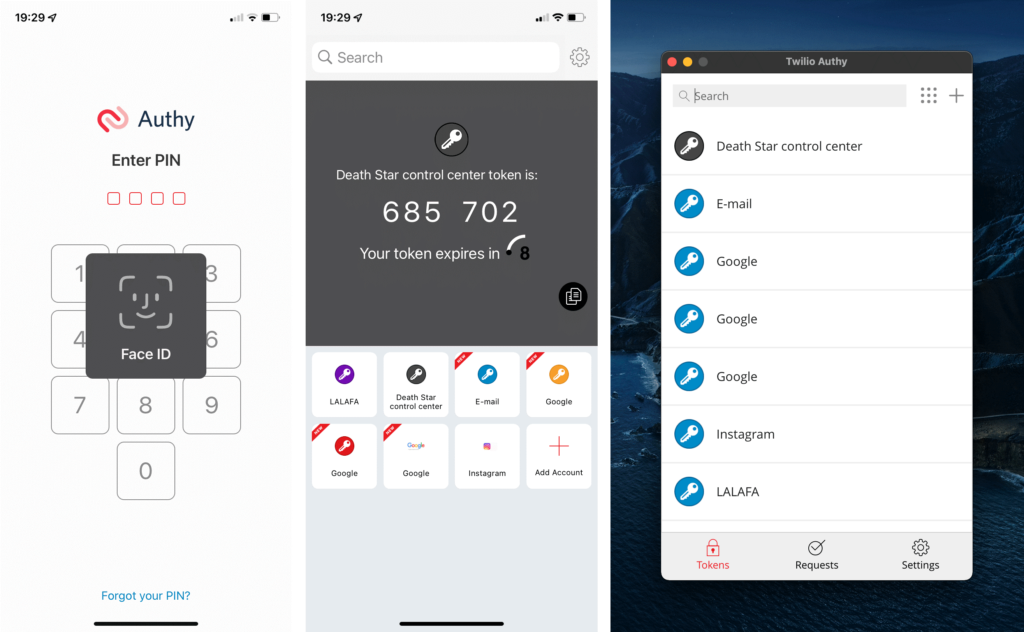
One of the best authenticator apps is Authy from Twilio. It is compatible with many operation systems and holds a comprehensive cross-platform structure. The application syncs well with different systems and is relatively easy to access and use.
Compatibility: Android, iOS, Linux, Windows, macOS
Price: $0.09/authentication
Features:
- TouchID and Encrypted Backup protection.
- Simple process to set up 2FA using any account.
- Syncs with multiple device types.
- Backup data in case of account lockup.
Pros:
- Encrypted backup
- Support cryptocurrencies
- Compatible with Apple Watch
Cons:
- Works with phone number/SMS only
- Not open-source
5. LastPass Authenticator
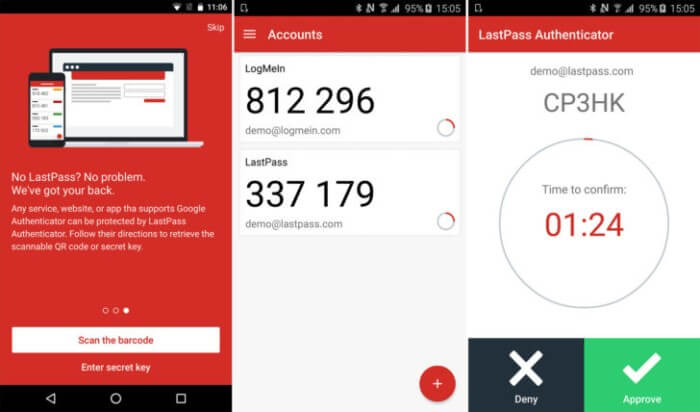
LastPass Authenticator is a suitable password management and security tool that provides a high-quality security structure. The installation process is simple, and it comes with MFA support for LastPass Account access. You can use the push notification you get after launching to directly authorized LastPass.
Compatibility: iOS, Android, Windows
Price: $3 per month
Features:
- 6-digit-code generation at every 30-second intervals
- Opt for the tap approval push notifications
- Automated QR code set up
- Works with other TOTP-compatible apps and services
Pros:
- Simple usability
- Can work with diverse services easily
Cons:
- No advanced features
6. DUO Mobile (Cisco)
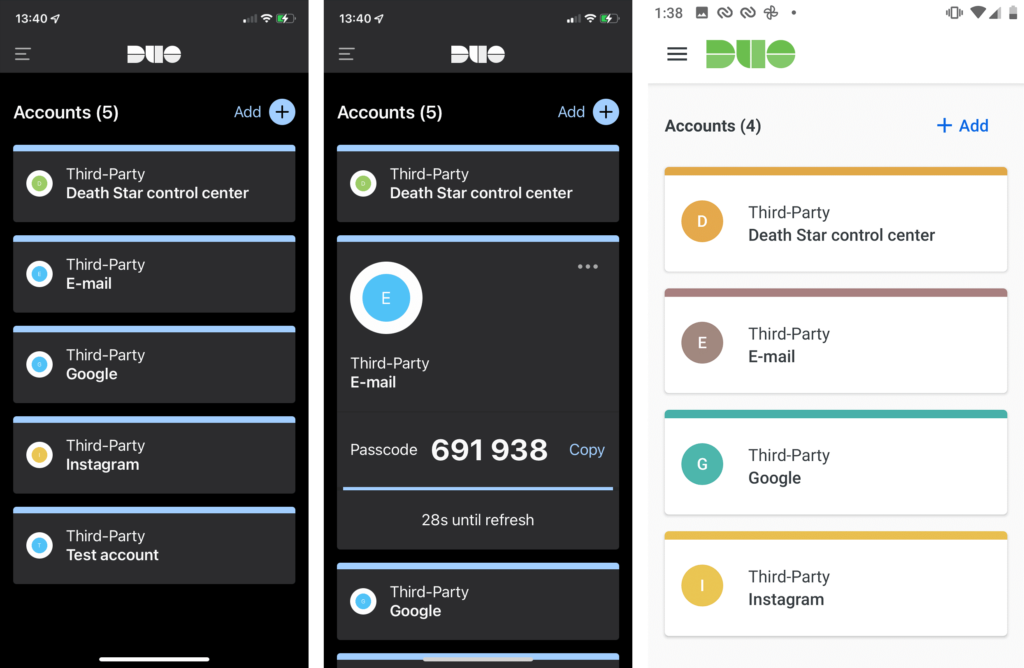
Duo Mobile is another of the top authenticator apps available and mainly caters to corporate application usage. You can expect high-quality enterprise-level features under this application. In addition, you can backup and store all your data through this app.
Compatibility: iOS, Android
Price: $3 per month per user
Features:
- One-tap push ability to authenticate ID.
- Multi-user deployment provisioning and options available
- You can screenshot the DUO interface on iOS but not Android.
- One-time passcode protection.
Pros:
- Mainly for corporate apps
- Backup Duo on Android using Google Drive and iCloud Keychain on iOS devices
Cons:
- Cannot screenshot the Android interface
7. WinAuth
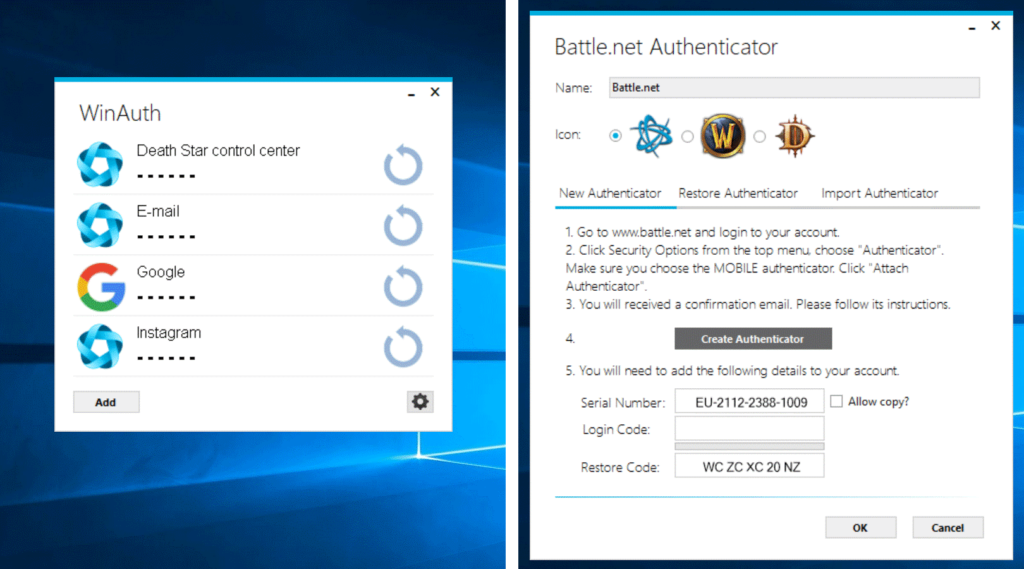
This authenticator app mainly targets gaming users and allows nonstandard token support for authentication. The compatible software options include Trion/Gamigo, Battle.net, and Steam games. It does support different standard tokens. Also, get personalized password protection for individual tokens and login access.
Compatibility: Windows
Price: Free
Features:
- Portable software with cloud storage/flash drive support
- It supports nonstandard tokens in came of gaming services
- Extra password protection for all tokens
- Scan QR code from your file, either on the internet or locally saved
Pros:
- Encrypt all stored data
- Hides code automatically after 10 seconds of inactivity
Cons:
- Only supports Windows
- Have to provide Steam username/password to WinAuth tool for Steam token generation; this risks safety.
8. FreeOTP
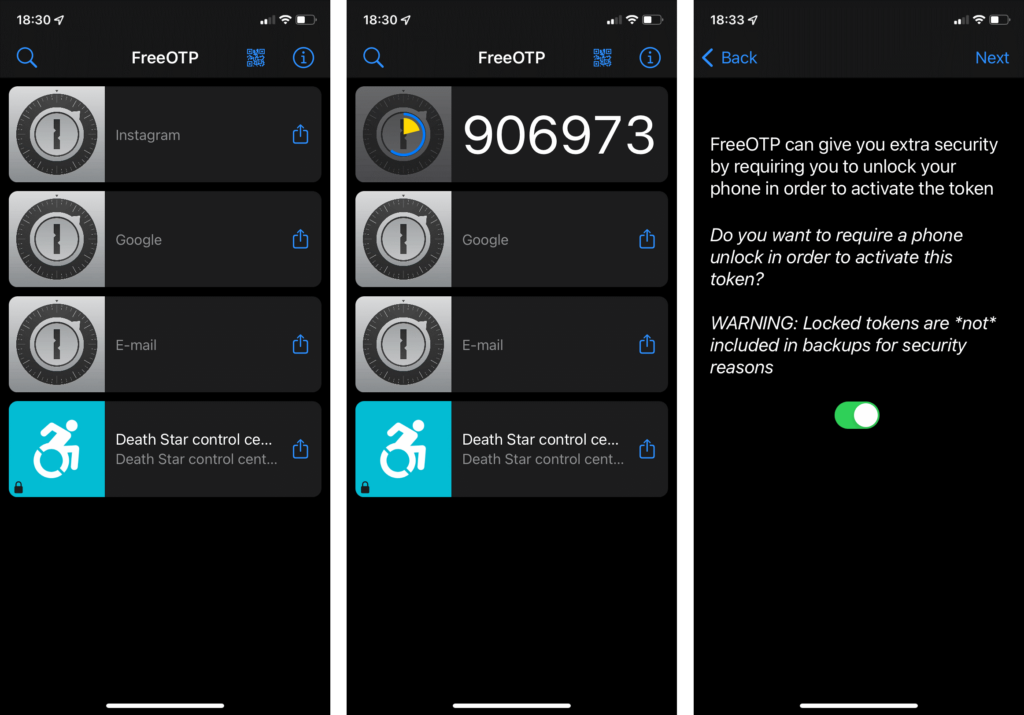
This is an open-source application for authentication functions with an ultra-minimalistic interface for easy usability. The iOS has a simper interface and QR-code scanning approach. Besides more manual token generation solutions, the Android version allows token creation via this approach and secret key.
Compatibility: Android
Price: Free
Features:
- Default hidden codes are available
- You can access without an account on this platform.
- The default setting includes hidden codes
- After 30 seconds of inactivity with the code, it hides automatically
Pros:
- Face ID/Touch ID access for iOS version
- Low storage requirement
- Search for token names through iOS
Cons:
- No access protection
- Cannot export/import tokens
9. Step Two
Step Two is a suitable authenticator app for iOS/macOS users with an easy-to-use interface and functionality. The settings via this app are simple, even with iCloud sync benefits. You can scan QR codes via the screen capture function. This requires user permission first.
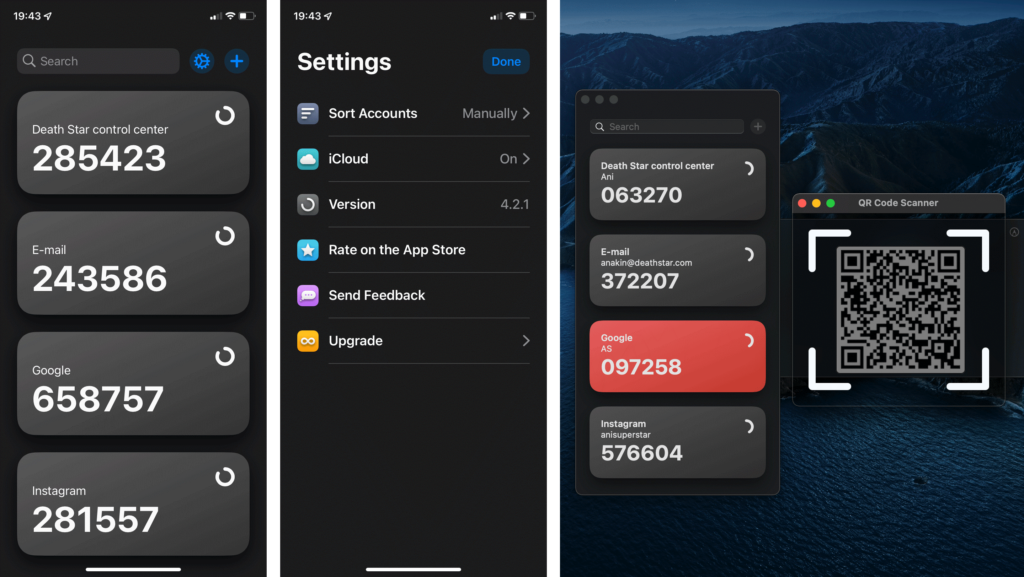
Compatibility: macOS, iOS
Price: Free
Features:
- Standard features available
- Compatible with Apple Watch device
- It is easy to scan QR codes while using this software in the macOS version
- You can access it without an account
Pros:
- Can search using token names
- Users can operate it without an account
Cons:
- Screenshot permission necessary for QR scanning in macOS
- No access safety
10. OTH Auth
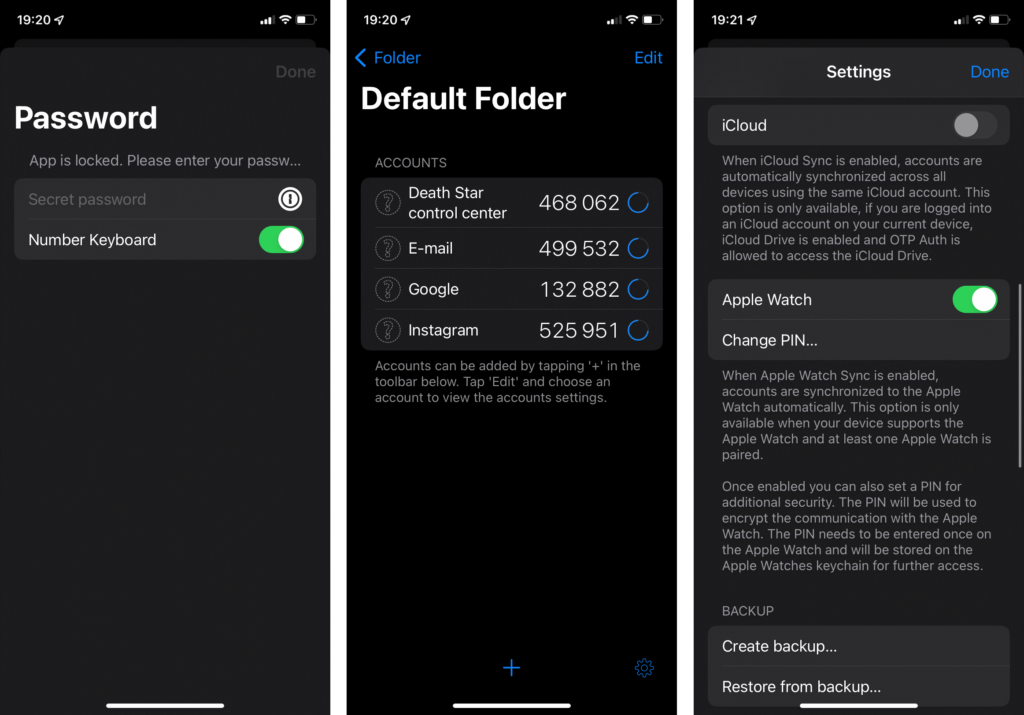
You can utilize the top-quality OTH Auth app as a macOS user. It supports 2FA authentication for different services and allows a systematic token organization system.
Compatibility: iOS
Price: Free
Features:
- You can view a token’s QR code or secret key easy
- Export every token to one file at the same time
- Supports Apple Watch access
- Folder system available to organize all token storage
Pros:
- Touch ID/Face ID and password protection for access
- iCloud backup/sync
Cons:
- Not available for Android or Windows
- Icon customization is a feature for the paid version only
Conclusion
Authenticator apps have become a basic security layer in 2026. Passwords alone are no longer enough, especially with growing phishing and account takeover risks. Apps like Google Authenticator and Microsoft Authenticator offer fast and reliable protection for everyday logins, while Authy and LastPass Authenticator provide extra comfort through backups and multi-device access.
The right choice depends on how you manage your accounts. Users who value simplicity may prefer lightweight tools, while those handling work accounts or multiple devices benefit from backup and recovery features. What matters most is using an authenticator consistently. Even a basic app adds far more protection than relying on passwords alone.
FAQs
1. What is an authenticator app used for
An authenticator app generates temporary login codes that add a second step to signing in. Even if a password is stolen, the account stays protected because the code changes every few seconds.
2. Are authenticator apps safer than SMS codes
Yes, authenticator apps are safer than SMS codes. Text messages can be intercepted or redirected, while authenticator codes stay on the device and expire quickly.
3. Can I use one authenticator app for all my accounts
Most services support standard authentication codes, so one app can handle many accounts. However, recovery features and backups depend on the app you choose.
Author Bio:
Dinesh Lakhwani 

Dinesh Lakhwani, the entrepreneurial brain behind “TechCommuters,” achieved big things in the tech world. He started the company to make smart and user-friendly tech solutions. Thanks to his sharp thinking, focus on quality and the motto of never giving up, TechCommuters became a top player in the industry. His commitment to excellence has propelled the company to a leading position in the industry.
Popular Post











Recent Post

How to Switch Windows 10 to a Local Account: Complete Guide
Windows 10 allows users to sign in with either a Microsoft account or a local account. When you set up a new computer, the system often suggests using a Microsoft account. This account connects your device to Microsoft services such as Outlook, OneDrive, and the Microsoft Store. It also syncs settings, themes, and passwords across […]

How To Change Default Apps For File Types In Windows
Windows is designed to make using your computer easy. One way it does this is by assigning default apps to different file types. This means when you open a file, Windows automatically opens it with a specific program. For example, photos may open with Photos, music with Groove Music, and PDFs with Edge. These default […]

How To Adjust The Mouse Pointer Speed: Complete Guide
Using a computer every day means you use the mouse a lot. The mouse pointer moves on the screen and helps you click, scroll, and select items. Many people never think about the speed of the mouse pointer. They have used the default setting for years. This can cause small problems over time. A slow […]

How to Change Mouse Scrolling Settings In Windows
A mouse is one of the most used computer tools. People use it every day. They scroll through emails. They scroll through documents. They scroll through websites and images. The movement becomes automatic. Most users do not notice it. That is why problems often go unnoticed. Scrolling problems show up slowly. At first, it feels […]

Keyboard Light Settings: Keyboard Lighting Control [Complete Guide]
Keyboards are no longer simple typing tools. Well, yes! Over time, they have evolved to include features that improve comfort, visibility, and overall experience. One of the most useful features today is keyboard lighting. It helps users work comfortably in low-light conditions. It also reduces strain when typing for long hours. Many users first notice […]

Customizing Pointer Appearance: Complete Guide
The way your mouse pointer looks on your computer may seem like a small detail. But customizing pointer appearance can make using your PC more comfortable and visually appealing. Many users do not realize that they can change the pointer size, color, and style to fit their needs. Whether you want a bigger pointer for […]

How To Choose a Computer Monitor: Monitor Buying Guide
Buying a monitor looks easy. Many people think all screens are the same. That belief causes regret later. A monitor is not just a display. It is a daily tool. You read on it. You work on it. You relax with it. Small problems become big over time. Poor brightness hurts eyes. Bad size causes […]

How To Get Help With File Explorer in Windows 11 [Complete Guide]
File Explorer is one of the most important tools in Windows 11. It is used to open folders, view files, and manage stored data. Almost every action on a Windows computer depends on it in some way. When users open documents, save downloads, or organize photos, File Explorer is always involved. Because it is used […]

How To Fix A Frozen Computer: Complete Guide [Windows 11/10]
A frozen computer is one of the most common problems Windows users face. The screen stops responding. The mouse pointer does not move. Keyboard inputs do nothing. You may hear the fan running loudly. Sometimes the system looks alive, but nothing works. This situation often happens when you are busy or working on something important. […]

How to Upgrade Computer RAM: Complete Guide
Upgrading RAM is one of the simplest ways to improve a computer. It helps the system feel faster and smoother. Apps open quicker. Browsers handle more tabs. Games and tools run with less delay. Many users search for how to upgrade computer RAM because it gives real results without high cost. You do not need […]

