











Explore the top AI features in Windows 11, from Copilot to Recall, plus safety tips and simple steps to use each tool the right way.
How to Share Your Location in Google Maps?
Google Maps is a valuable feature available for people to quickly and efficiently find locations, plan routes, and avoid traffic. The application is an essential tool for tracking delivery and movement to any place via a detailed map.
However, while this application is widely used, many people do not know the real-time location sharing feature. You can even share your position in an unmarkable location on the map.
We have looked through different methods on how to share location on google maps, per OS type. Here, we present a comprehensive list of our findings. But first, remember to switch on your location GPS. Also, activate data roaming if you are in another city or town since the function would take up a lot of data.
Now, let’s get started!
Method 1: Share Google Maps Location via Android
Here are the different methods for sharing Google Maps location via Android mobile devices.
Option 1: Share Location in Google Maps Directly
You can directly share location in google maps through the app itself. The steps include the following.
Step 1: Access the Google Maps application on your Android phone. Tap on the icon for your user profile available on the top right-hand side corner of the screen.
Step 2: Choose Location Sharing. A dialog box would appear showing the process in which this function would work.
Step 3: Tap on the “Share Location” option, which would open up another panel with various options.
You would see the default setting on this screen for sharing locations for a limited period.
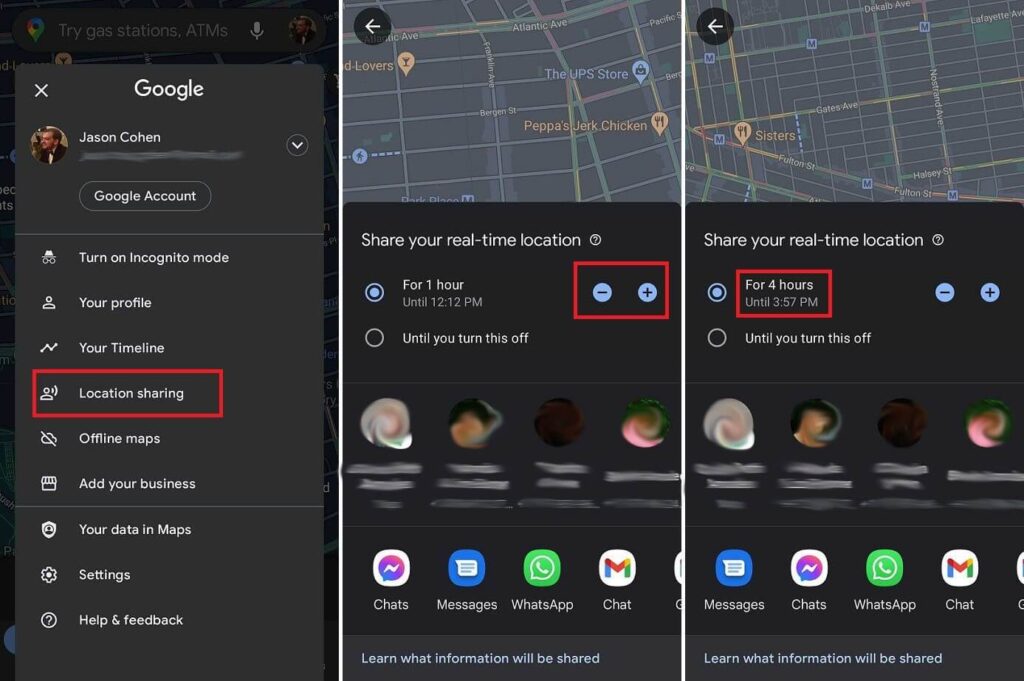
Step 4: If you do not want to give the recipient access to your location data 24×7, change the limit settings to your preferred amount of time.
There are plus (+)/minus (-) buttons on the screen. Click on them to update your time settings, from some minutes to hours.
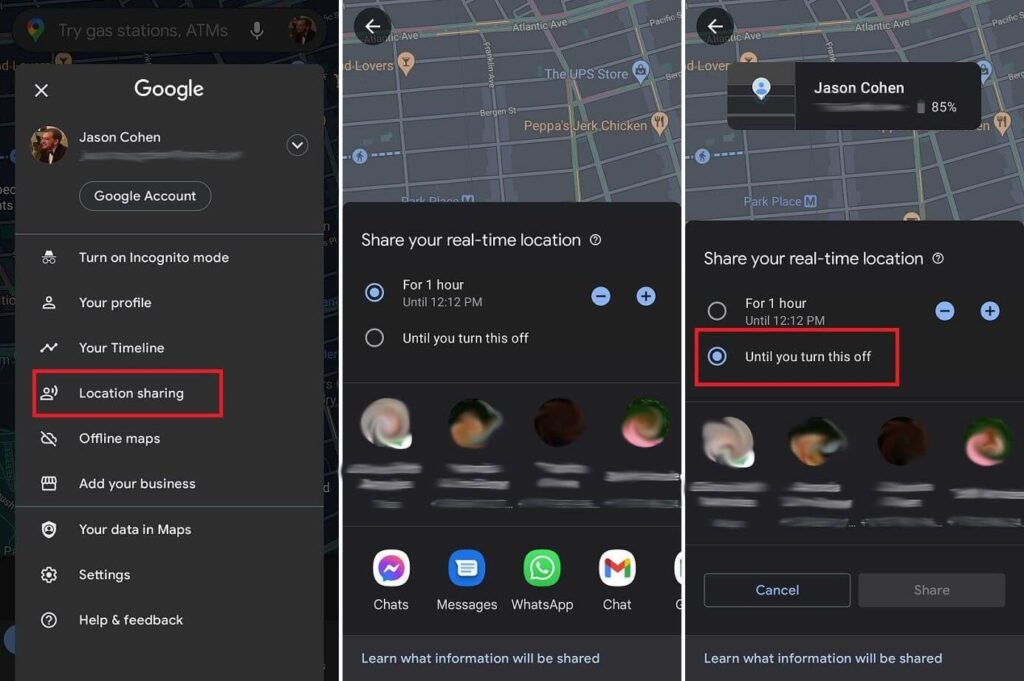
Step 5: Choose the contact you want to send your location to from the list that appears. The main list of favorite contacts would come up here. Select from them, or click on “More” if you want to send it to someone not on your Favorites list.
Alternatively, you can share the location via different social media apps from the options, e.g., WhatsApp. This would develop a shareable link that would allow temporary access to the recipient to your location.
How to share location continuously?
Step 1: For continuous location sharing with family or close friends, choose Location Sharing.
Step 2: Select the “Until you turn this off” option. This would allow the location sharing until you adjust the settings later.
Here, you can choose one contact for sharing the location. However, you cannot generate any shareable link.
Step 3: After activating the share, choose the “Location Sharing” option to find the contact list. Click on “New Share” to add more recipients. Or, you can choose the icon of a person’s contact profile on your Google Maps App. Click on the plus (+) button.
How to turn off location sharing manually?
You can turn off sharing your location through the following steps.
Step 1: Choose the person’s location on your Google Maps screen.
Or, you can access the Location Sharing menu and choose their entry available at the bottom side of your screen.
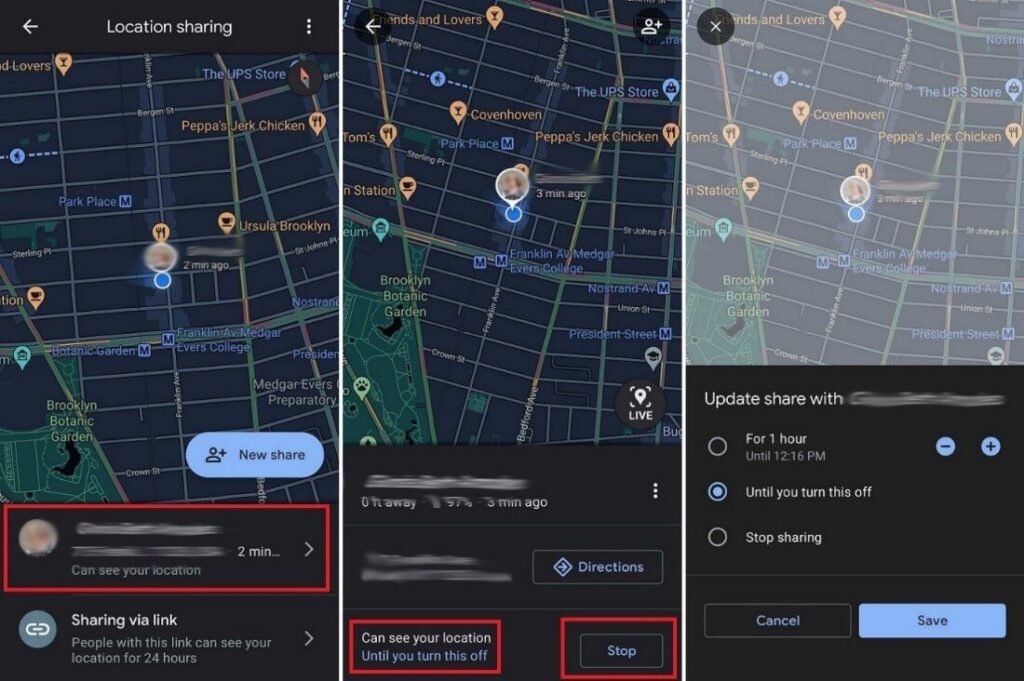
Step 2: Click on “Stop”.
Or, tap on the “Can see your location” option from beside their profile and update the amount of time you want the sharing to last.
Step 3: You can see the location links you are sharing that are active through the Location Sharing option. Click on the Sharing via Link option and select Stop. This would immediately stop the connection.
Step 4: Even if users stop sharing their location with others via step 3, the contact still appears under the Location Sharing list. Choose it and press on the three-dot icon > Remove from list.
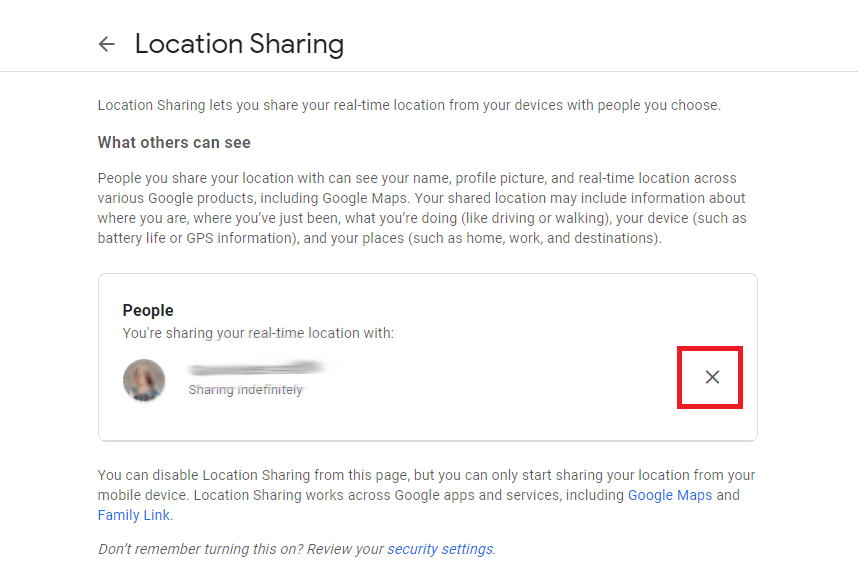
Step 5: You can access your Google Account > People & Sharing > Location Sharing > Manage Location sharing. You can view all contacts that can see your location.
Click on the (x) button beside to remove them from your list.
Option 2: Share ETA
In case you want to share the estimated time of arrival (ETA) of your journey on one trip, carry out the following steps.
Step 1: Select the Directions option on your Google Maps.
Step 2: Choose the destination on the map. Tap on Start.
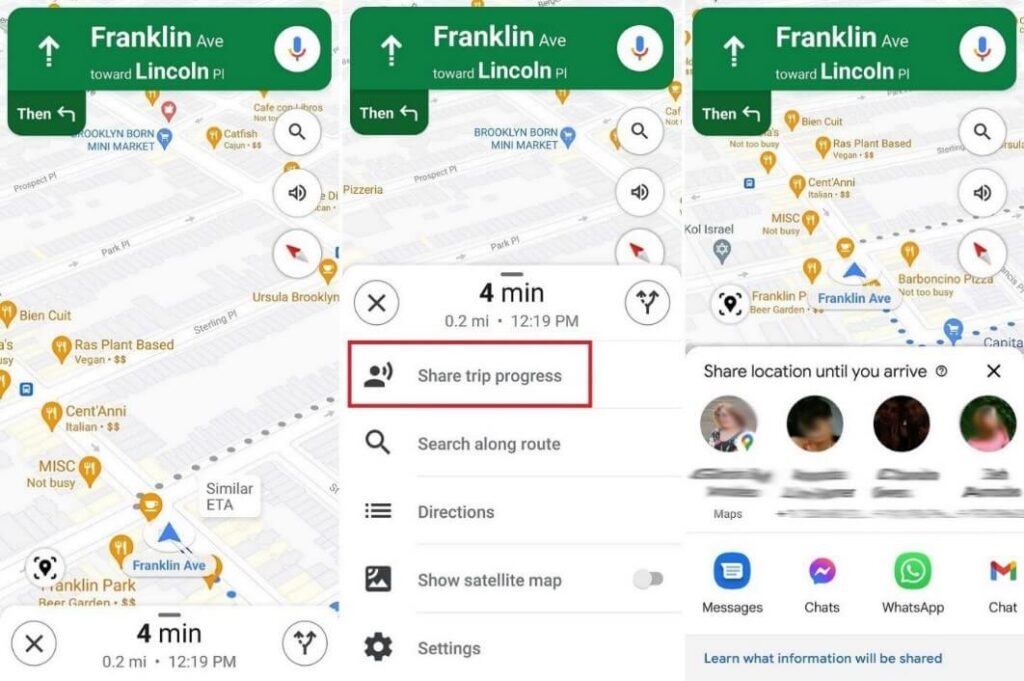
Step 3: Swipe the screen up and choose “Share Trip Progress.” Choose the contact and then click on “Share”.
Step 4: The location setting will automatically turn off when you reach the destination.
You can turn the ETA sharing manually off by choosing More > Stop Sharing.
Method 2: Share Google Maps Location via iOS
The following are the main steps to share your location on Google Maps while using iOS phones.
Step 1: Access the Google Maps app.

Step 2: Click on the location/tap and hold at any place on the screen for the marker pin to appear.
Step 3: At the lower side of your screen, tap on your address or location name.
Step 4: Then, choose the Share option.
Step 5: From the options that appear, choose the app to share your location.
Or, you can click on the “Copy” option. This would save the link to your device clipboard. Paste it in the message to your contact.
Method 3: Share Google Maps Location via Mac/PC
The following steps cover how to share location on google maps when using Mac or PC.
Step 1: Open Google Maps via Google and search/click on any location.
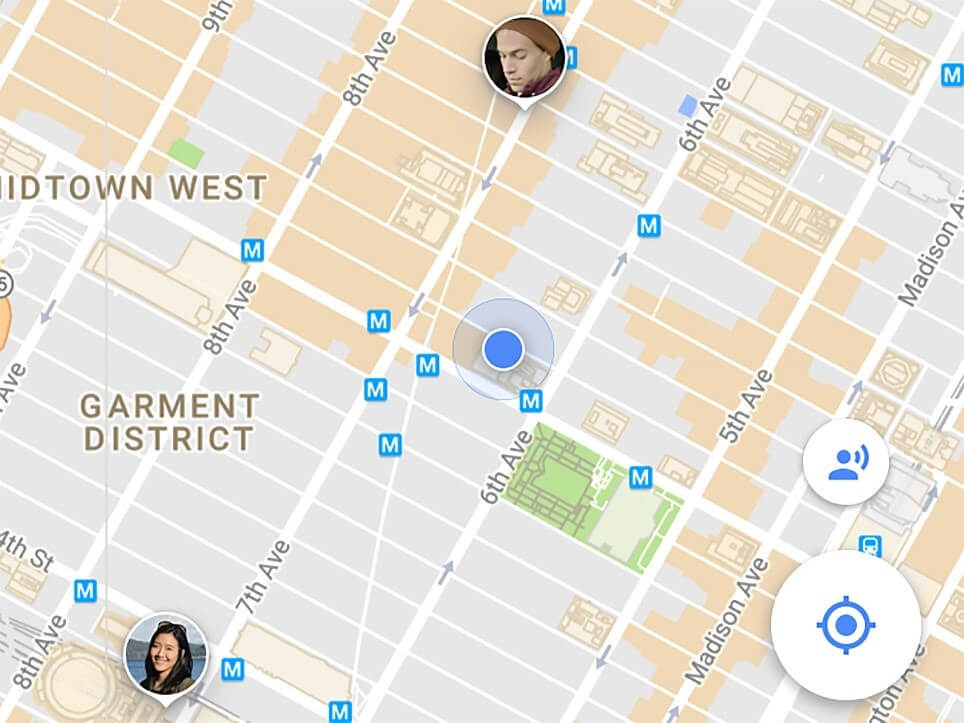
Step 2: At the top left-hand side corner of the screen, bedside the search bar, you would see three horizontal lines. This is the Menu- click on it.
Step 3: Click on either the “Embed map” or “Share” option.
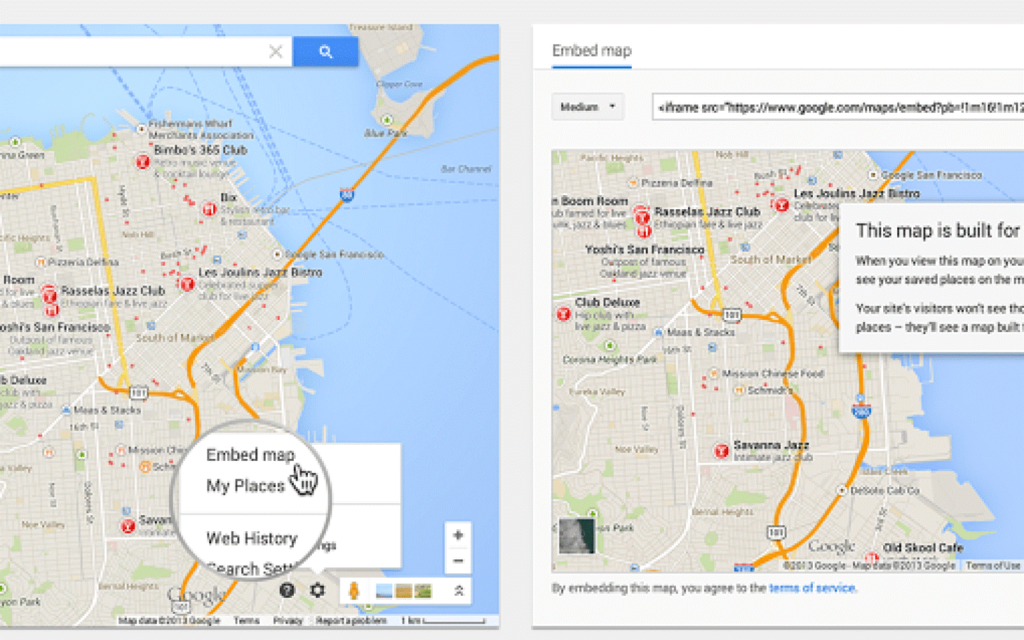
Step 4: Click on “Copy Link” to save the location link into your clipboard. Share it later via another app, message, or email by pasting.
Conclusion
Based on your device type, you can easily share your location with other people through one of these methods. You can control who you can share the data with and how long.
To better control your device and applications, you can download the Avira Free Security Software. Do regular software updates, clean your PC or mobile device, improve privacy, and conduct security scans. This would improve your device features like geolocation better.
You can go through our other write-ups for more similar software-centric information.
Author Bio:
Dinesh Lakhwani 

Dinesh Lakhwani, the entrepreneurial brain behind “TechCommuters,” achieved big things in the tech world. He started the company to make smart and user-friendly tech solutions. Thanks to his sharp thinking, focus on quality and the motto of never giving up, TechCommuters became a top player in the industry. His commitment to excellence has propelled the company to a leading position in the industry.
Popular Post
Recent Post

Customize Your Screen Saver Settings in Windows [Easy Steps]
Learn how to customize screen saver settings in Windows 11 with easy steps, safety tips, and simple tricks to personalize your PC screen.

Driver Easy Windows Driver Updater Tool Review: Tried & Tested
In-depth information about Driver Easy’s functions and features can be found in our review. Learn how to update drivers more easily with this tool for a more seamless computer experience.

Is Avast Driver Updater Worth It? A Hands-On Analysis
A full review of Avast Driver Updater covering features, setup steps, pricing, pros and cons, and real PC results, to help you decide if it is worth buying.

IObit Driver Booster 13 (PRO) Review: [Tried & Tested]
IObit Driver Booster 13 is built for one purpose: keeping your PC drivers up to date. Well, yes! Outdated drivers can cause crashes, slowdowns, and hardware issues. This tool scans fast and updates with one click. The interface is simple. Even beginners can use it without confusion. Updates are pulled from a huge database, covering […]

Auslogics Driver Updater: A Detailed Walkthrough [2026]
This comprehensive review covers the key features, pros, and cons, pricing, and a final verdict on Auslogics’ driver update utility. Learn how it stacks up against manual driver maintenance.

5 Best Driver Updater Tools for Windows to Use (Free and Paid)
Introduction: Most people blame their PC for problems that a driver caused. A driver works like a bridge between your hardware and your operating system. When this bridge cracks, strange things start to happen. Screens flicker without reason. Printers go silent mid-task. Games freeze or crash out of nowhere. Manually finding the right driver is […]
Fixing Lock Screen Timeout – Screen Timeout Settings
Your Windows screen does not stay on forever. After a certain amount of idle time, it turns off or locks automatically. This is a normal feature found on both laptops and desktop PCs. It helps save battery power and reduces electricity use. It also keeps your files and personal information safe when you step away […]
How to Recover Unsaved Word Document? [Complete Guide]
It can be frustrating when a Word document suddenly disappears. You may have spent hours writing a report, assignment, or letter. Then your computer crashes, the power cuts out, or Word closes before you save the file. In that moment, it may seem like all your work is gone. This happens more often than most […]

What Is A Zero-Day Attack And How Can You Defend Against One?
Picture this. A hacker finds a secret crack in your favorite app. You don’t know it’s there. The company that built the app doesn’t know either. But the hacker does. And they use it right away, before anyone can stop them. This is the heart of a zero-day attack. It strikes when a flaw is […]

