Windows Sound Settings – Sound Control Panel: Complete Guide

Sound plays an important role in how we use a computer every day. It supports both work and leisure. You need it for meetings, videos, music, and alerts. When audio fails, even simple tasks become difficult. Many users feel stuck when sound issues appear. This usually happens because they are not familiar with Windows Sound Settings. Once you understand the basics, most problems become easy to fix.
A modern system gives many options to control audio. These options help you manage devices, adjust levels, and improve clarity. The Sound Control Panel and volume settings are key parts of this system. They allow you to fine-tune sound based on your needs.
With a little practice, you can switch devices, balance audio, and solve common errors without stress. This guide explains everything in a clear and simple way so you can use your system with confidence.
Things to Review Before Changing Audio Settings
Before changing any settings, it is wise to review a few basic points. Many audio problems happen due to small errors. Checking these first can save both time and effort. It also prevents you from altering settings that are already correct.
- Check physical connections: Make sure your speakers or headphones are connected properly. A loose cable can stop sound completely.
- Confirm device power: External speakers need power to work. Check if they are turned on or charged.
- Select the correct output device: Your computer may route audio to a different device by default. Select the right device from the available list to ensure proper sound output.
- Look at mute settings: Sometimes the sound is muted by mistake. Check both the system and app sound controls.
- Update audio drivers: Drivers help your system talk to audio hardware. Outdated drivers can cause errors.
- Restart your system: Restarting clears temporary glitches. It often fixes minor sound problems.
- Check app-specific sound: Some applications have their own audio controls. Check that they are not muted and that the volume is set at an appropriate level.
- Test different devices: Try another headset or speaker. This helps you know if the issue is with the hardware.
Frequently Looked-Up Questions (FLUQs)
What is the purpose of sound settings in Windows?
Sound settings help you control how your system handles audio. You can change devices, adjust levels, and fix errors. With proper use of Windows Sound Settings, you can improve clarity and avoid issues during calls, videos, and other tasks.
Why is there no sound on my computer?
This problem can have many causes. Your system may be muted, or the wrong device may be selected. Sometimes drivers also create issues. Opening the Sound Control Panel helps you check devices and find the exact problem step by step.
How do I improve sound quality?
You can improve sound by adjusting balance, enhancements, and output format. Choosing the right device also matters. Good volume settings help you hear clear and balanced audio without distortion.
Can I switch between audio devices easily?
Yes, switching is simple. You can change devices from quick settings or system settings. This allows you to move from speakers to headphones without delay.
Why does sound differ between apps?
Each app may have its own sound control. Some apps reduce or increase sound based on their settings. You can manage this through system audio options and app controls.
Methods to Manage Sound Settings on Windows 11
Managing audio is simple when you know the right tools. Windows provides different methods for different needs. Some are quick and basic. Others offer full control. You can choose the method that suits your task.
Method 1: Using Quick Settings
This is the fastest way to control sound on your system. It works best when you need to make quick and small changes without delay. For example, you can lower the sound during a meeting or increase it while watching a video. It helps you respond instantly without interrupting your task. This method saves time and removes the need to open full settings menus.
Quick settings give you direct access to volume and device selection in one place. You can switch between speakers and headphones in seconds. It is very useful for daily tasks where speed matters. Most users depend on it for quick fixes and basic control. The layout is clear, so even new users can understand it without confusion.
Step 1: Click on the sound icon on the taskbar.

Step 2: Adjust the slider or choose your output device.
Method 2: Using Settings App
The Settings app gives you more detailed control over sound. It is useful when you are working with more than one device. You can manage speakers, headphones, and microphones from one place. It also helps you fix common sound problems with simple options. The layout is clean, so it is easy to move through each section without confusion.
In this section, you can see all connected audio devices clearly. You can choose which one should be the default for sound output and input. You can also adjust levels for both microphone and speakers based on your needs. This method works well for both new and experienced users. It becomes especially helpful when quick settings do not fix the issue or when you need more precise control.
Step 1: Open Settings and go to System, then click Sound.
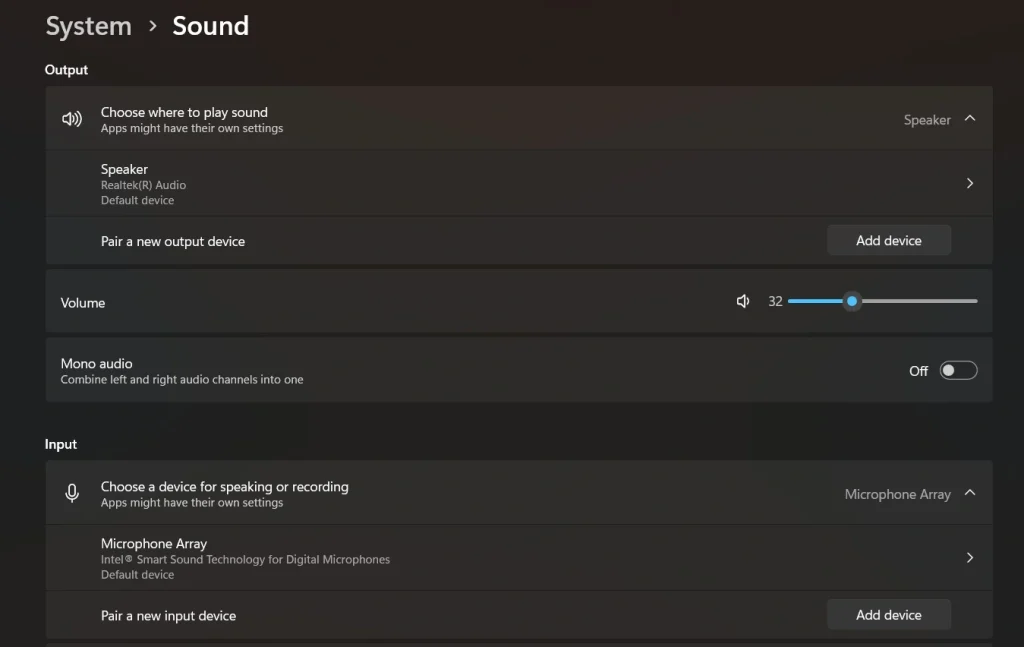
Step 2: Choose your device and adjust options as needed.
Method 3: Using the Sound Control Panel
This method gives you full control over your system’s audio settings. It is part of the classic tools that have been available in Windows for a long time. It includes many advanced options that are not visible in modern menus. You can use it when basic methods do not give the results you need. It is especially helpful for solving complex sound issues.
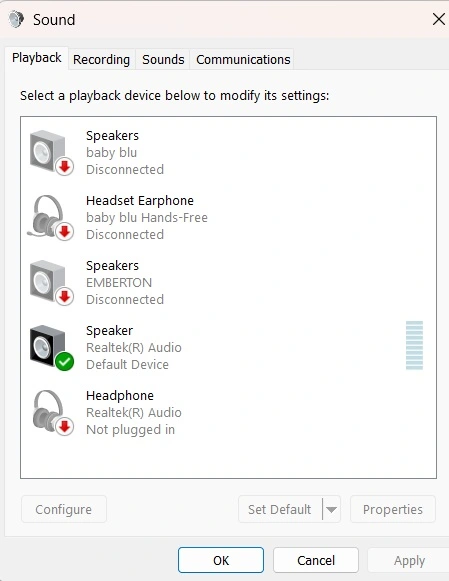
The Sound Control Panel lets you manage both playback and recording devices in detail. You can open device properties and adjust settings like enhancements, levels, and formats. It also allows you to test devices and check their status. This method is useful when other options fail to fix the problem. It gives you precise control over how sound works on your system.
Step 1: Press the Windows key, type Control Panel, and open it. Then click on Sound and select Sound to open the Sound Control Panel.
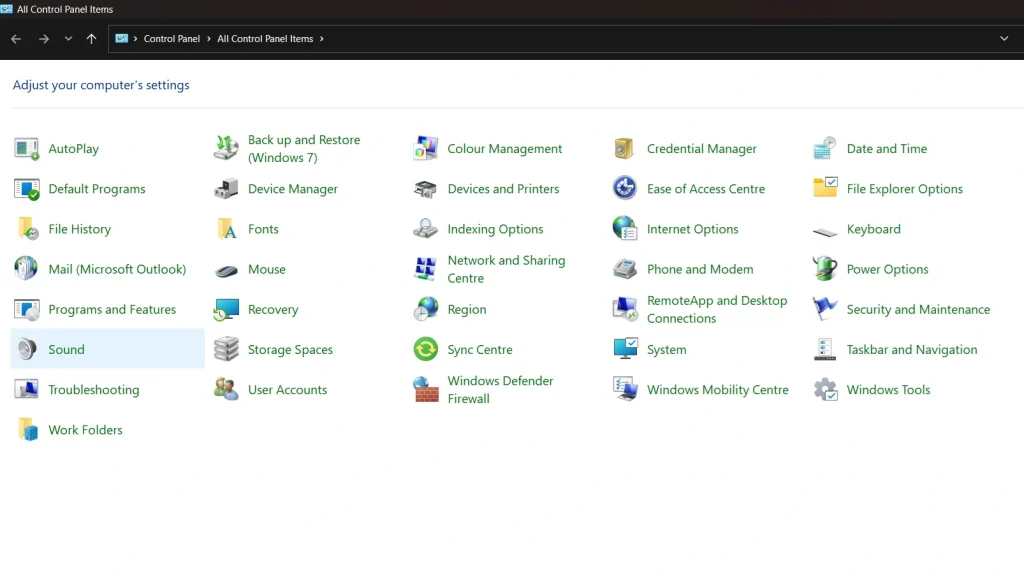
Step 2: In the Sound window, choose the Playback or Recording tab, select your device, and click Properties to adjust settings like levels, enhancements, or formats.
Author’s Tip
Always start with simple checks before changing advanced settings. Many users jump to complex solutions too quickly. This often leads to confusion. Begin by checking devices, connections, and basic controls. Then move to deeper settings only if needed. This step-by-step approach saves time and reduces errors.
It is also a good idea to test your changes after each step. Do not change too many things at once. This makes it hard to find the real issue. Keep your system updated and review your volume settings from time to time. Small adjustments can improve your overall audio experience without much effort.
Conclusion
Sound is a basic but important part of any computer system. When it works well, it improves both productivity and enjoyment. When it fails, it can cause frustration. Learning how to manage Windows Sound Settings helps you stay in control. You can fix problems faster and avoid common mistakes.
The tools available in Windows are simple yet powerful. The Sound Control Panel and volume settings give you both quick and detailed control. With regular use, these tools become easy to understand. Once you learn them, you can handle most audio issues on your own with confidence.
FAQs:
How do I reset sound settings in Windows?
You can reset sound settings by selecting the default playback and recording devices again in your system. This restores basic audio behavior. If the issue continues, reinstalling or updating audio drivers can help fix deeper problems. A system restart after these steps can also improve results.
Why is my microphone not working?
Your microphone may not be set as the default input device. It might also be muted or blocked by system permissions. In some cases, apps do not have permission to access the microphone. You should check both system settings and app-specific settings to ensure everything is enabled correctly.
Can I control the sound for each app separately?
Yes, Windows allows you to control sound for each app. You can adjust volume levels for different apps through system sound options. This helps you balance audio, such as lowering music while keeping the call volume high. It is a useful feature for managing multiple audio sources at the same time.
Author Bio:
Dinesh Lakhwani 

Dinesh Lakhwani, the entrepreneurial brain behind “TechCommuters,” achieved big things in the tech world. He started the company to make smart and user-friendly tech solutions. Thanks to his sharp thinking, focus on quality and the motto of never giving up, TechCommuters became a top player in the industry. His commitment to excellence has propelled the company to a leading position in the industry.
Popular Post











Recent Post
Windows Sound Settings – Sound Control Panel: Complete Guide
Sound plays an important role in how we use a computer every day. It supports both work and leisure. You need it for meetings, videos, music, and alerts. When audio fails, even simple tasks become difficult. Many users feel stuck when sound issues appear. This usually happens because they are not familiar with Windows Sound […]

Run a Troubleshooter For PC Issues Windows: Complete Guide
A computer plays an important role in everyday life. People use it for work, study, communication, and entertainment. When a problem appears, it can interrupt everything. Even a small issue can waste time and create frustration. Many users feel unsure about how to fix such problems. They often think they need expert help. In reality, […]
![Adjusting Audio Output Settings Complete Guide [2026]](https://www.techcommuters.com/wp-content/uploads/2026/03/Adjusting-Audio-Output-Settings-Complete-Guide.webp)
Adjusting Audio Output Settings: Complete Guide [2026]
Sound is part of almost everything we do on a computer. It lets you watch videos, join calls, play music, and hear alerts. When the audio stops working the right way, it can interrupt both work and daily use. That is why adjusting audio output settings matters for every user. Many people get unsure when […]

Artificial Intelligence Explained: Concepts, Terminology, Benefits, and Future Trends
Artificial Intelligence, or AI, is basically computers doing things that usually need a human brain. We’re talking about stuff like learning from experience, figuring out problems, understanding language, and making decisions. It’s not magic, just a lot of data, pattern-spotting, and math behind the scenes. Now, AI doesn’t actually think or feel like we do. […]

Resolving Microphone Detection Problems: Latest Guide [2026]
Microphones are important tools in daily life. People use them for office meetings, online classes, interviews, gaming, customer support, and content creation. When a system fails to detect a microphone, communication stops at once. This situation can cause stress and confusion. Many users believe the microphone is damaged. In reality, most problems are simple and […]

How To Switch To A Dark Background Theme In Windows [2026]
Most people spend many hours each day in front of a computer screen. Office work, online classes, editing, browsing, and streaming all require long screen time. A bright white background may look clean at first. However, over time, it can feel sharp and tiring. The strong contrast between white backgrounds and black text may cause […]

How to Switch From Local To Microsoft Account On Windows
Many users begin with a local account when they set up a new Windows computer. A local account works only on that single device. It stores settings, files, and preferences locally. It does not connect to online Microsoft services. For basic offline use, it works well. However, as digital needs grow, many users want better […]

How to Switch Windows 10 to a Local Account: Complete Guide
Windows 10 allows users to sign in with either a Microsoft account or a local account. When you set up a new computer, the system often suggests using a Microsoft account. This account connects your device to Microsoft services such as Outlook, OneDrive, and the Microsoft Store. It also syncs settings, themes, and passwords across […]

How To Change Default Apps For File Types In Windows
Windows is designed to make using your computer easy. One way it does this is by assigning default apps to different file types. This means when you open a file, Windows automatically opens it with a specific program. For example, photos may open with Photos, music with Groove Music, and PDFs with Edge. These default […]

How To Adjust The Mouse Pointer Speed: Complete Guide
Using a computer every day means you use the mouse a lot. The mouse pointer moves on the screen and helps you click, scroll, and select items. Many people never think about the speed of the mouse pointer. They have used the default setting for years. This can cause small problems over time. A slow […]

