Resetting Audio Settings on Windows 11: Complete Guide
Last updated on December 29th, 2025 at 1:49 am
Sound problems can disrupt work, study, or entertainment. Many users face issues where the audio becomes too low, too loud, unclear, or does not play at all. A common way to solve these problems is by resetting audio settings to their original state. This helps Windows rebuild its sound setup from the beginning.
Windows 11 includes several tools that help you return sound controls to their default form. These tools are simple to use and work well for most sound issues. This guide explains every method in clear steps. It also shares precautions, advanced ideas, common questions, and helpful tips from experience.
Precautions: Keep These Points in Mind Before You Reset Anything
• Check your hardware first
Make sure your headset, speakers, or microphone is connected properly. A loose cable or faulty device can cause problems that look like software issues.
• Test different apps
Some apps have their own sound controls. Try adjusting the audio in the app you are using. This helps you avoid unnecessary resets.
• Update your drivers
Old or damaged drivers can cause sound failures. Update your audio drivers before resetting any part of Windows.
• Note down current settings
Many users tune sound settings for music, gaming, or video calls. Write down your custom levels so you can restore them later.
• Disconnect Bluetooth temporarily
If you use wireless headphones, disconnect and reconnect them. Many pairing issues can appear like system errors.
• Close heavy background apps
Some apps take control of the audio service. Close them so the reset runs smoothly.
• Save your work
A few reset options may restart the audio service or even the whole system. Save your work to avoid losing anything important.
• Make sure your system is stable
Avoid resetting during a Windows update or system scan. Wait for those tasks to finish so nothing clashes with the sound service.
Before You Start, Know The Answers To These Questions:
Why does Windows lose sound even when everything looks connected?
Windows can lose sound because the system sometimes mixes up the output device, applies wrong settings after an update, or loads a damaged driver without warning. Even if your speakers or headphones look fine, the internal audio chain may stop responding or send sound to another device that you are not using. Apps can also take control of the audio and block system output without showing a clear message. When these conflicts build up, the audio service stops working as expected. Resetting the system clears these hidden issues and forces Windows to rebuild its sound path in a clean and stable way.
Does resetting audio settings remove all custom sound levels and profiles?
Yes, most resets will clear your custom levels and audio profiles because Windows is returning everything to the default state. When the system resets, it discards enhancements, app-specific volume changes, equalizer settings, and advanced device properties. Many users adjust their audio for music, gaming, calls, or media work, and those changes can be lost during the reset. This is normal because the reset is designed to wipe conflicts and start fresh. If you use special sound tools, note all your settings before you begin so you can restore them later without confusion.
Can resetting help with crackling, low volume, or distorted audio?
Yes, it often helps because these issues usually appear when sound drivers misbehave, the audio service gets overloaded, or enhancements conflict with each other. Crackling and distortion come from signal interruptions inside the system, and these problems can grow worse when the audio chain becomes unstable over time. Clearing the settings forces Windows to rebuild all sound controls, which removes stuck processes and damaged configuration files. If the problem continues after a reset, the cause may be your hardware or cable, but resetting the audio system is still one of the best first steps for fixing unclear or noisy sound.
Is it safe to reset or reinstall audio components on Windows 11?
It is safe because Windows is built to recreate the entire audio setup whenever needed. Resetting audio settings does not harm your system or personal files. Instead, it clears bad entries, restores missing parts, and fixes conflicts caused by apps or updates. Reinstalling drivers is also safe because Windows keeps a trusted copy ready for automatic installation. These resets do not touch sensitive system files. They only repair the sound layer so the device can work normally again. As long as you follow each step calmly, the process stays simple and reliable for beginners and advanced users.
How to Reset All Audio Settings on Windows 11: 4 Easy Methods to Try!
The process of Reset All Audio Settings in Windows 11 is easy to follow. You can use built in tools, system settings, and troubleshooting utilities.
Each method works differently, so you can try them one by one until your sound returns to normal. These options help fix problems caused by updates, driver issues, or wrong device selections. They are also helpful when you want a fresh setup before installing a new audio device.
Below are four reliable methods used by many users. Each method includes an introduction, reasons to use it, and two short steps.
Method 1. Reset Through System Sound Settings
Windows 11 includes an option that resets device settings directly from the System panel. This is one of the simplest ways to begin. It brings your audio preferences back to the default form. It also clears enhancements and device properties. Many users should start with this method because it does not require any advanced tools.
In many situations, this reset is enough to fix routing problems. It also helps when Windows selects the wrong device as the default output. This method is gentle and does not affect other system components. It focuses only on device-level changes.
Why use this method
• Works fast and does not need technical skill
• Restores device properties to safe values
• Fixes wrong output or input selections
• Safe to repeat when needed
Steps
Step 1. Open Settings and select System and then Sound. Click Volume mixer.
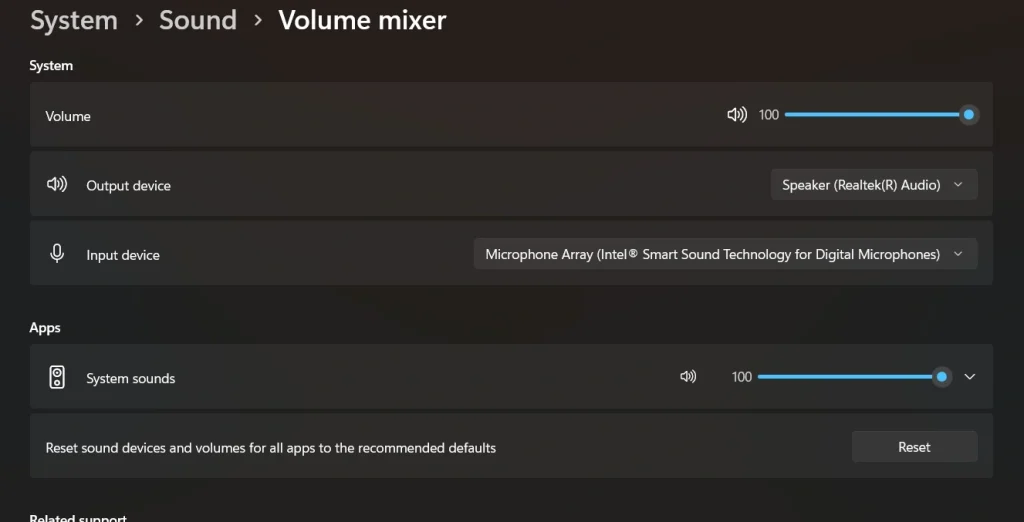
Step 2. Click Reset to restore sound devices and app volumes to the recommended defaults.
Method 2. Run the Audio Troubleshooter
Windows includes a repair tool that scans for sound issues. It checks services, devices, and signals. This method helps when you do not know the cause. The troubleshooter tests many items on its own. It resets some parts of the audio system and repairs damaged controls.
This tool is good when the problem happens suddenly. It works in the background and reports the cause at the end. Many users find it helpful because the tool configures the system automatically.
Why use this method
• Easy for beginners
• Detects hidden issues
• Repairs settings without manual effort
• Useful when sound stops without warning
Steps
Step 1. Open Settings and search for Troubleshoot.
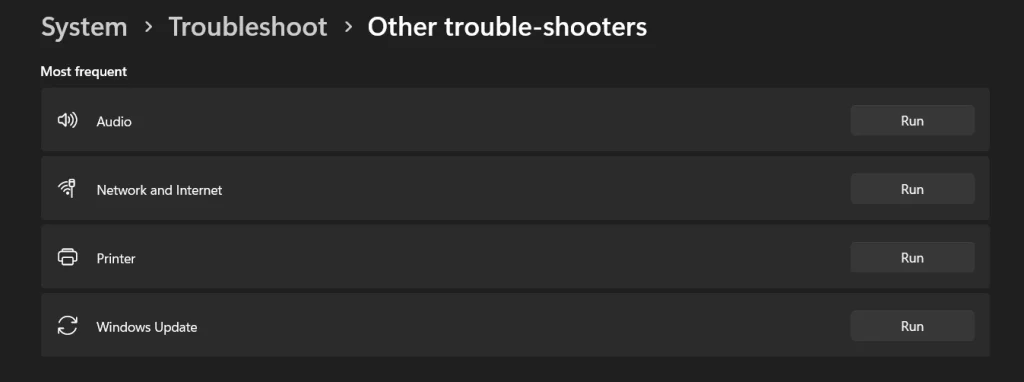
Step 2. Run the audio troubleshooter and follow the instructions.
Method 3. Reset the Windows Audio Service
Windows uses a background service to manage sound. When this service fails, audio may stop working. Restarting it resets part of the system that controls signals and device activity. This method is effective for crackling, no sound, or sudden silence.
It is helpful when updates or heavy apps disrupt the service. Restarting the service gives Windows a chance to rebuild its internal audio chain. It works well when the device looks fine but still does not play sound.
Why use this method
• Fixes service failures
• Clears stuck audio processes
• Helps after driver updates
• Useful when devices appear but no sound plays
Steps
Step 1. Open Services and find Windows Audio.
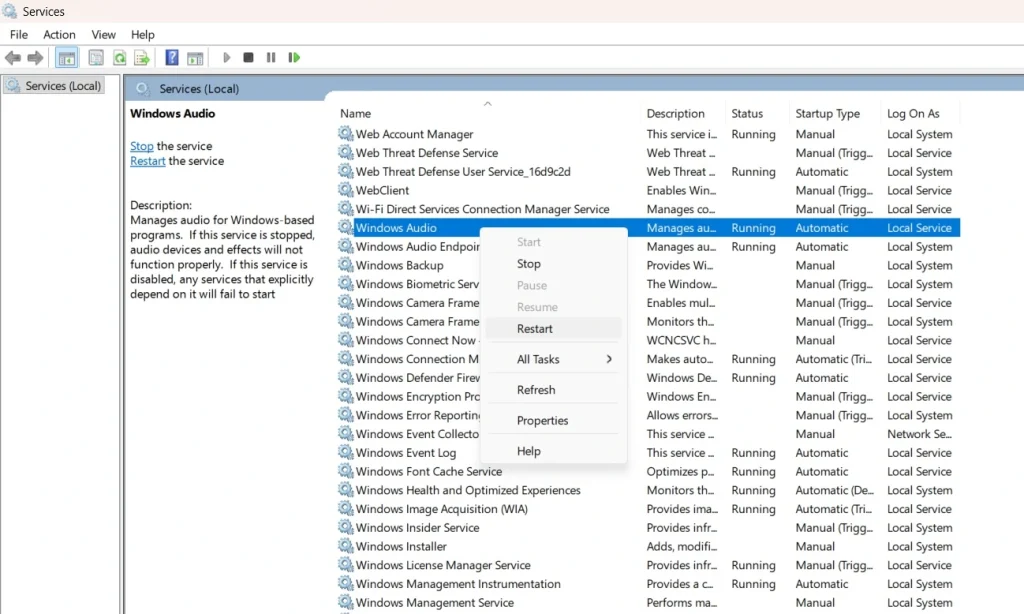
Step 2. Restart the service and test your sound device.
Method 4. Reset by Reinstalling Audio Drivers
Drivers control how the operating system interacts with your device. When drivers are corrupted, the system cannot process sound correctly. Reinstalling them resets a deeper layer of audio control. This method replaces damaged files with fresh copies.
This is the strongest method for many complex audio errors. It helps when hardware behaves oddly or Windows cannot detect your device. Reinstalling also helps if you installed third-party sound tools that changed your driver settings.
Why use this method
• Rebuilds the driver system
• Clears corrupted files
• Helps with major sound failures
• Fixes many device detection problems
Steps
Step 1. Open Device Manager and remove your audio driver.
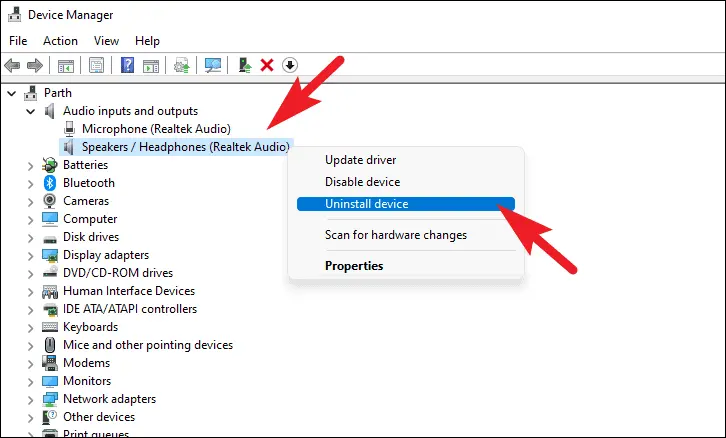
Step 2. Restart the computer, so Windows installs a fresh driver.
Author’s Tip
Many users try several steps at once which causes confusion. A better way is to test your device after each method. This helps you understand what fixed the issue. It also gives you confidence the next time a problem appears. Sound issues can look complicated, but they often come from simple conflicts.
If you often face audio trouble, keep your drivers updated and avoid installing too many sound apps. Virtual mixers and enhancement tools can fight with each other. Keep your system light and clean so Windows can manage sound without obstacles. Careful maintenance will help you avoid the need for frequent resets.
Advanced Tips: Extra Techniques for Stronger Sound Recovery
• Check your default device manually
Sometimes Windows selects the wrong device. Make sure you choose the correct output and input device from the Sound section.
• Disable third-party audio tools
External mixers can override Windows controls. Turn them off to prevent conflicts.
• Remove audio enhancements
Effects like equalizers or environment filters may distort signal quality. Disable them when testing for problems.
• Test with a wired device
Wired headphones help confirm whether the problem comes from Bluetooth or the system.
• Use sound control panel
The classic sound panel still offers controls not found in the new Settings app. Use it to check advanced levels.
• Check for background apps
Some programs take control of the microphone or speaker access. Close them to avoid interference.
• Use safe mode for deep checks
Booting into safe mode helps identify whether a third-party app is causing audio errors.
• Update Windows regularly
Sound improvements often arrive through updates. An older system may have known audio bugs.
Conclusion
Resetting audio settings is one of the easiest ways to solve sound issues in Windows 11. The system includes different methods to restore controls, drivers, and services. Each method helps in a different situation. You can use one or try all until your audio works properly again. Whether the problem comes from updates, wrong settings, or driver conflicts, a reset often brings back stable sound.
Always test your device after each method. Simple steps can solve problems that seem confusing at first. Resetting audio settings, using the Reset All Audio Settings in Windows 11 options, and applying reset sound settings methods can restore clarity and volume across all your apps. These steps keep your computer ready for calls, music, games, and work without trouble.
FAQs:
Why does the system lose sound after an update?
Updates sometimes change drivers or device priorities. When this happens, the audio chain breaks. A simple reset helps Windows connect everything again.
Is it safe to reinstall audio drivers?
Yes. Windows is designed to reinstall them automatically. This is a trusted repair method and helps fix damage caused by old or broken files.
Why do headphones stop working even when plugged in?
The system may choose a different output device. Resetting or selecting your device fixes the conflict. Drivers may also need a refresh to detect the device correctly.
Author Bio:
Dinesh Lakhwani 

Dinesh Lakhwani, the entrepreneurial brain behind “TechCommuters,” achieved big things in the tech world. He started the company to make smart and user-friendly tech solutions. Thanks to his sharp thinking, focus on quality and the motto of never giving up, TechCommuters became a top player in the industry. His commitment to excellence has propelled the company to a leading position in the industry.
Popular Post











Recent Post

Windows Sound Settings – Sound Control Panel: Complete Guide
Sound plays an important role in how we use a computer every day. It supports both work and leisure. You need it for meetings, videos, music, and alerts. When audio fails, even simple tasks become difficult. Many users feel stuck when sound issues appear. This usually happens because they are not familiar with Windows Sound […]

Run a Troubleshooter For PC Issues Windows: Complete Guide
A computer plays an important role in everyday life. People use it for work, study, communication, and entertainment. When a problem appears, it can interrupt everything. Even a small issue can waste time and create frustration. Many users feel unsure about how to fix such problems. They often think they need expert help. In reality, […]
![Adjusting Audio Output Settings Complete Guide [2026]](https://www.techcommuters.com/wp-content/uploads/2026/03/Adjusting-Audio-Output-Settings-Complete-Guide.webp)
Adjusting Audio Output Settings: Complete Guide [2026]
Sound is part of almost everything we do on a computer. It lets you watch videos, join calls, play music, and hear alerts. When the audio stops working the right way, it can interrupt both work and daily use. That is why adjusting audio output settings matters for every user. Many people get unsure when […]

Artificial Intelligence Explained: Concepts, Terminology, Benefits, and Future Trends
Artificial Intelligence, or AI, is basically computers doing things that usually need a human brain. We’re talking about stuff like learning from experience, figuring out problems, understanding language, and making decisions. It’s not magic, just a lot of data, pattern-spotting, and math behind the scenes. Now, AI doesn’t actually think or feel like we do. […]

Resolving Microphone Detection Problems: Latest Guide [2026]
Microphones are important tools in daily life. People use them for office meetings, online classes, interviews, gaming, customer support, and content creation. When a system fails to detect a microphone, communication stops at once. This situation can cause stress and confusion. Many users believe the microphone is damaged. In reality, most problems are simple and […]

How To Switch To A Dark Background Theme In Windows [2026]
Most people spend many hours each day in front of a computer screen. Office work, online classes, editing, browsing, and streaming all require long screen time. A bright white background may look clean at first. However, over time, it can feel sharp and tiring. The strong contrast between white backgrounds and black text may cause […]

How to Switch From Local To Microsoft Account On Windows
Many users begin with a local account when they set up a new Windows computer. A local account works only on that single device. It stores settings, files, and preferences locally. It does not connect to online Microsoft services. For basic offline use, it works well. However, as digital needs grow, many users want better […]

How to Switch Windows 10 to a Local Account: Complete Guide
Windows 10 allows users to sign in with either a Microsoft account or a local account. When you set up a new computer, the system often suggests using a Microsoft account. This account connects your device to Microsoft services such as Outlook, OneDrive, and the Microsoft Store. It also syncs settings, themes, and passwords across […]

How To Change Default Apps For File Types In Windows
Windows is designed to make using your computer easy. One way it does this is by assigning default apps to different file types. This means when you open a file, Windows automatically opens it with a specific program. For example, photos may open with Photos, music with Groove Music, and PDFs with Edge. These default […]

How To Adjust The Mouse Pointer Speed: Complete Guide
Using a computer every day means you use the mouse a lot. The mouse pointer moves on the screen and helps you click, scroll, and select items. Many people never think about the speed of the mouse pointer. They have used the default setting for years. This can cause small problems over time. A slow […]

