How to Fix Safari is Crashing on Big Sur?
Last updated on May 6th, 2025 at 4:54 pm
Upgrade to the latest macOS Big Sur has not been seamless for many users. Like no software is perfect, there are certain issues faced by the users on this latest macOS version. One such issue is Safari keeps on crashing. So, how to fix Safari is crashing on Big Sur too often? Let’s discuss some solutions.
Make sure you’re running the latest version
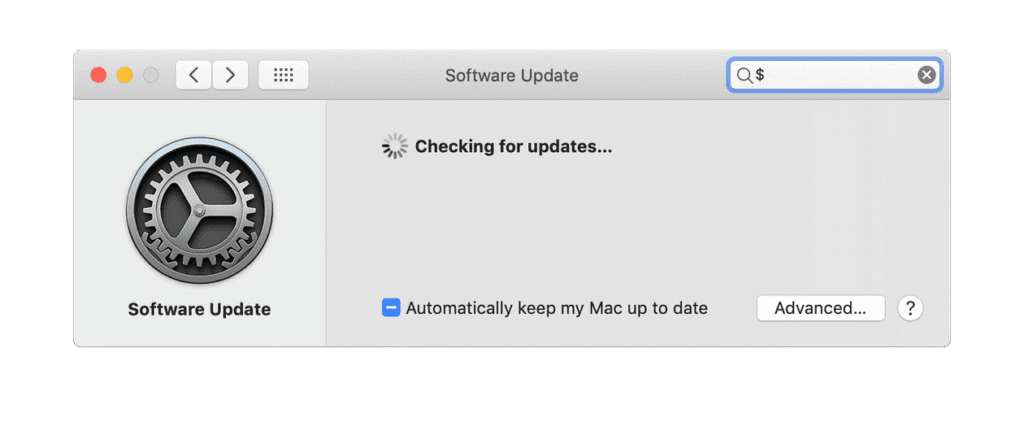
Once you get the latest software update on your Mac, Safari is updated automatically. Now that if Safari is crashing too often on Big Sur, you need to make sure you’re running the latest version. Follow these steps to check it:
- Click on the Apple menu.
- Select About this Mac.
- Choose Software Update.
- If an update is available, follow the steps to install it.
How to fix Safari is crashing in macOS Big Sur?
Safari is a useful application on your Mac. You can’t find it installed as a simple binary app file, instead a lot of other files are stored with it. Many of these additional files are stored in the user Library folder or main Library folder. Now that you have a lot of additional files stored associated with Safari on your Mac, many of these files may interfere with web browser functioning or get corrupted causing trouble. In addition to that, all the browser extensions that you’ve installed, it is possible that some of them aree incompatible with Big Sur. To fix incompatible extensions, follow these steps:
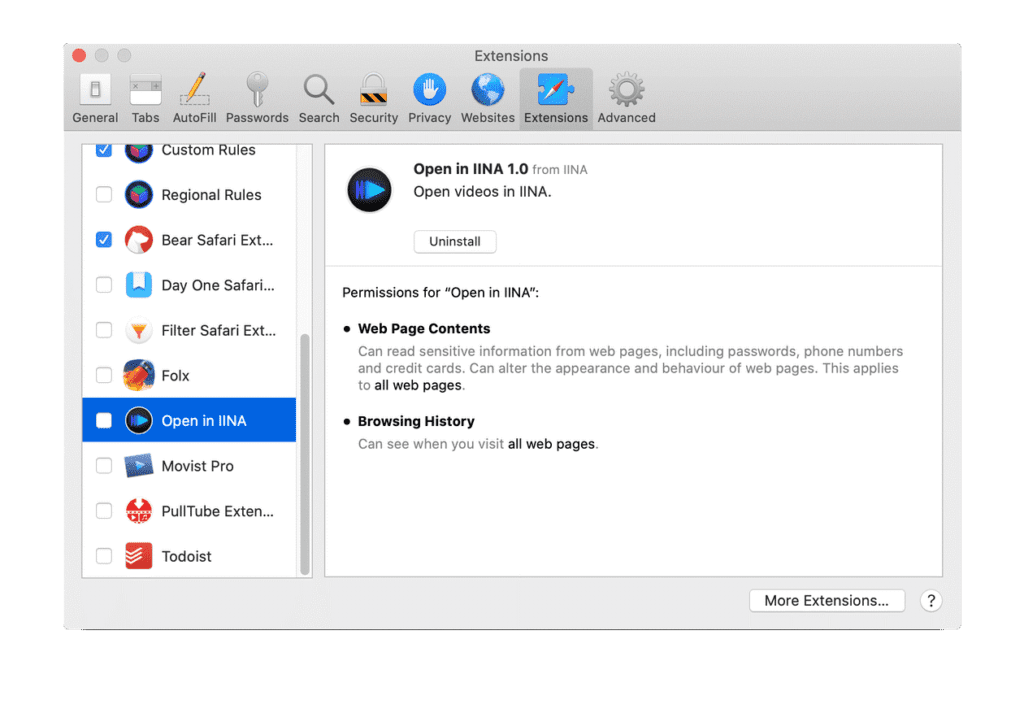
- Go to Safari menu > Preferences.
- Choose Extensions.
- Now you will find a list of extensions, uncheck the box next to each one.
- Close Preferences and quit Safari.
Simply relaunch the Safari to check if it is working fine now. If it doesn’t, try emptying Safari cache by following these steps:
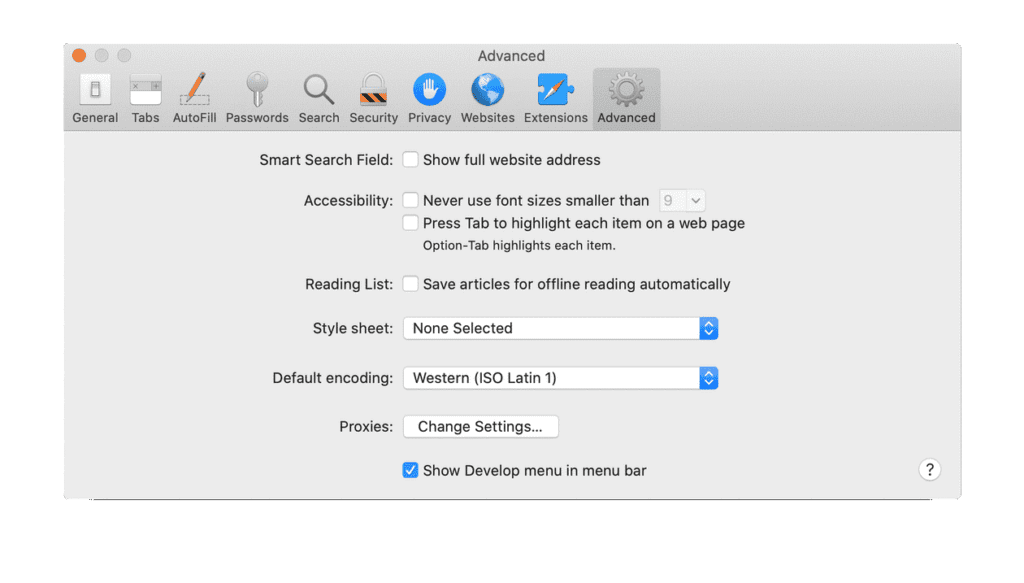
- Open Safari menu > Preferences > Advanced.
- Check the box next to Show Develop menu in menu bar option.
- Close Preferences.
- Tap on the Develop menu and select Empty Caches.
- Quit Safari and relaunch it.
If Safari is still crashing on Big Sur, then consider to clear your history. Once you remove the browser history, it will remove the history on connected iPhone or iPad devices too if you are signed into your same iCloud account. To clear history, follow these steps:
- Tap on the History menu.
- Select Clear History.
- Restart Safari.
How to remove Safari cache manually?
If you still find the issue, you should consider removing Safari cache manually. To do this, follow these steps:
- Open Finder > Go menu > Go To Folder.
- Open this path: ~/Library/Caches/com.apple.Safari
- Drag the contents of that folder to the Trash.
- Relaunch Safari.
Conclusion
In addition to these steps, you can consider disabling Siri suggestions and Reading List to fix Safari crashing on macOS Big Sur. To do this, simply open Safari, find the Reading List and Favorites and disable these options. You can also try to change your homepage to other than the default one to fix this issue with Safari.
Author Bio:
Dinesh Lakhwani 

Dinesh Lakhwani, the entrepreneurial brain behind “TechCommuters,” achieved big things in the tech world. He started the company to make smart and user-friendly tech solutions. Thanks to his sharp thinking, focus on quality and the motto of never giving up, TechCommuters became a top player in the industry. His commitment to excellence has propelled the company to a leading position in the industry.
Popular Post











Recent Post

How to Switch Windows 10 to a Local Account: Complete Guide
Windows 10 allows users to sign in with either a Microsoft account or a local account. When you set up a new computer, the system often suggests using a Microsoft account. This account connects your device to Microsoft services such as Outlook, OneDrive, and the Microsoft Store. It also syncs settings, themes, and passwords across […]

How To Change Default Apps For File Types In Windows
Windows is designed to make using your computer easy. One way it does this is by assigning default apps to different file types. This means when you open a file, Windows automatically opens it with a specific program. For example, photos may open with Photos, music with Groove Music, and PDFs with Edge. These default […]

How To Adjust The Mouse Pointer Speed: Complete Guide
Using a computer every day means you use the mouse a lot. The mouse pointer moves on the screen and helps you click, scroll, and select items. Many people never think about the speed of the mouse pointer. They have used the default setting for years. This can cause small problems over time. A slow […]

How to Change Mouse Scrolling Settings In Windows
A mouse is one of the most used computer tools. People use it every day. They scroll through emails. They scroll through documents. They scroll through websites and images. The movement becomes automatic. Most users do not notice it. That is why problems often go unnoticed. Scrolling problems show up slowly. At first, it feels […]

Keyboard Light Settings: Keyboard Lighting Control [Complete Guide]
Keyboards are no longer simple typing tools. Well, yes! Over time, they have evolved to include features that improve comfort, visibility, and overall experience. One of the most useful features today is keyboard lighting. It helps users work comfortably in low-light conditions. It also reduces strain when typing for long hours. Many users first notice […]

Customizing Pointer Appearance: Complete Guide
The way your mouse pointer looks on your computer may seem like a small detail. But customizing pointer appearance can make using your PC more comfortable and visually appealing. Many users do not realize that they can change the pointer size, color, and style to fit their needs. Whether you want a bigger pointer for […]

How To Choose a Computer Monitor: Monitor Buying Guide
Buying a monitor looks easy. Many people think all screens are the same. That belief causes regret later. A monitor is not just a display. It is a daily tool. You read on it. You work on it. You relax with it. Small problems become big over time. Poor brightness hurts eyes. Bad size causes […]

How To Get Help With File Explorer in Windows 11 [Complete Guide]
File Explorer is one of the most important tools in Windows 11. It is used to open folders, view files, and manage stored data. Almost every action on a Windows computer depends on it in some way. When users open documents, save downloads, or organize photos, File Explorer is always involved. Because it is used […]

How To Fix A Frozen Computer: Complete Guide [Windows 11/10]
A frozen computer is one of the most common problems Windows users face. The screen stops responding. The mouse pointer does not move. Keyboard inputs do nothing. You may hear the fan running loudly. Sometimes the system looks alive, but nothing works. This situation often happens when you are busy or working on something important. […]

How to Upgrade Computer RAM: Complete Guide
Upgrading RAM is one of the simplest ways to improve a computer. It helps the system feel faster and smoother. Apps open quicker. Browsers handle more tabs. Games and tools run with less delay. Many users search for how to upgrade computer RAM because it gives real results without high cost. You do not need […]

