How To Download Epson L3110 Driver for Windows 11/10/7 [Top 3 Ways]

Last updated on July 24th, 2025 at 2:36 pm
The Epson L3110 printer is a go-to for both home and office use. Its sleek design and excellent print quality make it a favorite among users. But to keep it running smoothly with your computer, you’ll need the right driver.
Think of a printer driver as the middleman between your computer and your printer. Without it, the two can’t communicate properly, which can lead to issues like fuzzy prints or even a complete printing standstill. That’s why downloading and installing the Epson L3110 driver is so important.
In this article, I’ll walk you through the steps to download the Epson L3110 driver for Windows 11, 10, and 7. We’ll cover why you need the driver, different ways to get it, and how to troubleshoot any issues you might run into along the way.
Ready to get started? Let’s dive in!
Part 1: Why You Need the Epson L3110 Driver?

To understand the importance of the Epson L3110 driver, it’s essential to know what a driver does. A driver acts as a translator, allowing your computer to communicate with the printer. Without the right driver, your printer won’t receive the necessary instructions to function correctly.
Here are some key reasons why having the Epson L3110 driver is crucial:
- Ensures the printer functions correctly: The driver allows the printer to communicate with your computer, ensuring that it operates smoothly.
- Enables communication between computer and printer: It translates the commands from your computer into a format that the printer can understand.
- Helps in printing documents and photos: With the correct driver, you can print a wide range of documents and photos without any issues.
- Ensures compatibility with Windows 11, 10, and 7: The driver ensures that the printer works with different versions of Windows.
- Improves printer performance: Regular driver updates can enhance the performance of your printer.
- Fixes bugs and issues: Updates often come with bug fixes and improvements that resolve existing issues.
- Provides access to all printer features: The driver unlocks all the features and functionalities of the printer.
- Ensures smooth operation: A proper driver installation ensures that the printer operates without any hiccups.
Part 2: How to Download the Epson L3110 Driver
Downloading the Epson L3110 driver can be done in several ways. Each method has its advantages and disadvantages, so it’s essential to choose the one that suits you best.
Here are three methods to download the driver:
Method 1: Manual Download from Epson’s Official Website
Downloading the driver manually from Epson’s official website is a reliable method. This approach guarantees that you receive the most recent version of the driver directly from the manufacturer, ensuring compatibility and optimal performance. By obtaining the driver from the official source, you can trust that it is free from any harmful modifications or malware. This method is ideal for users who prefer to handle the download and installation process themselves, giving them full control over every step.
Additionally, downloading the driver manually allows you to verify that you are getting the correct driver for your specific printer model and operating system. It eliminates the risk of installing an outdated or incorrect driver, which could lead to functionality issues. This method is particularly useful for advanced users who are comfortable navigating through the manufacturer’s website and managing software installations.
Overall, the manual download method provides a secure and straightforward way to ensure your Epson L3110 printer operates smoothly.
Steps:
Step 1: Open your web browser and go to the Epson website. Type “Epson L3110 driver” and press Enter.

Step 2: Select the appropriate driver for your operating system (Windows 11, 10, or 7). Click the download button.
Once the download is complete, open the file and follow the on-screen instructions to install the driver.
Pros
- You get the most recent driver version.
- It is a secure and reliable source.
Cons
- Requires an active internet connection.
- The process can be time-consuming.
Method 2: Using Device Manager to Download Epson L3110 Driver
Device Manager is a built-in tool in Windows designed to help you manage devices and their drivers. By using Device Manager, you can search for and install the latest driver for your Epson L3110 printer without needing to visit external websites. This method leverages the functionalities already present in your Windows operating system, making it a straightforward and accessible option. For those who prefer using the tools provided by Windows, Device Manager is a convenient choice, as it integrates seamlessly with your system’s settings and configurations.
One of the advantages of using Device Manager is that it simplifies the process of updating drivers. You don’t need to worry about downloading the wrong driver or navigating through multiple web pages. Instead, Device Manager automatically searches for the appropriate driver and installs it for you. This method is particularly beneficial for users who may not be as comfortable with manual installations or those who want a quick and hassle-free way to ensure their printer driver is up-to-date.
Step 1: Right-click Windows icon. Select “Device Manager” from the menu. In Device Manager, locate your Epson L3110 printer under the “Printers” section. Right-click on the Epson printer. Select “Update driver.”
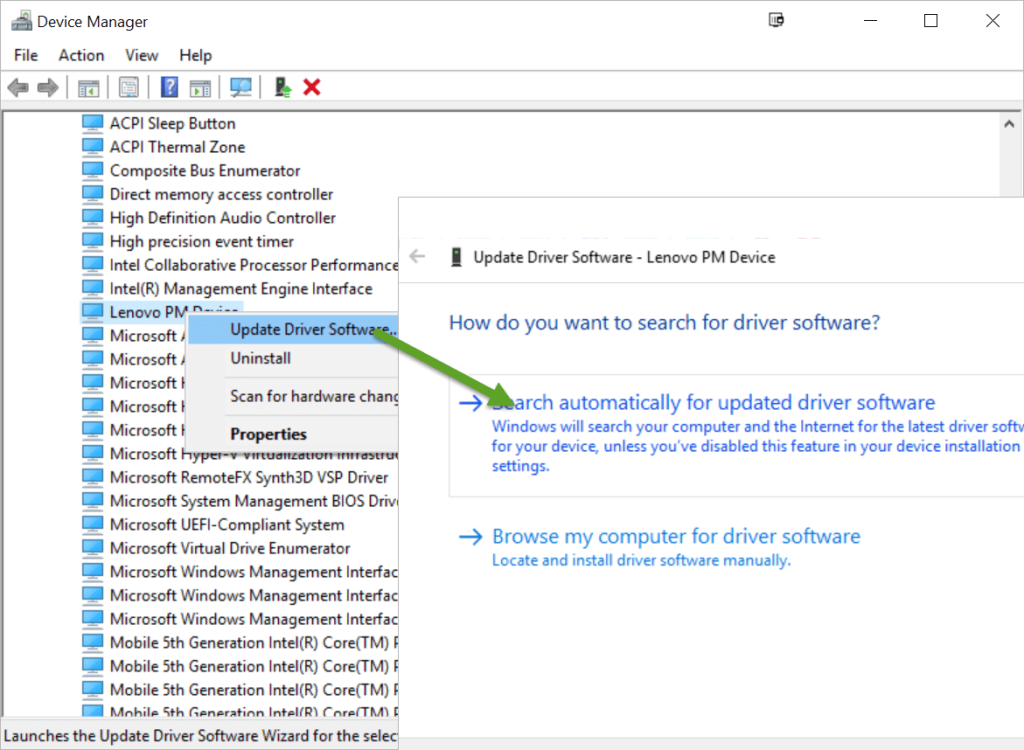
Step 2: Choose “Search automatically for updated driver software.” Windows will search for the latest driver and install it.
Pros
- Utilizes a built-in Windows tool.
- The steps are easy to follow.
Cons
- May not always find the latest driver version.
- Requires an internet connection.
Method 3: Windows Update to Download Epson L3110 Driver
Windows Update is an integrated feature within the Windows operating system that plays a crucial role in maintaining system security and performance by automatically checking for and installing updates. This includes updates for drivers, which are essential for the proper functioning of hardware devices like printers. Leveraging Windows Update to download and install the Epson L3110 driver is a convenient method, as it simplifies the process by automating it.
One of the primary advantages of using Windows Update is its seamless integration with the operating system, which provides a hassle-free experience for users.
Steps
Step 1: Open the Start menu and go to “Settings.” Click on “Windows Update.” Click on “Check for updates.”

Step 2: If a driver update for the Epson L3110 is available, Windows will download and install it.
Pros
- The process is automated.
- Integrated with the Windows operating system.
Cons
- May not always include the latest driver.
- The update process can be slow.
Part 3: Tips for Troubleshooting Common Issues While Downloading Epson L3110 Driver
Downloading drivers can sometimes be a tricky process, encountering various issues that may disrupt the installation. Whether it’s a connection problem, compatibility issue, or interference from other software, these challenges can be frustrating.
In this section, we will provide useful tips to troubleshoot and resolve common issues you might face while downloading the Epson L3110 driver.
By following these tips, you can ensure a smoother and more successful installation process, ensuring your printer works perfectly with your computer.
- Ensure your internet connection is stable: A stable connection is essential for downloading drivers.
- Restart your computer: Sometimes, a simple restart can resolve many issues.
- Check if your Windows version is compatible: Ensure that you are downloading the driver compatible with your version of Windows.
- Temporarily disable antivirus software: Antivirus software can sometimes interfere with the download process.
- Use another method if one fails: Try a different method if you encounter issues with the current one.
- Contact Epson support for help: If all else fails, reach out to Epson’s customer support for assistance.
Conclusion
Downloading the Epson L3110 driver is a crucial step to ensure your printer functions correctly. This driver enables your printer to communicate with your computer, ensuring smooth operation. You can download the driver manually from Epson’s official website, use Device Manager, or rely on Windows Update.
Each method has its pros and cons, but they all aim to provide you with the necessary driver for your printer. Additionally, troubleshooting tips can help you overcome common issues during the download process.
In conclusion, having the right driver is essential for the optimal performance of your Epson L3110 printer. Regularly updating the driver can fix bugs, improve performance, and unlock new features. Ensure that your printer is always ready to deliver high-quality prints by keeping its driver up-to-date.
Remember, a well-functioning printer makes all your printing tasks easier and more efficient. Happy printing!
FAQs:
1. What is a printer driver?
A printer driver is a software program that allows your computer to communicate with your printer. It acts as a translator, converting the data from your computer into a format that the printer can understand. Without the correct driver, your printer may not function properly, as it won’t receive the necessary instructions to perform tasks like printing documents or photos. The driver ensures compatibility between the printer and your operating system, enabling smooth and efficient printing operations.
2. Why should I update my printer driver?
Updating your printer driver is essential for several reasons. First, it ensures that your printer can function optimally with the latest features and improvements. Manufacturers frequently release driver updates to fix bugs, enhance performance, and add new functionalities. Additionally, updating the driver can resolve compatibility issues with your operating system, especially after major updates. Keeping your printer driver up-to-date ensures that you get the best performance and reliability from your printer, reducing the likelihood of errors or malfunctions.
3. Can I download the driver without internet?
No, you cannot download the driver without an internet connection. The driver file needs to be downloaded from the manufacturer’s website or other online sources, which requires internet access. However, once you have downloaded the driver, you can transfer it to your computer using a USB drive or other storage devices. If you don’t have internet access at home, you can visit a location with internet access, such as a library or a friend’s house, to download the driver and then install it on your computer.
4. What should I do if the driver is not working?
If the driver is not working, there are several steps you can take to resolve the issue. First, ensure that you have downloaded the correct driver for your printer model and operating system. Double-check that the driver is compatible with your version of Windows. If the issue persists, try uninstalling the current driver and reinstalling it. You can also use the Device Manager to update the driver or check for any hardware issues. If none of these steps work, consider reaching out to Epson’s customer support for further assistance. They can provide specific troubleshooting steps or guide you through the installation process.
Author Bio:
Dinesh Lakhwani 

Dinesh Lakhwani, the entrepreneurial brain behind “TechCommuters,” achieved big things in the tech world. He started the company to make smart and user-friendly tech solutions. Thanks to his sharp thinking, focus on quality and the motto of never giving up, TechCommuters became a top player in the industry. His commitment to excellence has propelled the company to a leading position in the industry.
Popular Post











Recent Post

Troubleshooting Microphone Privacy Settings: Complete Guide
Sound is a basic part of how we use computers today. People attend meetings, record audio, speak to others, and use voice tools almost every day. A working microphone makes all these tasks easy. When the microphone fails, even simple work becomes difficult. Many users first think the device is broken. In reality, the issue […]

Windows Sound Settings – Sound Control Panel: Complete Guide
Sound plays an important role in how we use a computer every day. It supports both work and leisure. You need it for meetings, videos, music, and alerts. When audio fails, even simple tasks become difficult. Many users feel stuck when sound issues appear. This usually happens because they are not familiar with Windows Sound […]

Run a Troubleshooter For PC Issues Windows: Complete Guide
A computer plays an important role in everyday life. People use it for work, study, communication, and entertainment. When a problem appears, it can interrupt everything. Even a small issue can waste time and create frustration. Many users feel unsure about how to fix such problems. They often think they need expert help. In reality, […]
![Adjusting Audio Output Settings Complete Guide [2026]](https://www.techcommuters.com/wp-content/uploads/2026/03/Adjusting-Audio-Output-Settings-Complete-Guide.webp)
Adjusting Audio Output Settings: Complete Guide [2026]
Sound is part of almost everything we do on a computer. It lets you watch videos, join calls, play music, and hear alerts. When the audio stops working the right way, it can interrupt both work and daily use. That is why adjusting audio output settings matters for every user. Many people get unsure when […]

Artificial Intelligence Explained: Concepts, Terminology, Benefits, and Future Trends
Artificial Intelligence, or AI, is basically computers doing things that usually need a human brain. We’re talking about stuff like learning from experience, figuring out problems, understanding language, and making decisions. It’s not magic, just a lot of data, pattern-spotting, and math behind the scenes. Now, AI doesn’t actually think or feel like we do. […]

Resolving Microphone Detection Problems: Latest Guide [2026]
Microphones are important tools in daily life. People use them for office meetings, online classes, interviews, gaming, customer support, and content creation. When a system fails to detect a microphone, communication stops at once. This situation can cause stress and confusion. Many users believe the microphone is damaged. In reality, most problems are simple and […]

How To Switch To A Dark Background Theme In Windows [2026]
Most people spend many hours each day in front of a computer screen. Office work, online classes, editing, browsing, and streaming all require long screen time. A bright white background may look clean at first. However, over time, it can feel sharp and tiring. The strong contrast between white backgrounds and black text may cause […]

How to Switch From Local To Microsoft Account On Windows
Many users begin with a local account when they set up a new Windows computer. A local account works only on that single device. It stores settings, files, and preferences locally. It does not connect to online Microsoft services. For basic offline use, it works well. However, as digital needs grow, many users want better […]

How to Switch Windows 10 to a Local Account: Complete Guide
Windows 10 allows users to sign in with either a Microsoft account or a local account. When you set up a new computer, the system often suggests using a Microsoft account. This account connects your device to Microsoft services such as Outlook, OneDrive, and the Microsoft Store. It also syncs settings, themes, and passwords across […]

How To Change Default Apps For File Types In Windows
Windows is designed to make using your computer easy. One way it does this is by assigning default apps to different file types. This means when you open a file, Windows automatically opens it with a specific program. For example, photos may open with Photos, music with Groove Music, and PDFs with Edge. These default […]

