Troubleshooting Microphone Privacy Settings: Complete Guide

Sound is a basic part of how we use computers today. People attend meetings, record audio, speak to others, and use voice tools almost every day. A working microphone makes all these tasks easy. When the microphone fails, even simple work becomes difficult.
Many users first think the device is broken. In reality, the issue often comes from settings inside the system. These settings decide how and when the microphone can be used.
Modern operating systems include strong privacy controls. These controls help protect users from unwanted access. Apps must ask for permission before they can use the microphone. This is a good safety feature, but it can also create confusion. Sometimes, access is blocked without the user noticing. This is why troubleshooting microphone privacy settings becomes important. It helps users understand where the problem is and how to fix it step by step.
With a calm approach and a few checks, most issues can be solved without technical help.
First Steps Before Fixing the Issue
Before making any changes, it is better to follow some simple precautions. These steps reduce the risk of mistakes. They also make the process smooth and clear.
- Check the physical connection
Check that the microphone is connected correctly. If it has a cable, plug it in fully. If it is wireless, make sure it is paired with your device. - Restart your system
Restarting clears temporary system errors. It is a simple step, but it often solves small issues quickly. - Test the microphone in another application
Open a different app and try using the microphone. This helps you understand if the issue is with one app or the entire system. - Avoid random changes
Do not change many settings at once. Work step by step so you can track what works. - Update your operating system
Check for system updates. New updates often fix bugs related to audio and permissions. - Check mute and volume levels
Ensure the microphone is not muted. Also, check if the volume level is set too low. - Close background applications
Some apps may already be using the microphone. Closing them can free access. - Keep a note of the original settings
Before changing anything, remember the current settings. This helps you restore them if needed.
Simple Answers to Common Questions:
What are microphone privacy settings?
Microphone privacy settings decide which apps can use your microphone. They act as a safety control to protect your data. Without permission, apps cannot access the microphone. You can manage access for the whole system or allow it only for selected apps based on your needs.
Why does my microphone not work even when it is connected?
This usually happens when permissions are blocked. Even if the microphone is properly connected, the system may not allow apps to use it. Other common reasons include the microphone being muted, low volume levels, outdated drivers, or incorrect app settings.
Can I allow access to only selected apps?
Yes, most systems let you control access for each app. You can choose which apps are allowed to use the microphone and block the rest. This helps you keep better control over your privacy while still using trusted apps without issues.
Are these settings safe to change?
Yes, these settings are safe to change and are designed for user control. You can adjust them without risk as long as you are careful. It is best to allow access only to apps you trust to keep your data secure.
3 Quick Methods to Troubleshoot Microphone Privacy Settings
Fixing microphone issues requires a clear method. The problem can come from system controls, app permissions, or device settings. Each method below focuses on a specific area.
Follow them one by one for the best results.
Method 1: Check System-Level Microphone Access
In many cases, the system blocks microphone access completely. When this happens, no app can use the microphone. This is one of the first checks in troubleshooting microphone privacy settings. If the main access is off, nothing else will work.
Operating systems include a global switch for microphone access. This switch controls all apps. If it is disabled, even trusted apps cannot use the microphone. Many users turn it off without realizing the impact.
Another factor is user account control. Some systems restrict changes based on the account type. If you are using a shared device, permissions may be limited. Always ensure you are using an account with proper rights.
Step 1: Open system settings. Go to the Privacy or Security section. Find the Microphone option. Check if Microphone access is enabled for the device.
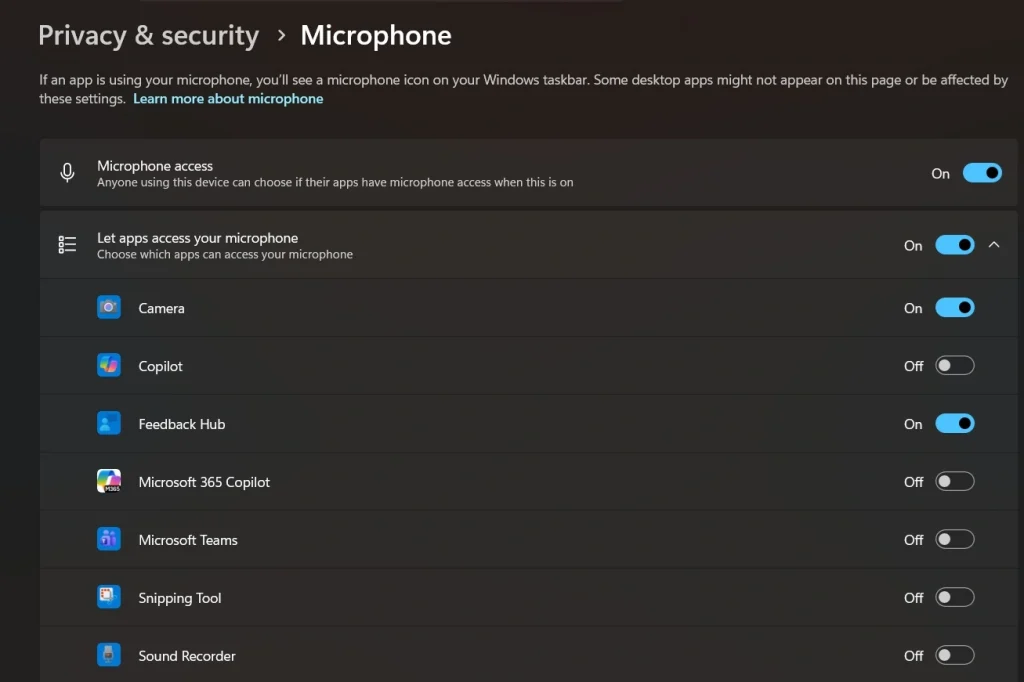
Step 2: If access is disabled, turn it on. Restart your system. Then test the microphone again in a simple app.
Method 2: Review App-Specific Permissions
Even if system access is enabled, apps may still not work. This happens when permission is blocked at the app level. Each app must be allowed separately. This step is important in troubleshooting microphone privacy settings.
Many users install apps and skip permission prompts. As a result, the app does not get access to the microphone. Some systems also reset permissions after updates. This can cause sudden issues.
Another point to note is background permissions. Some apps need permission to use the microphone in the background. If this is blocked, the app may not function properly during calls or recordings.
Step 1: Open the microphone settings and scroll to the app list. Locate the app you want to use and see if its permission is turned on.
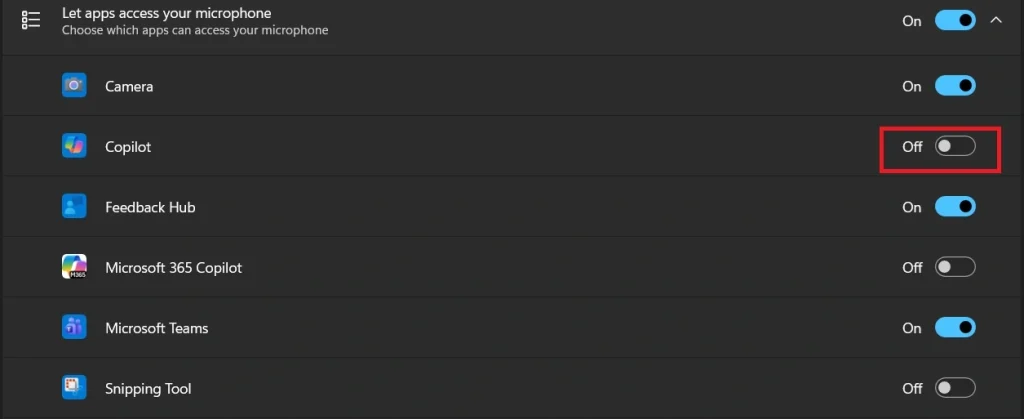
Step 2: If permission is off, turn it on. Close the app and reopen it. Test the microphone again.
Method 3: Check Device and Input Settings
Sometimes the issue is not with permissions but with the selected device. Systems can have multiple input devices. If the wrong one is selected, the microphone may not work.
Users often connect new devices like headsets or external microphones. The system may not switch automatically. This can lead to confusion. Selecting the correct input device is an important step in troubleshooting microphone privacy settings.
Another common issue is low input sensitivity. If the input level is too low, the microphone may appear inactive. Adjusting these settings can solve the problem.
Step 1: Open sound settings. Go to the Input section. Check which device is selected as the default microphone.
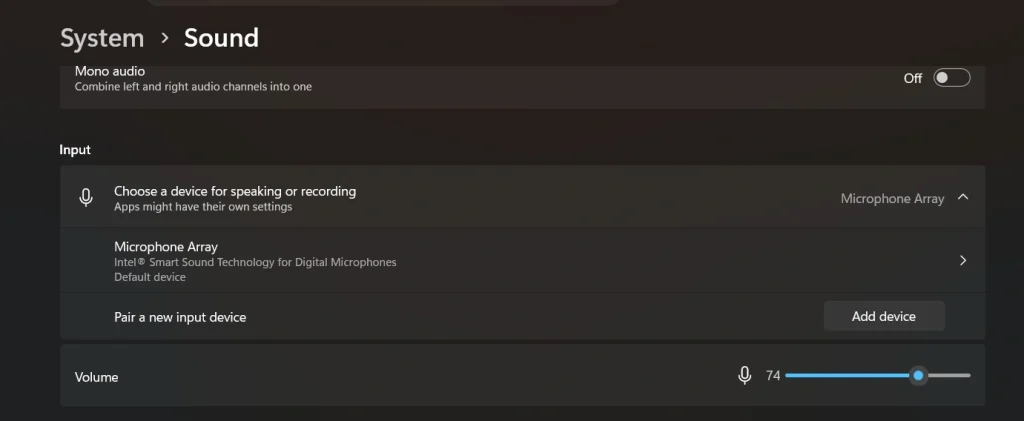
Step 2: Select the correct device. Adjust the input volume to a suitable level. Test the microphone using a built-in test feature.
Author’s Tip
Always take a slow and steady approach when dealing with system settings. Many users rush through options and change things without understanding them. This often creates more problems than it solves. It is better to make one change at a time and test the result. This method helps you clearly see what works and what does not.
It is also helpful to build a habit of checking permissions when installing new apps. Most issues with microphones come from denied access. If you pay attention during installation, you can avoid many problems later. Keeping your system updated and clean also plays a big role.
A well-maintained system runs more smoothly and faces fewer errors.
Conclusion
Microphone issues can seem complex at first, but they are often simple to fix. Most problems come from settings that block access. Understanding how privacy controls work is the key. Once you know where to look, the solution becomes clear. A few careful steps can restore full functionality.
Troubleshooting microphone privacy settings is not just about fixing a problem. It also helps you understand your system better. It gives you control over your device and improves your confidence in handling technical issues. With the right approach, you can solve these problems quickly and keep your system running smoothly.
FAQs:
Why does my microphone work in one app but not another?
This usually happens because each app has its own permission settings. One app may be allowed to use the microphone, while another is blocked. This can also happen if permission was denied earlier and not updated later. Checking the microphone access settings for each app can help fix the issue.
Do I need to reinstall apps to fix microphone issues?
In most cases, reinstalling the app is not required. Problems are often caused by incorrect settings or blocked permissions. Adjusting these settings usually solves the issue. Reinstallation should only be considered if the app still does not work after all basic checks.
Can antivirus software block microphone access?
Yes, some antivirus or security programs can block microphone access as a safety measure. They do this to prevent unauthorized use. If your microphone is not working, it is a good idea to check the antivirus settings and allow access for trusted apps if needed.
Author Bio:
Dinesh Lakhwani 

Dinesh Lakhwani, the entrepreneurial brain behind “TechCommuters,” achieved big things in the tech world. He started the company to make smart and user-friendly tech solutions. Thanks to his sharp thinking, focus on quality and the motto of never giving up, TechCommuters became a top player in the industry. His commitment to excellence has propelled the company to a leading position in the industry.
Popular Post











Recent Post
Troubleshooting Microphone Privacy Settings: Complete Guide
Sound is a basic part of how we use computers today. People attend meetings, record audio, speak to others, and use voice tools almost every day. A working microphone makes all these tasks easy. When the microphone fails, even simple work becomes difficult. Many users first think the device is broken. In reality, the issue […]

Windows Sound Settings – Sound Control Panel: Complete Guide
Sound plays an important role in how we use a computer every day. It supports both work and leisure. You need it for meetings, videos, music, and alerts. When audio fails, even simple tasks become difficult. Many users feel stuck when sound issues appear. This usually happens because they are not familiar with Windows Sound […]

Run a Troubleshooter For PC Issues Windows: Complete Guide
A computer plays an important role in everyday life. People use it for work, study, communication, and entertainment. When a problem appears, it can interrupt everything. Even a small issue can waste time and create frustration. Many users feel unsure about how to fix such problems. They often think they need expert help. In reality, […]
![Adjusting Audio Output Settings Complete Guide [2026]](https://www.techcommuters.com/wp-content/uploads/2026/03/Adjusting-Audio-Output-Settings-Complete-Guide.webp)
Adjusting Audio Output Settings: Complete Guide [2026]
Sound is part of almost everything we do on a computer. It lets you watch videos, join calls, play music, and hear alerts. When the audio stops working the right way, it can interrupt both work and daily use. That is why adjusting audio output settings matters for every user. Many people get unsure when […]

Artificial Intelligence Explained: Concepts, Terminology, Benefits, and Future Trends
Artificial Intelligence, or AI, is basically computers doing things that usually need a human brain. We’re talking about stuff like learning from experience, figuring out problems, understanding language, and making decisions. It’s not magic, just a lot of data, pattern-spotting, and math behind the scenes. Now, AI doesn’t actually think or feel like we do. […]

Resolving Microphone Detection Problems: Latest Guide [2026]
Microphones are important tools in daily life. People use them for office meetings, online classes, interviews, gaming, customer support, and content creation. When a system fails to detect a microphone, communication stops at once. This situation can cause stress and confusion. Many users believe the microphone is damaged. In reality, most problems are simple and […]

How To Switch To A Dark Background Theme In Windows [2026]
Most people spend many hours each day in front of a computer screen. Office work, online classes, editing, browsing, and streaming all require long screen time. A bright white background may look clean at first. However, over time, it can feel sharp and tiring. The strong contrast between white backgrounds and black text may cause […]

How to Switch From Local To Microsoft Account On Windows
Many users begin with a local account when they set up a new Windows computer. A local account works only on that single device. It stores settings, files, and preferences locally. It does not connect to online Microsoft services. For basic offline use, it works well. However, as digital needs grow, many users want better […]

How to Switch Windows 10 to a Local Account: Complete Guide
Windows 10 allows users to sign in with either a Microsoft account or a local account. When you set up a new computer, the system often suggests using a Microsoft account. This account connects your device to Microsoft services such as Outlook, OneDrive, and the Microsoft Store. It also syncs settings, themes, and passwords across […]

How To Change Default Apps For File Types In Windows
Windows is designed to make using your computer easy. One way it does this is by assigning default apps to different file types. This means when you open a file, Windows automatically opens it with a specific program. For example, photos may open with Photos, music with Groove Music, and PDFs with Edge. These default […]

