How to Operate the Taskbar in Windows
Last updated on February 4th, 2025 at 2:29 pm
Introduction
The Taskbar in the Windows system is not limited to showing time or access to the Windows button. Generally, Taskbar helps the user quickly navigate the system’s different components and applications. It helps the user to work more efficiently by navigating the background apps directly from the Taskbar. Therefore it makes you work easily and quickly without the hassle of closing and minimizing apps.
However, if you are not familiar with the features and customization of Taskbar, you’ll learn about every feature. We will guide you through operating the Taskbar and how to customize the programs in the Taskbar. By the end of this post, you will have an excellent understanding of the function and productivity of Taskbar.
What Changes can we make in Taskbar?
The Taskbar allows the users to customize in different ways. You can make multiple changes with Taskbar despite checking the date and time. You can adjust the overall look of the desktop by updating Taskbar. Let’s talk about the list of changes that you can make with the Taskbar.
1. How to Pin Apps in Task
Accessing any file or application you frequently use in your Windows becomes easy. You can drag any application with a click and hold from the Windows button. Moreover, you can access recent and frequently used files of particular apps directly from the Taskbar. You can pin or Unpin the program from the list in every app.
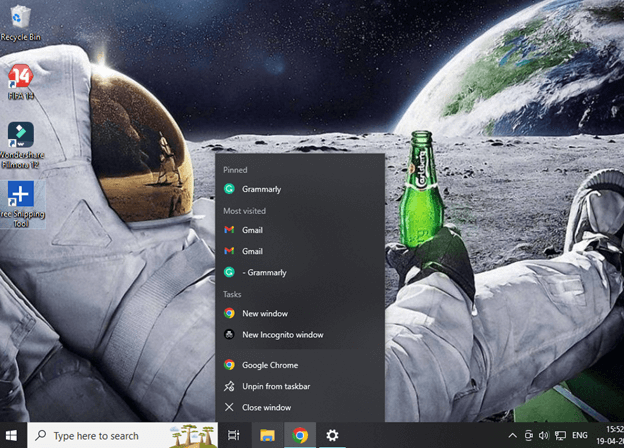
A) Pin and Unpin the Application in Taskbar
- Click on the Start or Search box to get the application.
- Press the right click of the mouse and drag your cursor to the option Pin to Taskbar.
- It will bring that application to the Taskbar.
- To Unpin that application, use the right mouse, click and select Unpin from taskbar option.
B) Pin and Unpin Programs from the App list
- Right Click on the pinned application to watch the frequent running programs.
- You can Pin or Unpin any program in the list to save it for quick access.
2. Change Taskbar Settings
You can customize your Taskbar according to your taste and requirement. Taskbar allows you to make multiple changes and integrate apps into it. You can easily change the setting of the Taskbar by pressing the Right mouse click on the vacant section of Taskbar, and it will show you the Taskbar settings option.
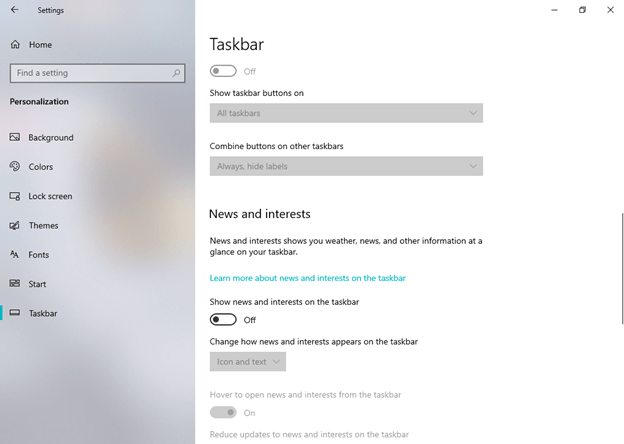
Now you can make any changes and customize the overall layout and popup of the Taskbar on the screen. You will see many options to manage the Taskbar according to your necessity. Let’s check what changes you can make with Taskbar.
A) Lock & Unlock the Taskbar
If you do not want to change the location and pop of Taskbar on a screen, do not move the toggle of Lock the Taskbar. Follow these steps to make any changes:
- Open the Taskbar setting.
- You’ll find an option to Lock the Taskbar.
- Move the toggle according to your requirement to lock or unlock the Taskbar.
- If your system Lock the Taskbar option is on, then you won’t be able to move or hide the Taskbar.
- You must turn it off to make changes or hide the Taskbar.
B) Move Taskbar from the Original Location
Now you can locate Taskbar from its original location to any side of the monitor. However, it won’t make any changes, but it is for the user’s convenience to access the Taskbar for various purposes. Follow the steps to relocate the Taskbar:
- Open the Taskbar setting.
- Scroll the cursor till you find the Taskbar location on screen.
- Now you can adjust the location of the Taskbar at Left, Top, Right, Bottom.
C) Manage the height of the Taskbar

Every system has a default Taskbar height visible on the screen. You can also manage the Height of the Taskbar by deactivating the Lock the Taskbar option. Now at the border of the Taskbar, you’ll see your mouse cursor change to a double-sided arrow. Without dropping the Left Click, track the cursor according to your desired height and release the pointer to fix the height.
D) Check the Battery status on Taskbar
- You can add a battery icon by opening the Taskbar setting.
- Scroll down to the Notification area.
- You will find an option to Select which icons appear on the Taskbar.
- Turn on the Power option to see the battery percentage.
E) Rearrange Taskbar Applications
You can easily drag or move the Taskbar option according to your requirement. The Taskbar does not show different applications running in multiple Windows. If multiple Windows run a similar application, it will show you in a group.
You can manage the setting by clicking the Taskbar buttons > Combine Taskbar setting.
The default setting is Always hide labels: The application will appear in a single button on Taskbar in this option. However, you can access multiple Windows by holding the cursor on the app.

When Taskbar is full: This option will show each Windows individually. When you open multiple Windows apps, and the Taskbar gets full, this setting will combine the windows of a particular program in one.
Never: This option segregates each window and application running on the system. You will find every application differentiated in the Taskbar. Howeverment, when the Taskbar gets full, the icon becomes smaller.
F) Change the Size of Icons on the Taskbar
You can change the size of icons on the Taskbar by following this setting:
- Click on the vacant space of Taskbar to open the Taskbar setting.
- Scroll down to the option Use small taskbar button.
- Move the toggle to switch the size of icons on Taskbar.
G) Show badges on Taskbar buttons
You can see the activity running in the background while the app is minimized. If applications run progressive work while minimizing, this option will alert you to the process. For example, if you are copying any file into the drive, this option will show you the amount of data transferred to another location.
- Open the Taskbar setting.
- Scroll down to the option Show badges on taskbar buttons.
- Move the toggle on and off according to your requirement.
- The default setting is on, which shows the background process.
H) Use Peek to preview settings.
Use Peek to preview settings allows the user to preview the background program running while you are working on another Windows.
- Open the Taskbar setting.
- Locate your mouse to Use Peek to preview the desktop when you move your mouse to the Show desktop button at the end of the Taskbar.
- Move the toggle on and off according to your requirement.
I) Hide the Taskbar
It is the smartest feature to increase the size of your screen by a few centimeters. You can hide the Taskbar with the setting:
- Open the Taskbar setting.
- Select the option Automatically hide the Taskbar and desktop mode or Automatically hide the Taskbar in tablet mode.
- Move the toggle to turn on and off the setting.
3. Change the Taskbar Color
- Click on Start> Setting> Personalization.
- Click on the Color option and move your cursor to show accent color on the following surface.
- Now you can change the color of the following: Start, Taskbar and action center or Title bar and Windows border.
Conclusion
You can change multiple settings of your Taskbar to make it look good and appealing as per your requirement. Mera has multiple options that can change your Taskbar’s overall look and showcase.
You can follow these steps to make any changes in your Taskbar. There is proper guidance on steps to follow to change every setting. Explore the versatility of Taskbar in your Windows system and enjoy quick access to Taskbar.
FAQs
Q1 Can we make changes to the default color of the Taskbar?
Yes, Taksbar generally comes with a default setting, but you can change its color setting. Besides the Light and Dark theme of the Taskbar and applications, you can customize the theme with a custom option in the color setting of the Taskbar.
Q2 How can we pin the Application from the desktop?
Pinning the application directly from the desktop to the Taskbar is very easy. You can drag the application in Taskbar to the vacant location, which will automatically pin it. Now you can access that application directly from Taskbar without minimizing other Apps.
Q3 Can we get news Feeds on Taskbar in Windows 10?
Yes, you can enable the setting to show the news and interest in the Taskbar setting. It will pop up multiple news and the latest on your desktop without relocating to any browser.
Author Bio:
Dinesh Lakhwani 

Dinesh Lakhwani, the entrepreneurial brain behind “TechCommuters,” achieved big things in the tech world. He started the company to make smart and user-friendly tech solutions. Thanks to his sharp thinking, focus on quality and the motto of never giving up, TechCommuters became a top player in the industry. His commitment to excellence has propelled the company to a leading position in the industry.
Popular Post











Recent Post

Troubleshooting Microphone Privacy Settings: Complete Guide
Sound is a basic part of how we use computers today. People attend meetings, record audio, speak to others, and use voice tools almost every day. A working microphone makes all these tasks easy. When the microphone fails, even simple work becomes difficult. Many users first think the device is broken. In reality, the issue […]

Windows Sound Settings – Sound Control Panel: Complete Guide
Sound plays an important role in how we use a computer every day. It supports both work and leisure. You need it for meetings, videos, music, and alerts. When audio fails, even simple tasks become difficult. Many users feel stuck when sound issues appear. This usually happens because they are not familiar with Windows Sound […]

Run a Troubleshooter For PC Issues Windows: Complete Guide
A computer plays an important role in everyday life. People use it for work, study, communication, and entertainment. When a problem appears, it can interrupt everything. Even a small issue can waste time and create frustration. Many users feel unsure about how to fix such problems. They often think they need expert help. In reality, […]
![Adjusting Audio Output Settings Complete Guide [2026]](https://www.techcommuters.com/wp-content/uploads/2026/03/Adjusting-Audio-Output-Settings-Complete-Guide.webp)
Adjusting Audio Output Settings: Complete Guide [2026]
Sound is part of almost everything we do on a computer. It lets you watch videos, join calls, play music, and hear alerts. When the audio stops working the right way, it can interrupt both work and daily use. That is why adjusting audio output settings matters for every user. Many people get unsure when […]

Artificial Intelligence Explained: Concepts, Terminology, Benefits, and Future Trends
Artificial Intelligence, or AI, is basically computers doing things that usually need a human brain. We’re talking about stuff like learning from experience, figuring out problems, understanding language, and making decisions. It’s not magic, just a lot of data, pattern-spotting, and math behind the scenes. Now, AI doesn’t actually think or feel like we do. […]

Resolving Microphone Detection Problems: Latest Guide [2026]
Microphones are important tools in daily life. People use them for office meetings, online classes, interviews, gaming, customer support, and content creation. When a system fails to detect a microphone, communication stops at once. This situation can cause stress and confusion. Many users believe the microphone is damaged. In reality, most problems are simple and […]

How To Switch To A Dark Background Theme In Windows [2026]
Most people spend many hours each day in front of a computer screen. Office work, online classes, editing, browsing, and streaming all require long screen time. A bright white background may look clean at first. However, over time, it can feel sharp and tiring. The strong contrast between white backgrounds and black text may cause […]

How to Switch From Local To Microsoft Account On Windows
Many users begin with a local account when they set up a new Windows computer. A local account works only on that single device. It stores settings, files, and preferences locally. It does not connect to online Microsoft services. For basic offline use, it works well. However, as digital needs grow, many users want better […]

How to Switch Windows 10 to a Local Account: Complete Guide
Windows 10 allows users to sign in with either a Microsoft account or a local account. When you set up a new computer, the system often suggests using a Microsoft account. This account connects your device to Microsoft services such as Outlook, OneDrive, and the Microsoft Store. It also syncs settings, themes, and passwords across […]

How To Change Default Apps For File Types In Windows
Windows is designed to make using your computer easy. One way it does this is by assigning default apps to different file types. This means when you open a file, Windows automatically opens it with a specific program. For example, photos may open with Photos, music with Groove Music, and PDFs with Edge. These default […]

